
Scripting view (New)
The Scripting view lets you manage scripts and review their results.
This documentation reflects the current capabilities of this Ecoverse view. As new features and functions are released, this documentation will be updated to match. Please see the
Scripting provides three tabbed views. Use these Ecoverse views to search, filter, sort, export, and manage scripts. For the full list of table columns, see Data columns in the Scripting view.
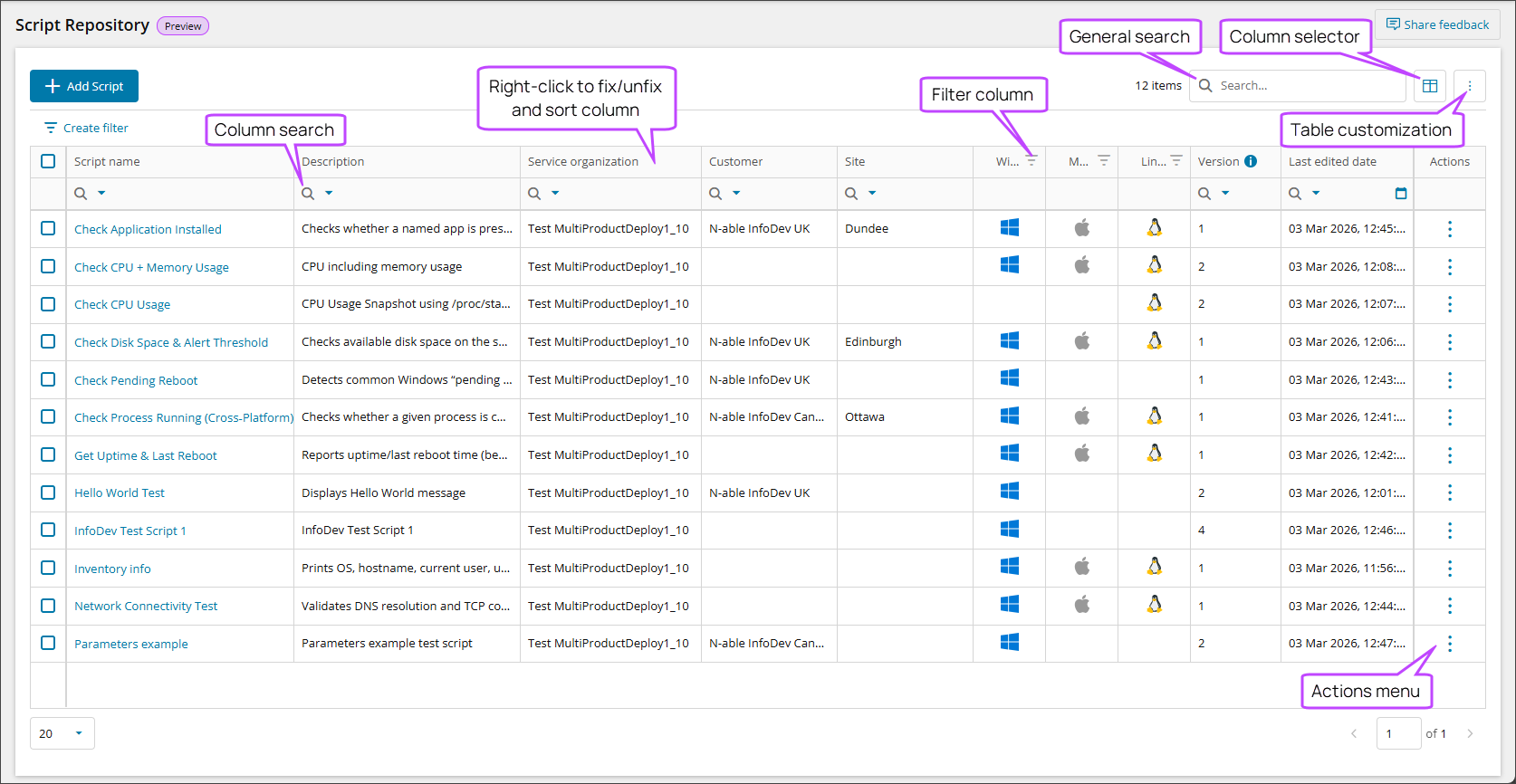
- SCRIPT REPOSITORY: Import, edit, view, and manage scripts.
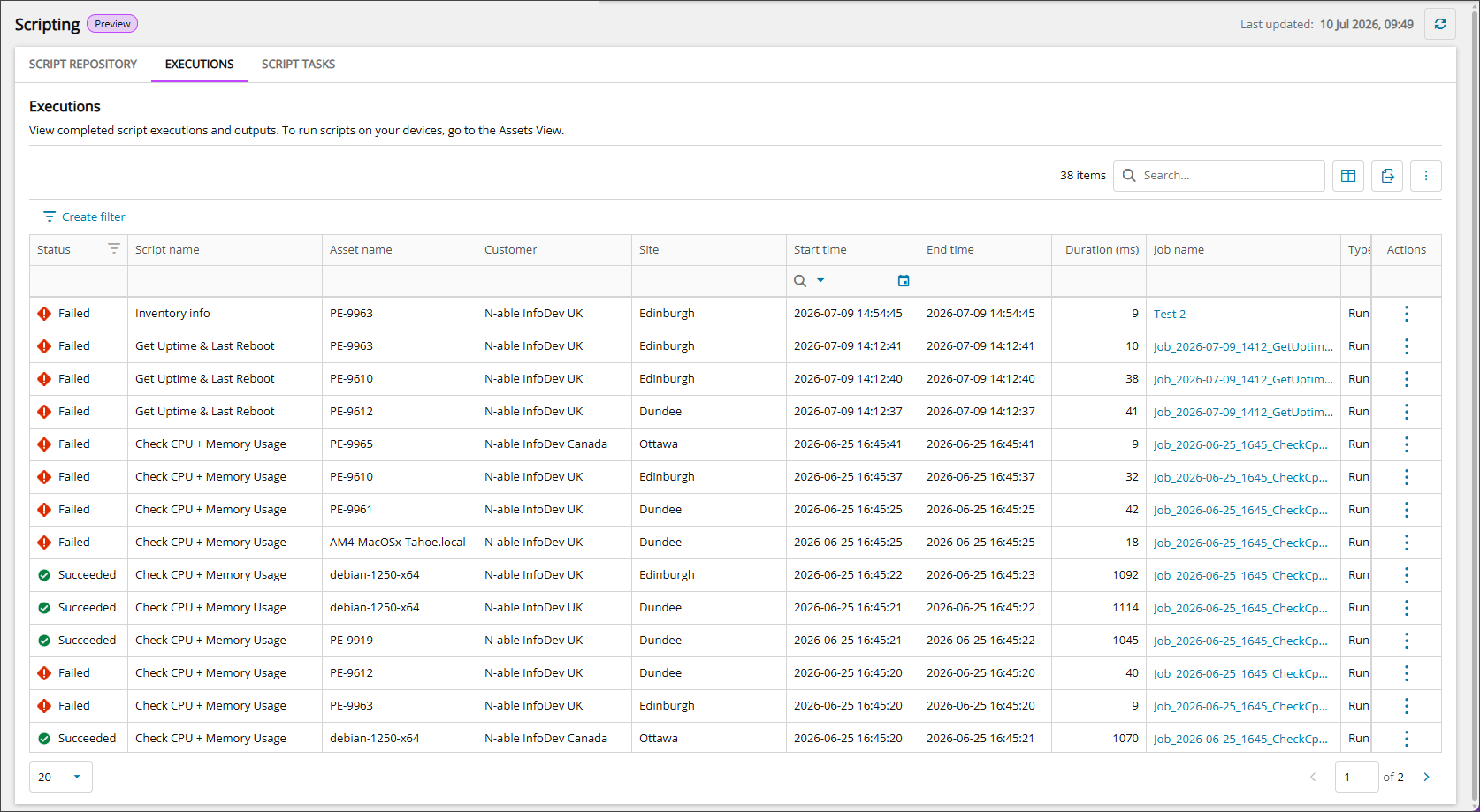
- EXECUTIONS: View completed script executions and outputs.
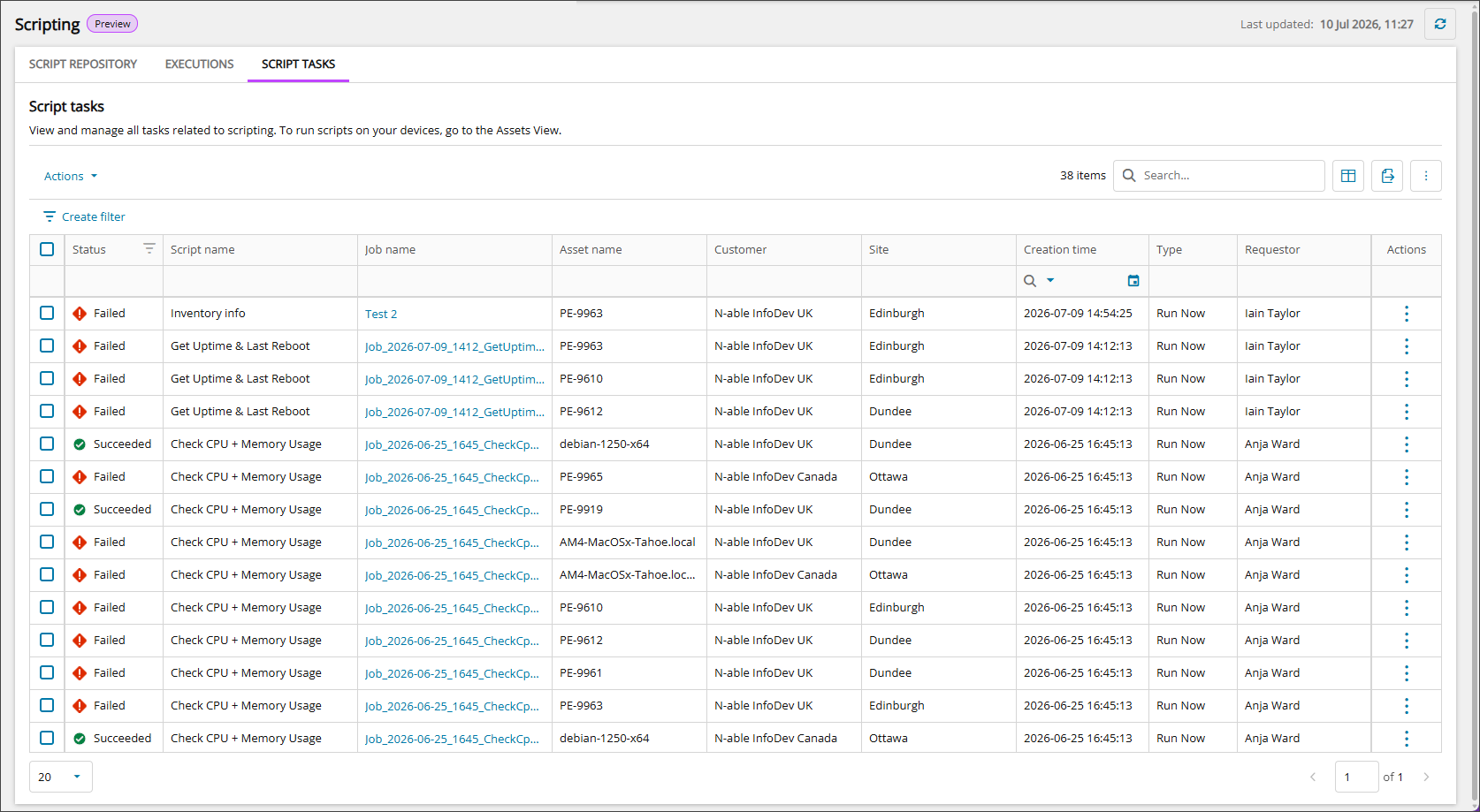
- SCRIPT TASKS: View and manage all tasks related to scripting.
Access the Scripting view
- Go to Ecoverse > Views > Scripting.
Actions available in Scripting view
Manage scripts from the Scripting view with the following actions:
- View script details
- Add a script
- Edit a script
- Download a script
- Duplicate a script
- Delete scripts
- Cancel script tasks
- Download a script task output
- Run scripts (from Assets view)
- View script results (from Assets view)
All actions initiated from the Scripting view are recorded in the User Audit Report, available from Reports > User Audit Report.
Ecoverse functions
All new Ecoverse views support filtering, sorting, searching, and exporting.
Select a link below to view full instructions and details.
- Understand Ecoverse workspaces
- Filter and sort workspace data
- Search an Ecoverse workspace
- Build a custom filter
- Custom filter components and operators
- Customize a workspace layout
- Save an workspace view
- Export workspace data
Some Ecoverse views may not include all available functions at launch. As new views are developed, features like filtering, sorting, searching, and exporting may be added over time.
Related articles
- Requirements for Scripting view
- Add a script
- Read about the Modern Agent