
Save an workspace view
A saved Ecoverse workspace view stores your filters, search criteria, and column settings. Use a saved view to return to those settings later.
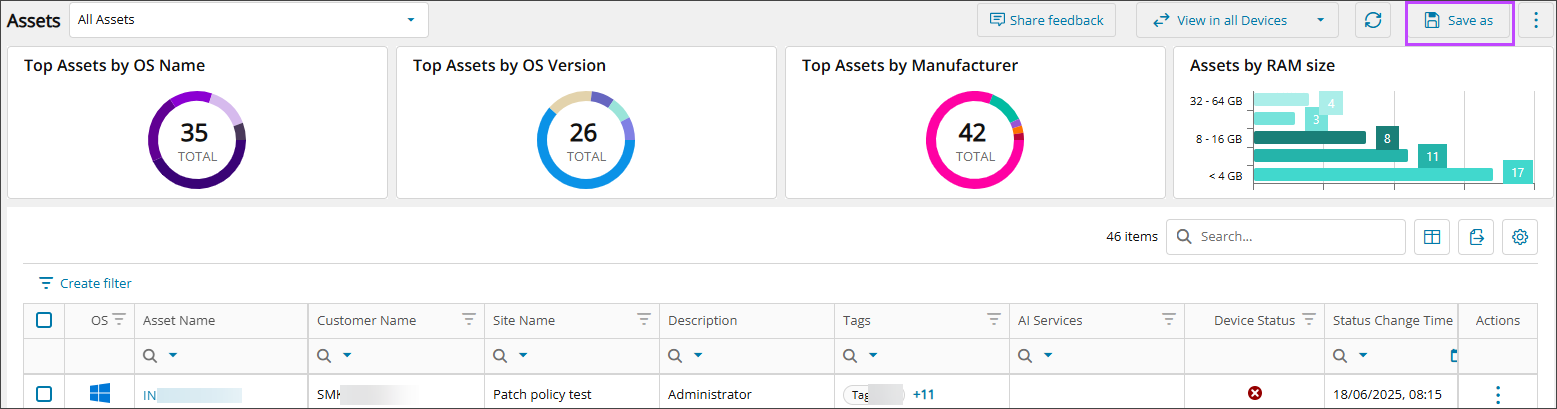
Select Save as to create a saved view. Select Save to update the saved view that is open.
Saved views:
- Are not available in every Ecoverse workspace.
- Are private to the user who creates them.
Before you begin
- Open an Ecoverse workspace that supports saved views.
Create a saved view
- Customize the workspace. For example, apply a filter or add a column.
-
In the upper-right corner, select Save as.
-
Enter a name for the view. The name can contain up to 50 characters.
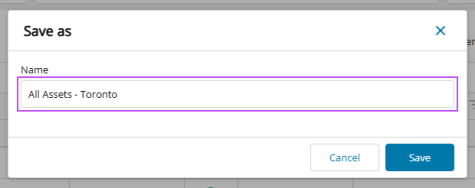
- Select Save.
Update a saved view
-
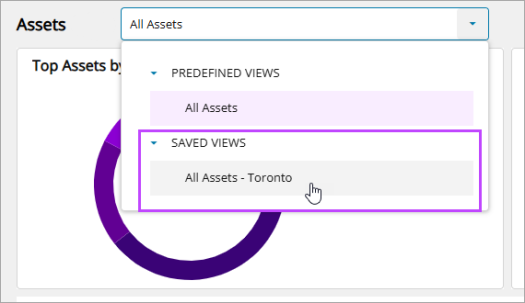
Next to the page title, such as the Assets title, select the saved view from the dropdown list.
- Modify the workspace settings.
- Select Save.
Rename or delete a saved view
- Open the saved view.
-
In the upper-right corner, select the action menu.
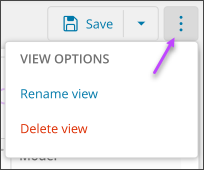
- Select Rename View or Delete View.
- Complete the action:
- To rename the view, enter a new name and select Rename.
- To delete the view, review the confirmation message and select Delete.
A notification in the upper-right corner confirms whether the action succeeded or failed.
Related topics