
Rebooting assets via Ecoverse views
The Ecoverse views provide functionality through a variety of menus and on-screen options dependent on which view you currently have displayed.
Reboot an asset from the Assets view Actions menu
- Go to Dashboards > Assets.
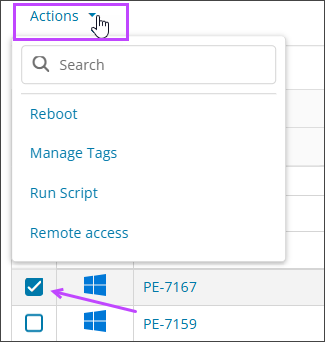
- Select an asset, then choose Actions > Reboot to open the reboot settings.
- Enter a value for the Reboot countdown timer. This sets how long the end user has to save their work before the system restarts.
If you set the countdown to No timer (Reboot now), the system reboots immediately without showing a message to the user.
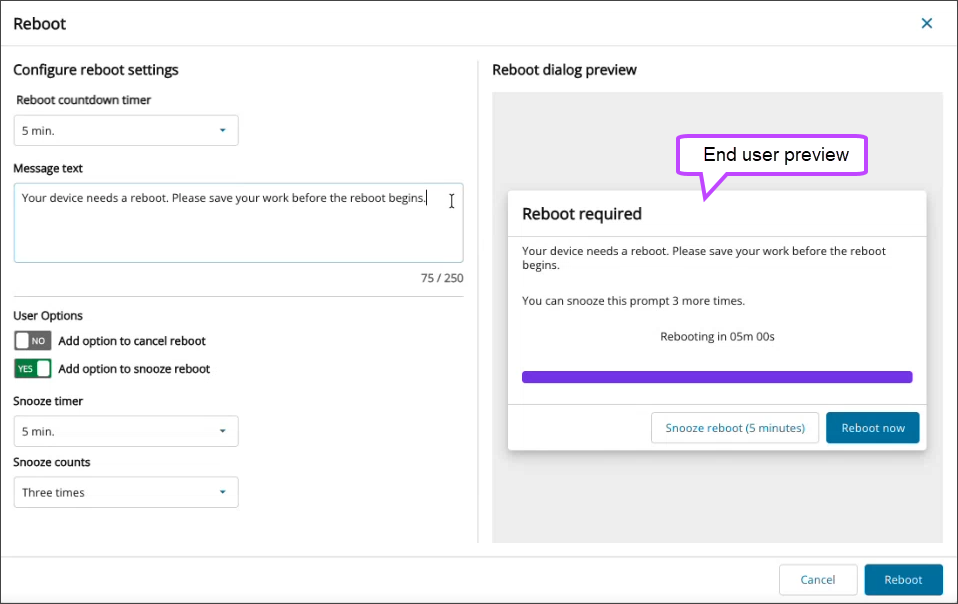
- (Optional) Customize the Message text that appears in the end-user reboot dialog.
- For Windows and macOS only:
- (Optional) To allow the end user to cancel the reboot, turn on Add option to cancel reboot.
- (Optional) To allow the end user to snooze the reboot:
- Turn on Add option to snooze reboot.
- Set the Snooze timer to define how long each snooze lasts.
- Set the maximum number of Snooze counts to limit how many times a user can delay the reboot. After the snooze attempts are used, the reboot occurs when the countdown ends.
- Review the content in the Reboot dialog preview, then select Reboot.
Reboot an asset from the
- Go to the Assets view.
- (Optional) Apply a
- Select the asset row, not a link in the row.
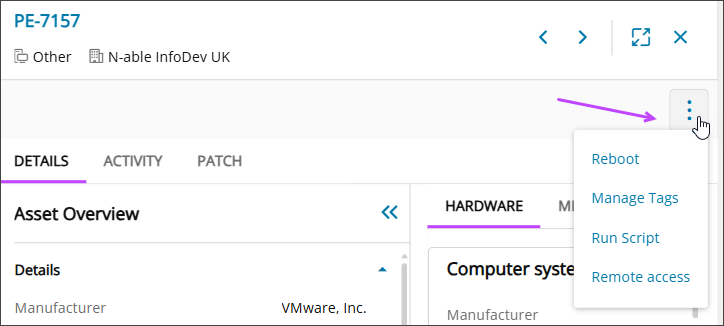
- In the , select the Actions menu and then choose Reboot.
- In the Reboot dialog, configure settings:
- Reboot now without message: Select the checkbox to reboot immediately. Clear it to set a timer.
- Reboot with message:
- Enter a message (up to 250 characters).
- Select a timer duration. A preview appears on the right.
- Select Reboot.
How to Reboot an asset from the Vulnerability Management Assets at risk view
- Navigate to the Vulnerability Management view.
- Choose the By Vulnerability tab.
- (Optional) Select a custom view or apply a
- Locate the vulnerability and select the Assets at risk entry.
- Select the Actions menu for the target asset.
- Choose Reboot from the menu.
- The Reboot dialog is displayed. Configure the required reboot settings;
- Select the Reboot now without presenting a message checkbox to reboot immediately without showing a message. (Clear this checkbox if a Reboot timer is needed).
- In the Configure reboot message section, enter a message for the end-user of the asset (maximum characters is 250).
- Select an appropriate Reboot timer duration from the drop-down menu. The Reboot message preview is shown to the right.
- When you are happy with the configured settings, select Reboot.
When you don't have the permissions to reboot a device, the Actions menu shows Reboot unavailable.
Reboot without warning
Reboot with warning
Related articles
- Ecoverse views
- Filter and sort Ecoverse views
- Search Ecoverse views
- Create custom filters in Ecoverse views
- Custom filters examples
- Rebooting assets via Ecoverse views
- Save Ecoverse views
- Export data from Ecoverse views
- Remote sessions via Ecoverse views
- Ecoverse view Overlays
- Ecoverse view Detail panels
- Discover Assets view (New)
- Discover Vulnerability Management (New)
- Read about the Modern Agent