
Remote sessions via Ecoverse views
By using the Remote Access (Take Control) feature, you can ensure a smooth and efficient troubleshooting process, enhancing customer satisfaction without disrupting their workflow.
Start a Remote Access session from the Assets view Actions menu
- Go to the Assets view.
- (Optional) Apply a
- Select the asset and select Actions > Remote Access.
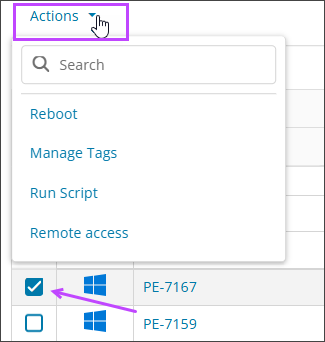
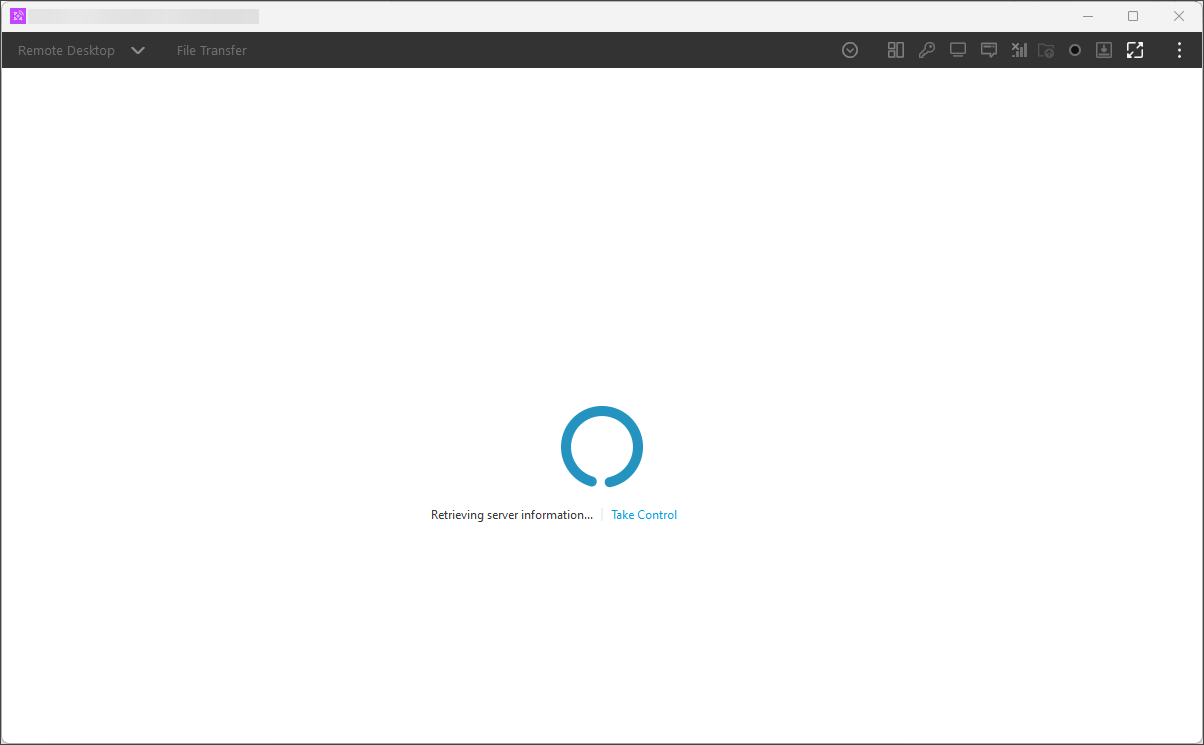
- Take Control opens and connects to the asset.
Start a Remote Access session from the
- Go to the Assets view.
- (Optional) Apply a
- Select the asset row, not a link in the row.
- In the , select the Actions menu and choose Remote Access.
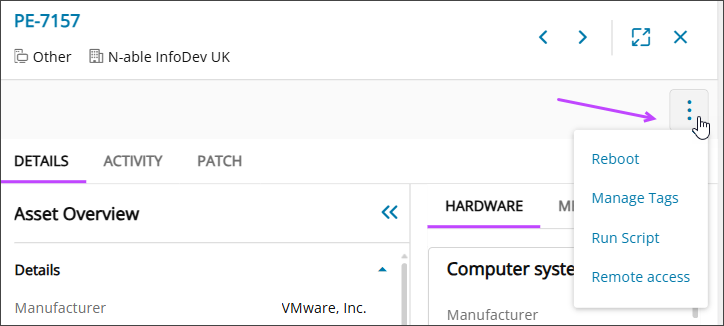
- Take Control opens and connects to the asset.
Start a remote access session from the Assets at risk view
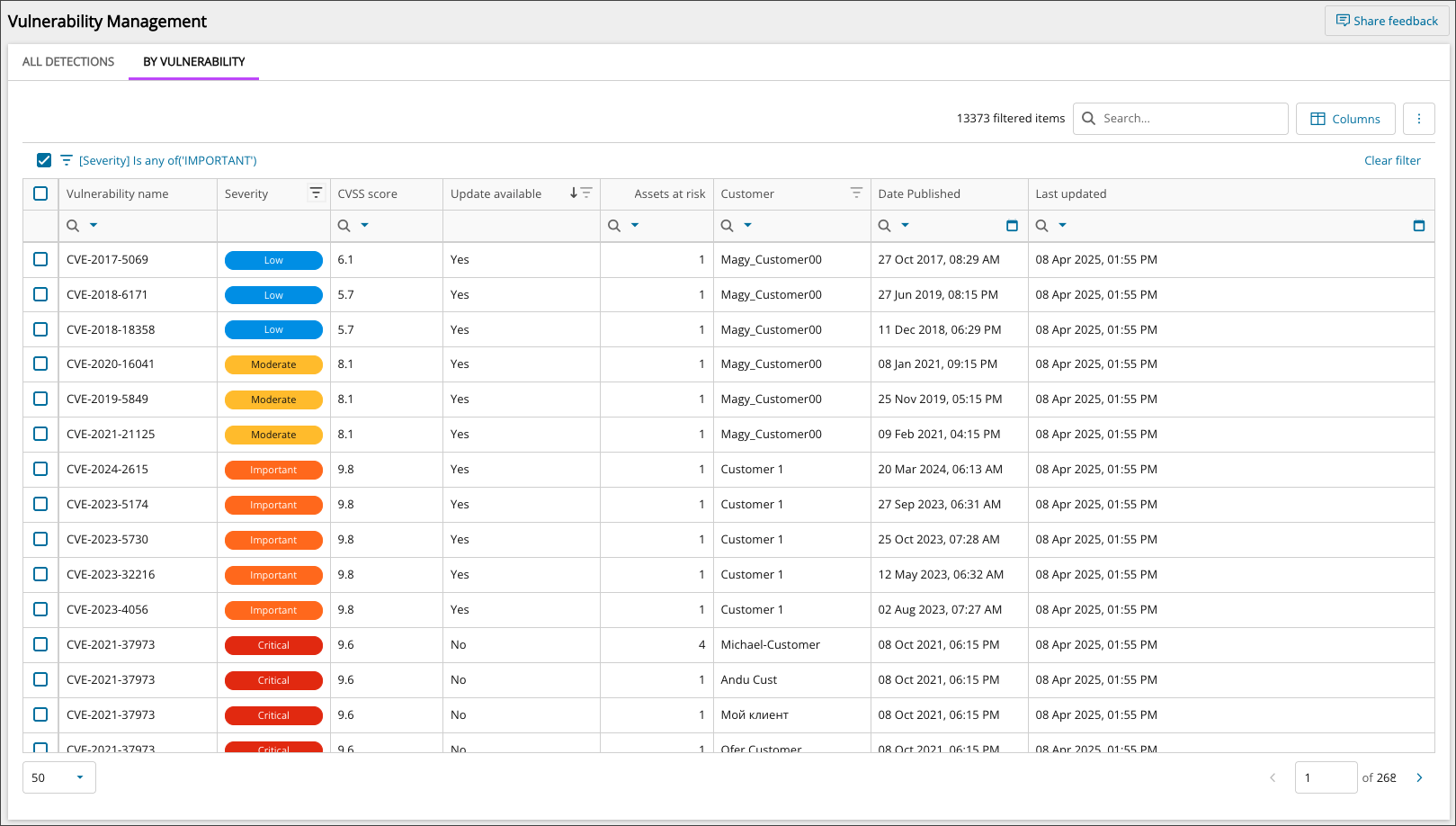
- Navigate to the Vulnerability Management view.
- Choose the By Vulnerability tab.
- (Optional) Select a custom view or apply a
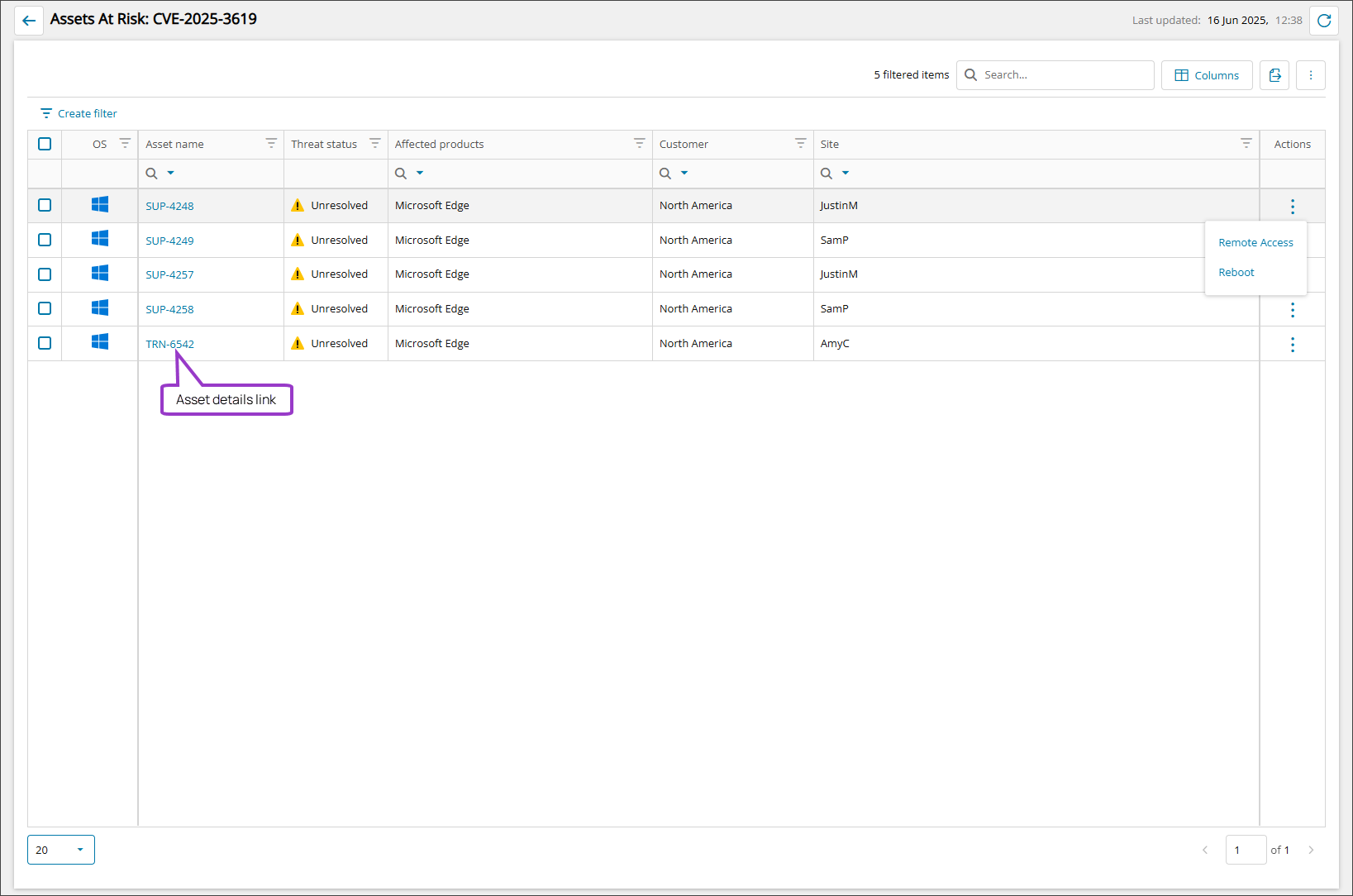
- Locate the vulnerability and select the Assets at risk entry.
- The Assets at risk view is opened.
- Select the Actions menu for the target asset.
- Choose Remote Access.
- Take Control launches and connects you to the asset.
Related articles
- Ecoverse views
- Filter and sort Ecoverse views
- Search Ecoverse views
- Create custom filters in Ecoverse views
- Custom filters examples
- Remote sessions via Ecoverse views
- Save Ecoverse views
- Export data from Ecoverse views
- Ecoverse view Overlays
- Ecoverse view Detail panels
- Discover Assets view (New)
- Discover Vulnerability Management (New)
- Discover Scripting view (New)
- Read about the Modern Agent