
After the Network Discovery Agent completes its initial scan (typically within five to ten minutes), any detected wired or wireless networks become available for management.
How to manage a network
- Go to the Networks tab in the All Devices view.
- Open the Networks drop-down menu and select Manage a new network.
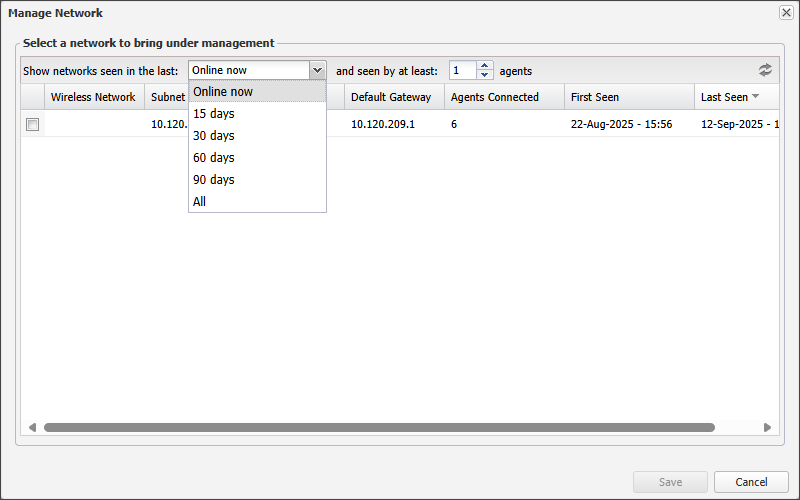
- In the Manage Network dialog, networks that are currently Online now and visible to at least one Network Discovery Agent are displayed. Use the filters to refine the list:
- Show networks seen in the last: Online now, 15 days, 30 days, 60 days, 90 days, or All (time).
- and seen by at least: 1 - 1000 agents.
- Select the checkbox to the left of the network you want to bring under management.
- Choose Save to continue.
- Enter a meaningful name for the managed network in the Settings section in the Configure Managed Network dialog.
- Add any required Network Credentials:
- Select Add.
- Choose the credential type.
- Enter the required details.
- Select the Use Windows Guest Account checkbox to include the Windows guest account as part of the credentials. Clear the checkbox to exclude it.
- When finished, select OK to save and close the dialog.
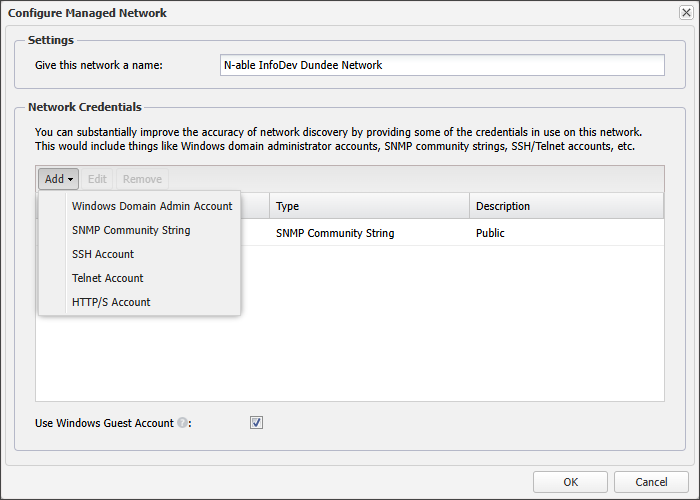
You can edit or remove credential by using the Edit or Remove options.
You can update the network name and credentials later via the Edit Networks dialog.
Network credentials
Providing credentials improves the accuracy of scan results. Supported credential types include:
| Type | Required information | Notes |
|---|---|---|
| Windows Domain Admin Account | Description, Username (domain\\username), Password |
Improves scan accuracy using WMI, NetBIOS, etc. |
| SNMP Community String | Description, SNMP string | Connects to SNMP-enabled devices (routers, printers, servers). |
| SSH Account | Description, Username, Password, SSH Key File | Connects to Unix-like systems (computers, routers, firewalls). |
| Telnet Account | Description, Username, Password | Connects to Unix-like systems. |
| HTTP/S Account | Description, Username, Password | Connects to web admin pages (routers, firewalls). |
Windows Guest account
By default, Network Discovery uses the Windows Guest account to anonymously query SMB data on newly discovered Windows devices. You can disable this by deselecting the checkbox in the Configure Managed Network dialog.
Depending on your security settings, using the guest or domain admin account may trigger failed login attempts in the Windows Security Event Log. This could affect the Failed Login Check if configured for the device.
Public Community SNMP String
The Public Community SNMP String is included by default. If unsupported in your environment, you can remove it to avoid scan errors. Only the credentials you enter will be used.
Related articles