
You can push-install the latest Windows and macOS Advanced Monitoring Agent to devices connected to a managed network directly from the All Devices view. This method avoids manual installation or the use of Group Policy for Windows.
Push-installs use Discovery Agents to download and deploy the installation package to selected devices. If monitoring template policies are configured, they are automatically applied once the Agent is installed.
Agents install in the default mode for the device type:
- Server Mode for servers
- Workstation Mode for workstations
Server Mode is only available when manually installing the Windows Agent.
Push-install requirements
In addition to meeting operating system and network connectivity requirements, target devices must meet the following conditions:
General requirements
- Devices must be online at the time of installation.
- There is no queuing or scheduling for push installs. Offline devices will not receive the Agent.
Windows requirements
- Must be part of a domain or have Admin Shares remotely accessible
- Local firewall must allow File and Printer Sharing
macOS requirements
- Remote Login must be enabled using Terminal or System Preferences > Sharing
- This setting allows standard SSH login for remote terminal access
How to push install the Advanced Monitoring Agent
- In the All Devices view, go to the Networks tab.
- Select the managed network containing the target devices.
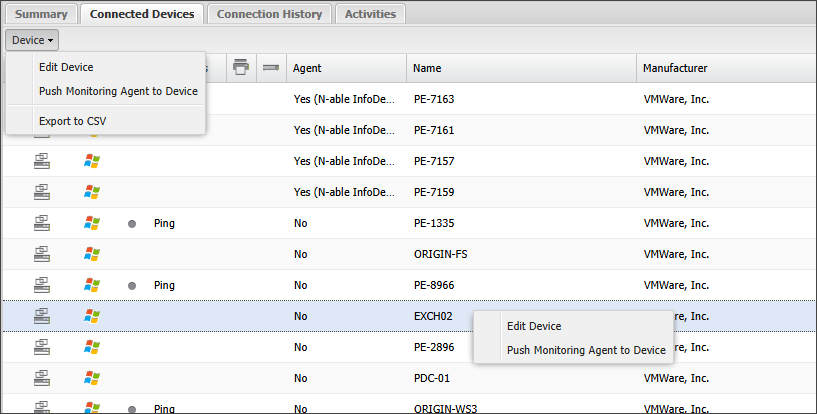
- In the South-pane Connected Devices tab, select one or more devices.
- Open the Device drop-down menu, or right-click your selection and choose Push Monitoring Agent to Device.
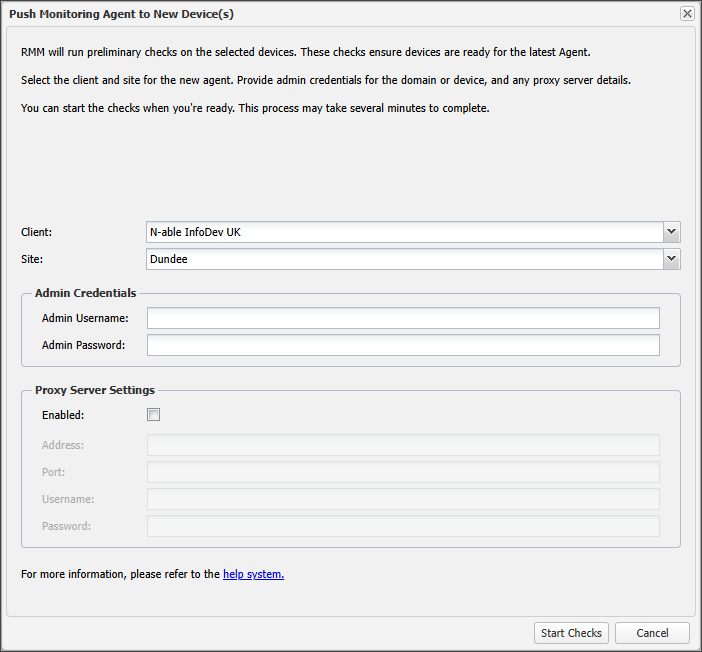
- In the Push Monitoring Agent to New Device(s) dialog:
- Set the Client and Site.
- Enter Admin Credentials for the domain or device.
- Must be for an Administrative user.
- Are transmitted in an encrypted state via SSL protected protocols.
- Must be for a user with administrative privileges capable of executing
sudocommands. - (Optional) Enable and provide Proxy Server Settings if required.
- Address: The IP address (not NetBios name)
- Port: Connection port
- Username: Format
DOMAIN\\usernamewith sufficient privileges - Password: Proxy authentication password
- Select Start Checks to run preliminary checks on the selected devices.
- A progress bar shows the status of the checks.
- Checks continue even if you leave the view or refresh the page.
- Results indicate whether each device passed or failed.
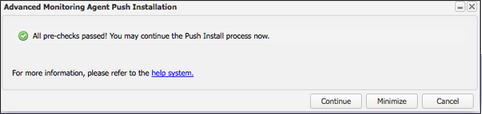
- Select Continue to begin installation on devices that passed the checks.
- Installation may take several minutes.
- Once complete, the device appears in the North-pane under the selected Client and Site.
- The Connected Devices and Activities tabs update to show installation status.
You can use Ctrl+click to select specific devices or Shift+click to select a range of devices. The Agent column shows if the Advanced Monitoring Agent already installed on a device.
Windows credentials:
macOS credentials:
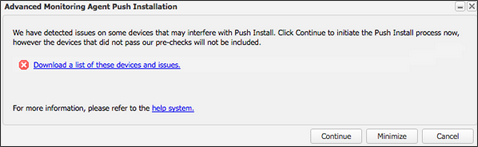
If all devices fail the preliminary checks, the Continue option is unavailable.
Related articles