
Start a Take Control Session from N-central Mobile
Initiate a remote support session to investigate device issues and provide technician assistance. How you start a session depends on your N-central server version.
Before You Begin
Verify that you have:
- Your N-central role includes Remote Control permissions
- The target device has Take Control enabled and available
- The device is currently online and accessible
If Take Control isn't available for a device you expect to support, your role may lack Remote Control permissions, or Take Control may not be enabled on that device. Contact your N-central administrator to verify your permissions and the device configuration.
Starting a Session from N-central Mobile (N-central 2026.4+)
Find the Device
Sign in to N-central Mobile and locate the device you want to support. See Sign In to N-central Mobile for navigating between organizations and finding devices. Tap the device to open its details.
Review Device Details
The device details screen shows information about the selected device, including:
- Device name and status
- Health indicators
- Asset information
- Active issues or alerts
- Available actions
Review this information to confirm you're connecting to the correct device and to understand any current issues.
Start the Session
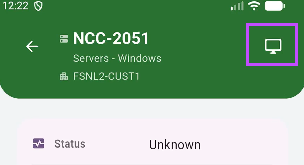
- From the device details screen, tap the Take Control button in the top right of the screen.
- N-central Mobile establishes a Take Control session with the device. This may take a few moments depending on network conditions.
- Once connected, you can view the device desktop and provide remote support as needed.
Your N-central account's security and privacy policies apply to Take Control sessions.
End the Session
Use the exit option in the Take Control viewer to disconnect and end the session. You're returned to the device details screen in N-central Mobile.
Session timeouts may occur if a session remains idle for an extended period. Reconnect if needed.
Starting a Session from a mobile browser (N-central 2026.3 and Earlier)
If your N-central environment is on 2026.3 or earlier, you cannot start a Take Control session from N-central Mobile. Instead:
- Open N-central in a browser on your mobile device and sign in.
- Navigate to the device you want to support and launch Take Control from N-central.
- This launches the Take Control viewer app if already installed on your device, or prompts you to download the app from the relevant store.
- Once connected, you can view the device desktop and provide remote support as needed.
To end the session, use the disconnect or exit option in the Take Control viewer.
Troubleshooting
 The Take Control action is grayed out or not visible
- Your N-central role may not include Remote Control permissions. Contact your administrator to verify your role.
- Take Control may not be enabled on the target device. Verify with your administrator that Take Control is available for this device.
- The device may be offline or not accessible at the moment. Try again when the device is online.
The Take Control viewer fails to connect
- Verify that the device is currently online and accessible in N-central.
- Check your mobile device's internet connectivity.
- Try disconnecting and reconnecting.
The session disconnects unexpectedly
- This may occur due to network interruptions or device-side issues.
- Reconnect to the device to resume support.
Next Steps
Ensure you have a stable internet connection before starting a Take Control session, as network interruptions can affect session quality and reliability.