
Reboot devices
Devices often need a reboot after updates or maintenance activities. N-sight helps you identify the reboot status of devices by showing an indicator in the Assets view and All Devices view.
Reboot status information in the Assets view
Applies to Windows, macOS and Linux devices.
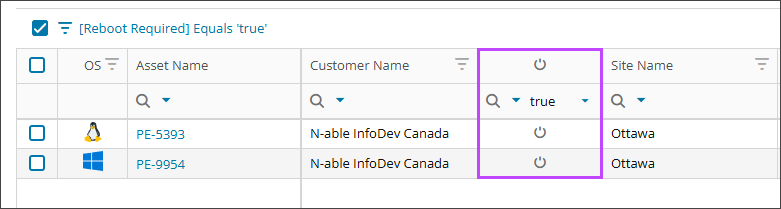
When a device needs a reboot the Reboot Required column shows the reboot required icon.
Reboot devices from the Assets view
You can reboot individual devices from the Assets view immediately, or after a countdown with a customizable reboot message for end users.
See Reboot assets from the Assets view for instructions.
Reboot status information in the All Devices view
Applies to Windows and macOS devices.
When a device requires a reboot, or has a pending or failed reboot status, the Reboot column shows an icon:
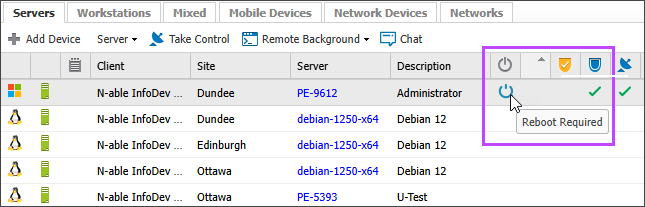
- Reboot Required:

- Reboot Pending:

- Reboot Failed:

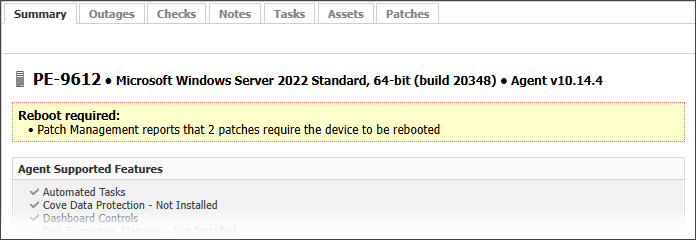
A message shows in a device's Summary tab when it has one of these statuses.
Reboot devices from the All Devices view
You can reboot one or more devices from the All Devices view, choosing from rebooting Now, Later, or with a Custom reboot.
Now
Use this option to reboot Windows and macOS devices.
- The reboot command is sent during the devices next 24x7 Check cycle.
- You cannot cancel after you confirm the reboot.
- Offline or hibernating devices receive the reboot command after they come back online.
- The Reboot column shows the Reboot Pending icon.
- End users are prompted to save their work before the device reboots.
Windows 5-minute warning example:
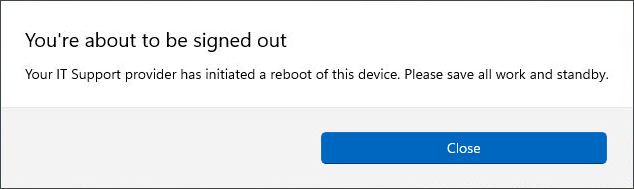
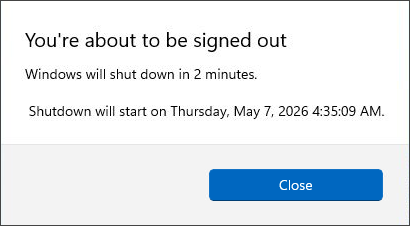
Windows 2-minute warning example:
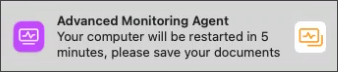
macOS 5-minute warning example:
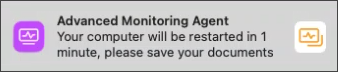
macOS 1-minute warning example:
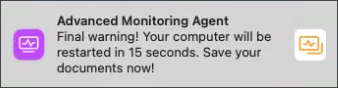
macOS 15-second warning example:
See Reboot one or more devices for instructions.
Later
Use this option to reboot Windows and macOS devices at a selected date and time.
- The reboot command is sent to one or more devices on their next 24x7 Check cycle.
- You can cancel a scheduled rebootfrom the Pending Actions menu.
- An offline or hibernating device receive the reboot command after they come back online.
- The Reboot column will show the Reboot Pending icon.
- End users are prompted to save their work before the device reboots.
See Schedule a reboot for one or more devices for instructions.
Custom
Use this option to reboot a single Windows, macOS, or Linux device immediately, or after a countdown with a customizable reboot message for end users.
- The reboot command is sent immediately.
- You cannot cancel a Custom reboot.
- No pending reboot indicator is displayed.
- Immediate reboots do not notify the end user.
- You can allow Windows and macOS device users to cancel or snooze Countdown reboots. Linux does not support this option.
- End users see your custom reboot message when the countdown begins, prompting them to save their work.
- Custom reboots are unavailable for offline or hibernating devices.
See Reboot one device with custom options for instructions.