
Reboot one device with custom options
Applies to Windows, macOS and Linux
Reboot a device immediately or after a 5-, 15-, 30- or 60-minute countdown with a customizable message.
- For Windows and macOS, you can allow users to cancel or snooze a countdown reboot.
- For Linux, cancel and snooze options aren't available.
- Immediate reboots cannot be canceled.
Configure a custom reboot
- From:
- Assets view: Open the device Action menu, then select Reboot.
- All Devices view: Right-click the device, then select Reboot > Custom.
- Choose a Reboot countdown timer. This sets how long the end user has to save their work before the system restarts.
If you select No timer (Reboot now), the device reboots immediately without showing a message to the end user.
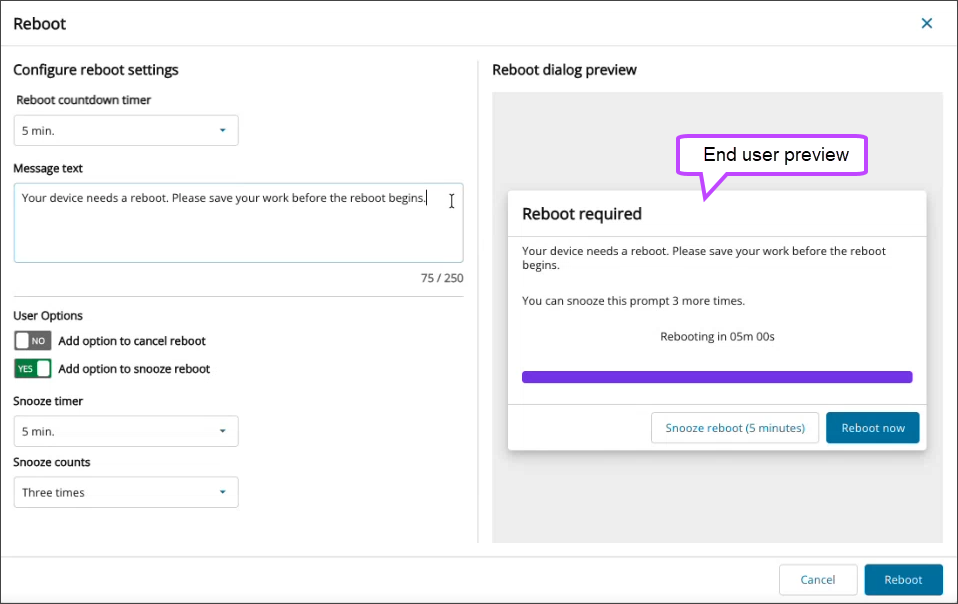
- (Optional) Customize the Message text that appears in the end-user reboot dialog.
- For Windows and macOS only:
- (Optional) To allow the end user to cancel the reboot, turn on Add option to cancel reboot.
- (Optional) To allow the end user to snooze the reboot:
- Turn on Add option to snooze reboot.
- Set the Snooze timer to define how long each snooze lasts.
- Set the maximum number of Snooze counts to limit how many times a user can delay the reboot. After the snooze attempts are used, the reboot occurs when the countdown ends.
- Review the content in the Reboot dialog preview, then select Reboot.
You cannot cancel a reboot (countdown or immediate) from N-sight.