
Configure the Critical Events Report mail template
The server Critical Events Report email is sent once a day listing the Critical Event Check results for all of the Client's servers.
Make a copy of the default template before editing.
To configure the Critical Events Report mail template:
- In the All Devices view, go to Mail Templates > Critical Events Report Mail.
- Enter the From address the Reports are to come from. We recommend you use the format, Descriptive Name <Email Address>, to ensure acceptance by all email clients.
If you use a custom From address in a mail template, make sure the address exists. If it does not exist, sender verification may fail. The default mail server for the From address is: alert@remote.management.
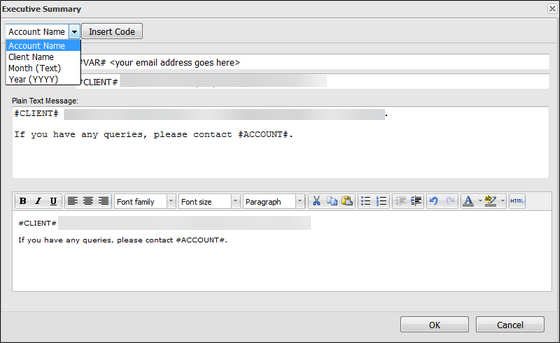
- Enter the information for the Subject line, Plain Text Message, and HTML Text message.
All content changes must be applied to both the Plain Text Message and the HTML versions.
- Click OK to save.
You can use substitution strings in the email template. See the Substitution String information below or see Mail template substitution strings.
HTML Body Editor
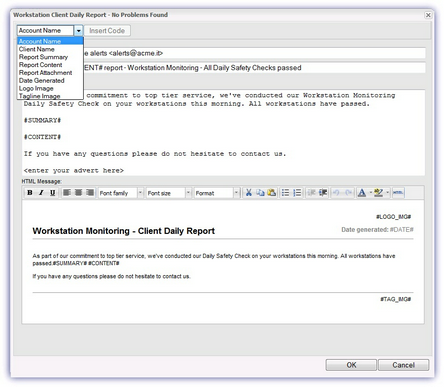
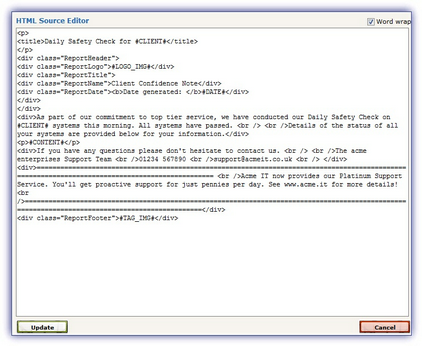
When you edit the body of the email, you can change both the Plain Text and HTML versions. For greater flexibility, when you configure the HTML version of the template there is a visual WYSIWYG (What You See Is What You Get) and an HTML Source editor.
To use the HTML Source Editor:
- Click the HTML button above the HTML body.
- Edit the HTML in the HTML Source Editor.
- Click Update to save and return to the Mail Template dialog.
- Review the HTML changes in the WYSIWYG editor.
- After making any further changes click OK to save the template.
Substitution strings (Wildcards)
Substitution strings replace placeholders (wildcards) in a template with values from the database. This lets you personalize messages with client details and other information.
Templates support substitution strings in their From address, Subject line and Body (both text and HTML).
Add substitutions strings to a template
- In the template, select where to add the string: From address, Subject line, or Body.
- Choose a substitution string from the dropdown list. Only supported strings for that field are shown.
- Select Insert Code to add the string.
- Select OK to save the template.
If you add substitution strings in the template body, insert the string in the plain text and the HTML versions of the message.
The following substitution strings are available for the Critical Events Report email:
| Variable | Substitution String | Supported in From address? | Supported in Subject line? | Supported in Body? | Note | Example |
|---|---|---|---|---|---|---|
| Account Name | #ACCOUNT# | Yes | Yes | Yes | MSP Name | My MSP dashboard
|
| Client Name | #CLIENT# | Yes | Yes | Yes | Client Name | Abertay Pharmaceuticals
|
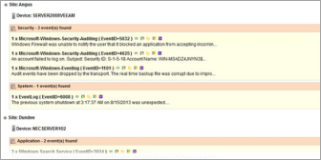
| Report Content | #CONTENT# | No | No | Yes | Lists the Critical Events discovered. |
|
| Report Attachment | #ATTACHMENT# | No | No | Yes | Includes the report as an attachment to the email. | |
| Date Generated | #DATE# | No | No | Yes | Date and time of report. | 10 Sep 2019 at 13:57:56PM
|
| Logo Image | #LOGO_IMG# | No | No | Yes | Logo image used in N-sight RMM and in reports. |
|
| Tagline Image | #TAG_IMG# | No | No | Yes | Tagline image used in N-sight RMM and report footers. |

|
SPF records and the allowed list
Changes to the template From address, for example to an email address from your domain, can cause the email to be classified as coming from a spoofed domain.
If you use Sender Policy Framework (SPF) and a custom From address for alerts and reports, we recommend that you Configure DNS Records for N-sight RMM email notifications.
If you use an email security firewall, we recommend that you allow the N-sight RMM mail server.
From Address Format
The All Devices view supports the use of commas as separators when you configure multiple email recipients. If the From address contains a descriptive name with a comma, or the possibility of a comma when using substitution strings, we recommend you encapsulate the name in inverted commas " ". For example:
- "Descriptive, name" <my@address.rmm>
- "#ACCOUNT#" <my@address.rmm>
- "#CLIENT#" <my@address.rmm>
If you use a custom From address in a mail template, make sure the address exists. If it does not exist, sender verification may fail. The default mail server for the From address is: alert@remote.management.