
Create a dynamic tag
Create a dynamic tag that the system applies automatically to the assets that match a filter. The filter becomes the tag definition.
Before you begin
-
Your role must include the Manage definitions permission under Tag Management in the Ecoverse section of Roles and Permissions.
Steps
- Go to Ecoverse > Configuration > Tag Management.
- (Optional) Use the scope selector to choose the organization where you want to create the tag.
- Select Add Tag.
- In Tag name, enter a name for the tag.
- The tag name can contain only letters, numbers, hyphens, and underscores. It cannot contain spaces or special characters.
Start with a clear naming convention for tags so teams can find and reuse them.
- The tag name can contain only letters, numbers, hyphens, and underscores. It cannot contain spaces or special characters.
- (Optional) In Description, enter a description of the tag's business purpose.
- For Type, select Dynamic.

- In Scope, confirm or change the organization where the tag is created and useable.
- Scope determines which teams and assets can use this tag.
- The scope you selected in the Scope selector carries over, but you can change it here.
- Select Create filter.
-
In the filter builder, configure filter conditions and groups. For instructions, see Create custom filters.
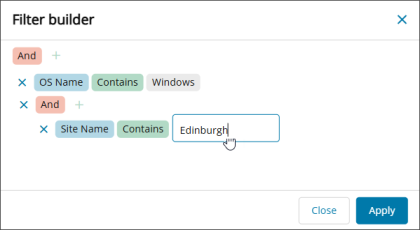
- Select Apply. The list of assets updates to show those that will have the tag applied based on the filter.
- Review the assets list to confirm that the filter returns the assets you expect.
- If the results aren’t what you want, use the filter again to adjust the conditions and groups.
- Select Done.
Result
The tag is created. The system applies the tag to matching assets in the background, so the Assets count can take time to settle. After you save the tag, you can't change its type.
Related topics