
Before running the Cove Data Protection deployment script in Kaseya VSA, ensure you have:
- Reviewed the Requirements.
- Taken the Preparation steps.
- Generated Installation ID in Cove's Management Console.
- Created the custom field in Kaseya VSA
- Added the Custom Field Value in Kaseya VSA
- Created the Cove Data Protection deployment script in Kaseya VSA
Instructions
- Login to Kaseya VSA
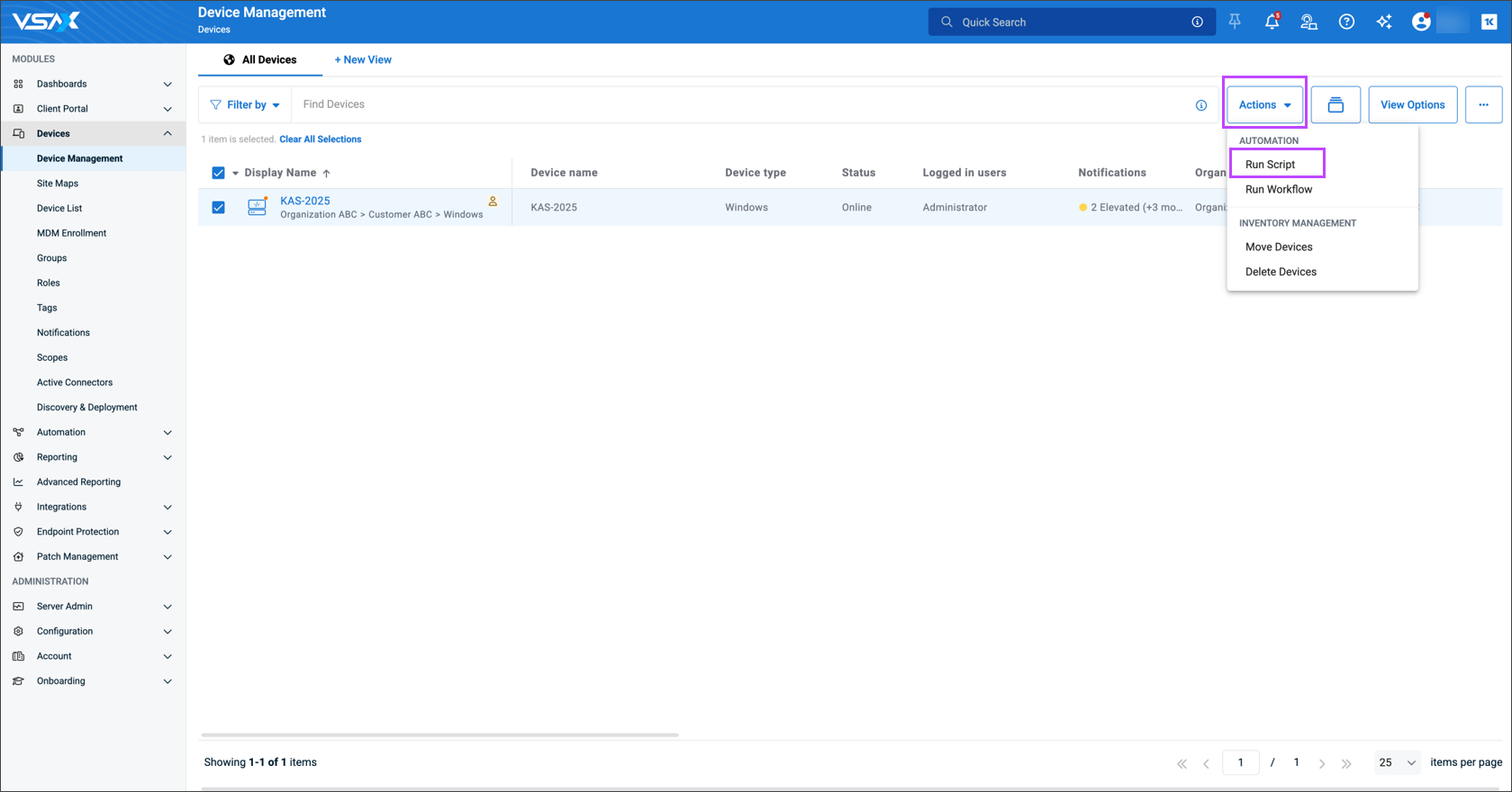
- Navigate to Devices > Device Management
- Select the device(s) from the list
- Click Actions > Run Script
- Use the search function to find the Cove Data Protection deployment script and click Next
- Select Run now and then Run
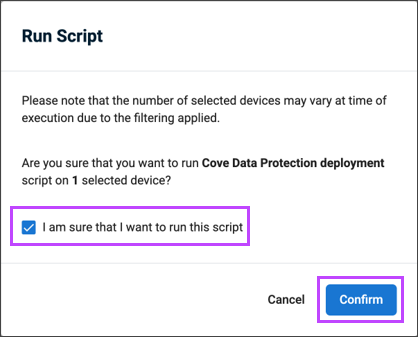
- Confirm your intention to run the script
by ticking "I am sure that I want to run this script" and then selecting Confirm
- Check the status of the script by selecting the device from Dashboard > Devices > Device Management
In the Manage section, click Scripts - Cove Data Protection deployment to see the output details
- Once the Backup Manager has successfully installed, a notification will be displayed in Server Admin > Notifications
The Cove Data Protection Backup Manager installation will run silently and the backup device(s) will appear in the Cove Management Console Dashboard once complete.
Use the Cove Management Console for further configuration changes, such as fine tuning Profiles. Also use this for daily management as it gives you a highly detailed view of all of your backups and (automated) restores.