
Set up interactive remote control on Android devices
Interactive remote support (tap and swipe) needs the Remote Control (RC) Module installed and configured on the Android device.
After install and configuration, remote sessions are view-only by default. The customer enables interactive remote control during a remote session.
This article explains the process to:
- Install the RC Module
- Set the RC Module permissions
- Enable interactive control during a remote session
Prerequisites
- Android device
- Internet connection
- Latest version of the Take Control Applet installed
- Ability to install apps from external sources (APK)
Install the RC Module
- Open the Take Control Applet on the Android device.
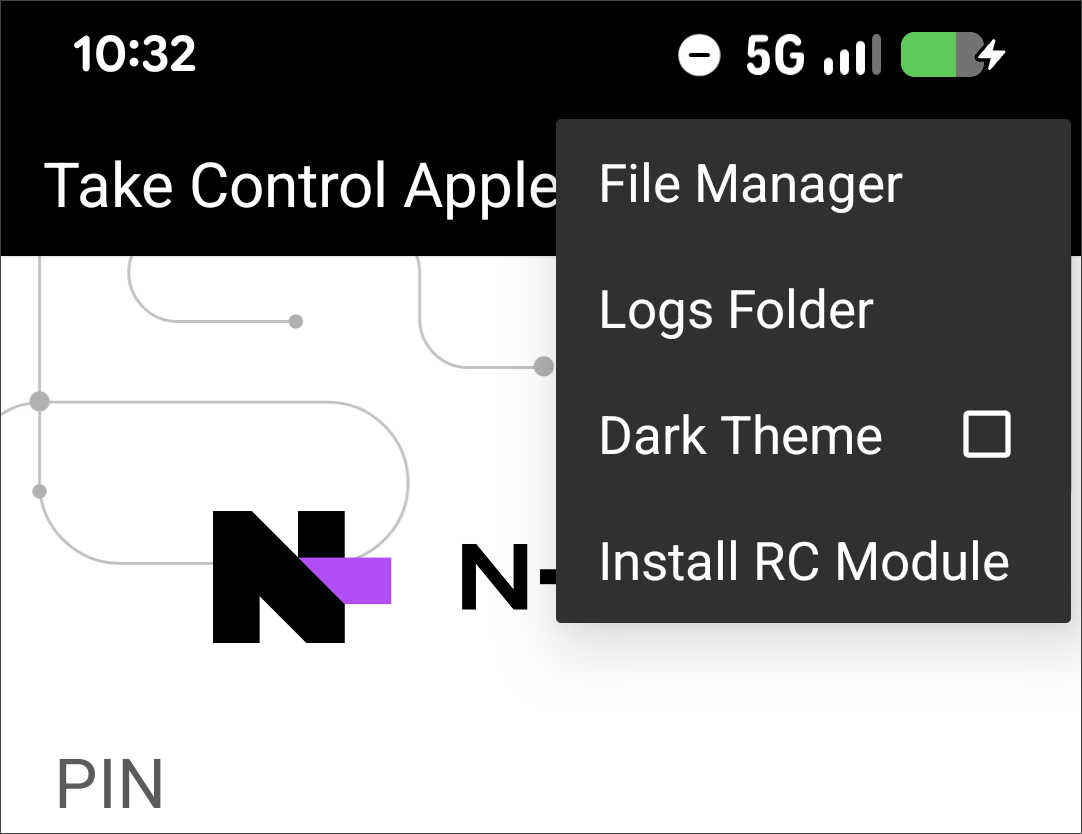
- Select the menu (top-right 3-dots), then choose Install RC Module.
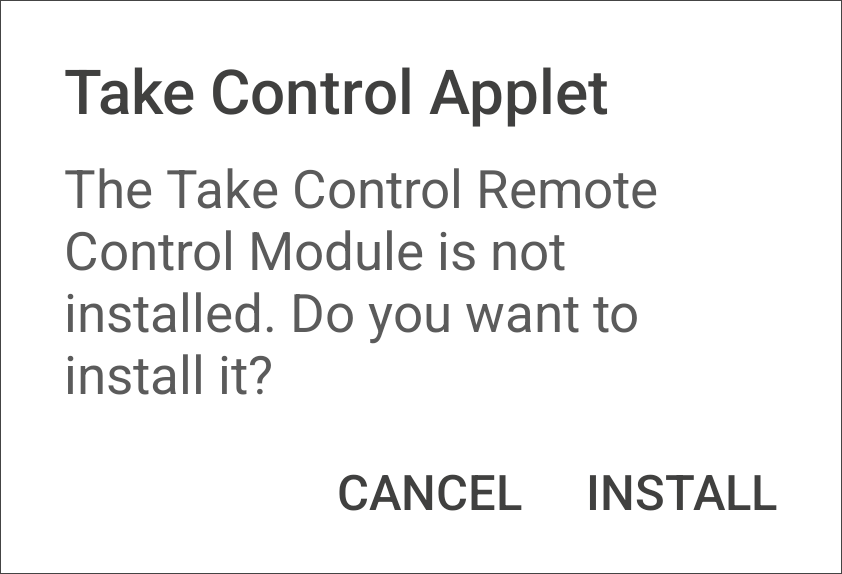
- Select Install when prompted.
- Choose Download Anyway if you see a file security warning.
- After the download completes, open the installer and install the RC Module.

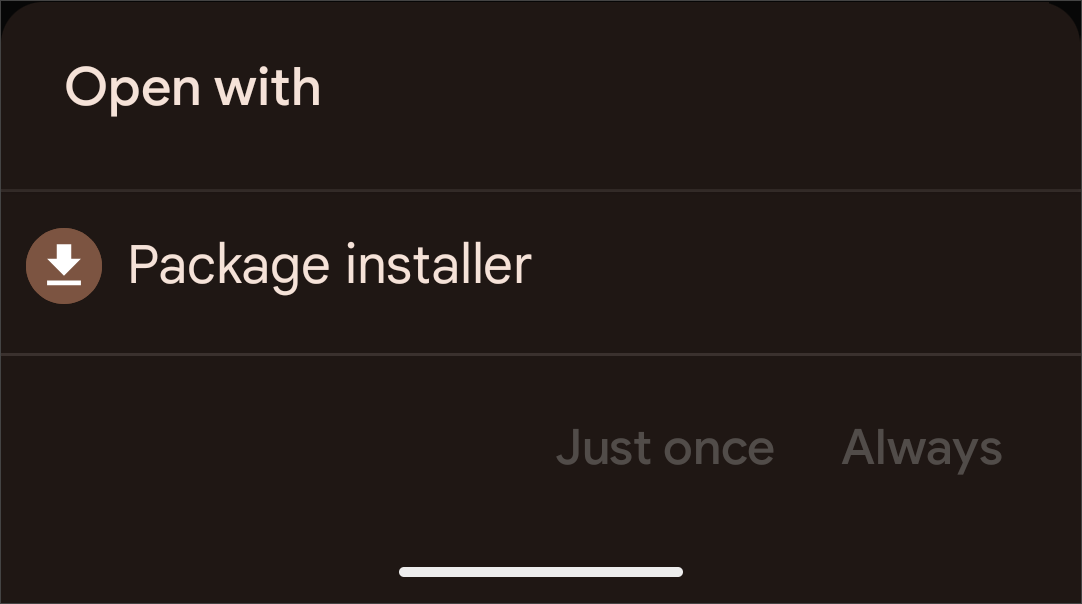
- If prompted for an install method, select Package installer.
- Confirm the install.
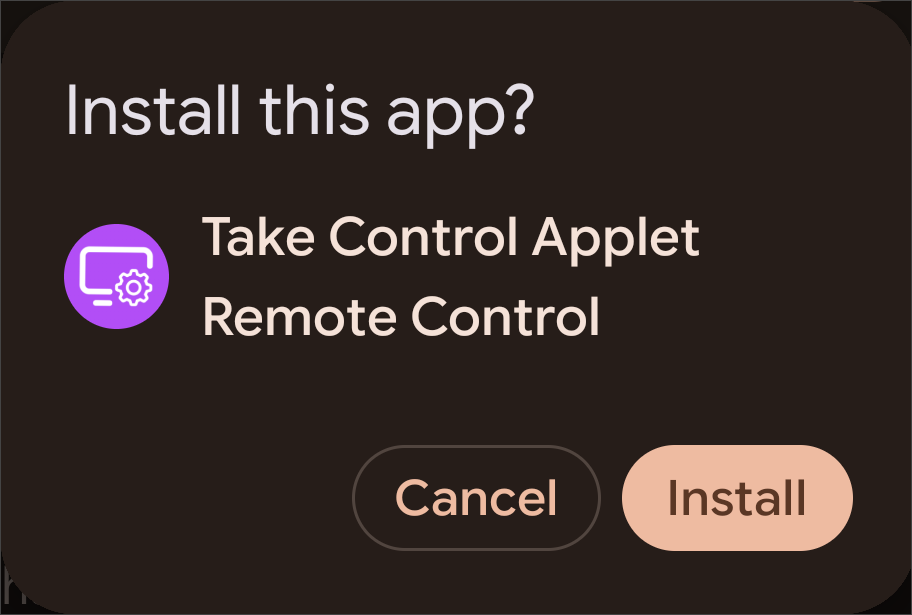
When the install is complete you will be prompted to open the RC Module app.
Set the RC Module access permissions
Android OS versions vary by device provider. The following instructions are general guidelines. Your device may differ.
- Open Take Control Applet Remote Control.
- Select SET PERMISSIONS to open Android's Accessibility Settings.
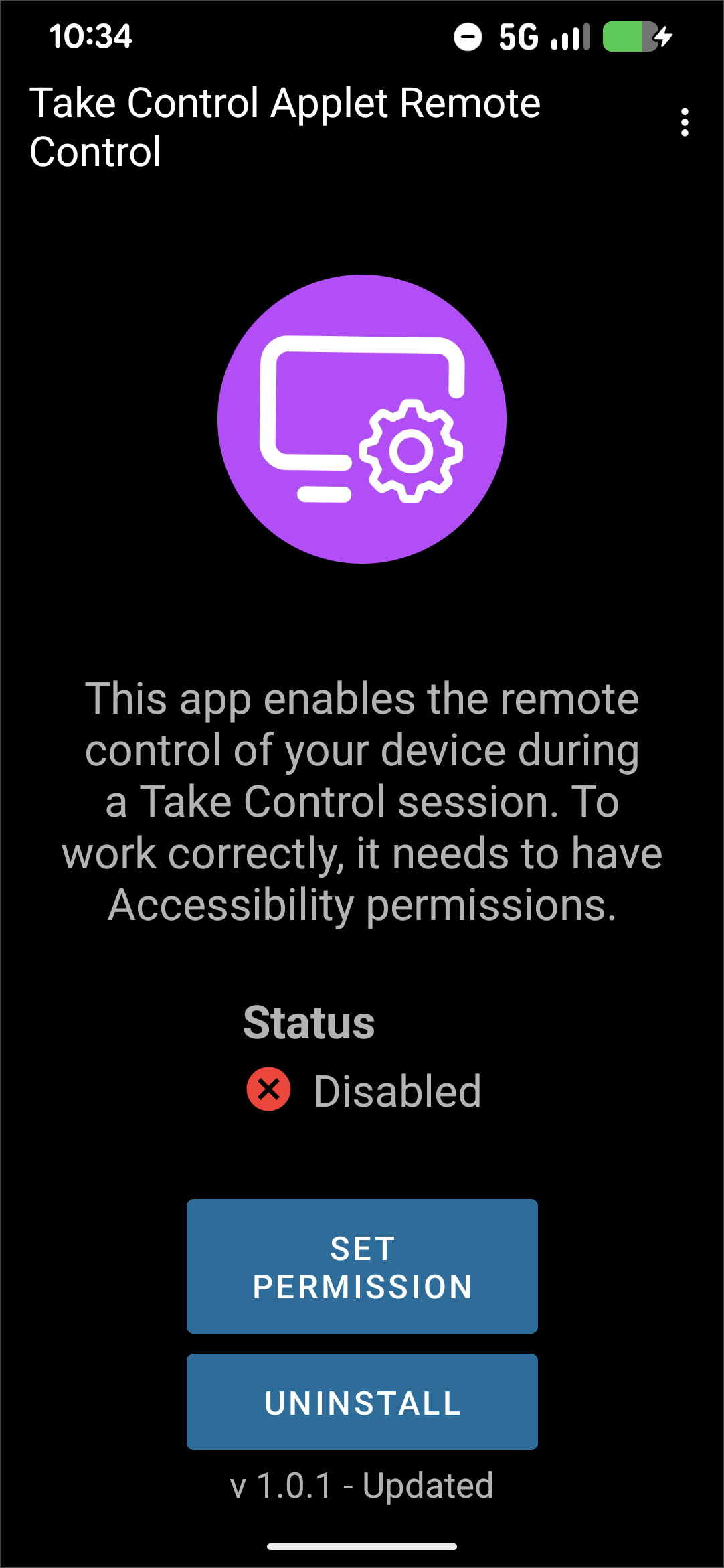
- Go to Installed Apps or Downloaded Apps (varies by device).
- Select Take Control Applet Remote Control.
- Enable the service.
- Go to Settings > Apps > Take Control Applet Remote Control
- Select the menu (top-right 3-dots), then Allow restricted settings
- Confirm with OK or Allow (varies by device).
- Go back to Take Control Applet Remote Control to confirm that it is Enabled.
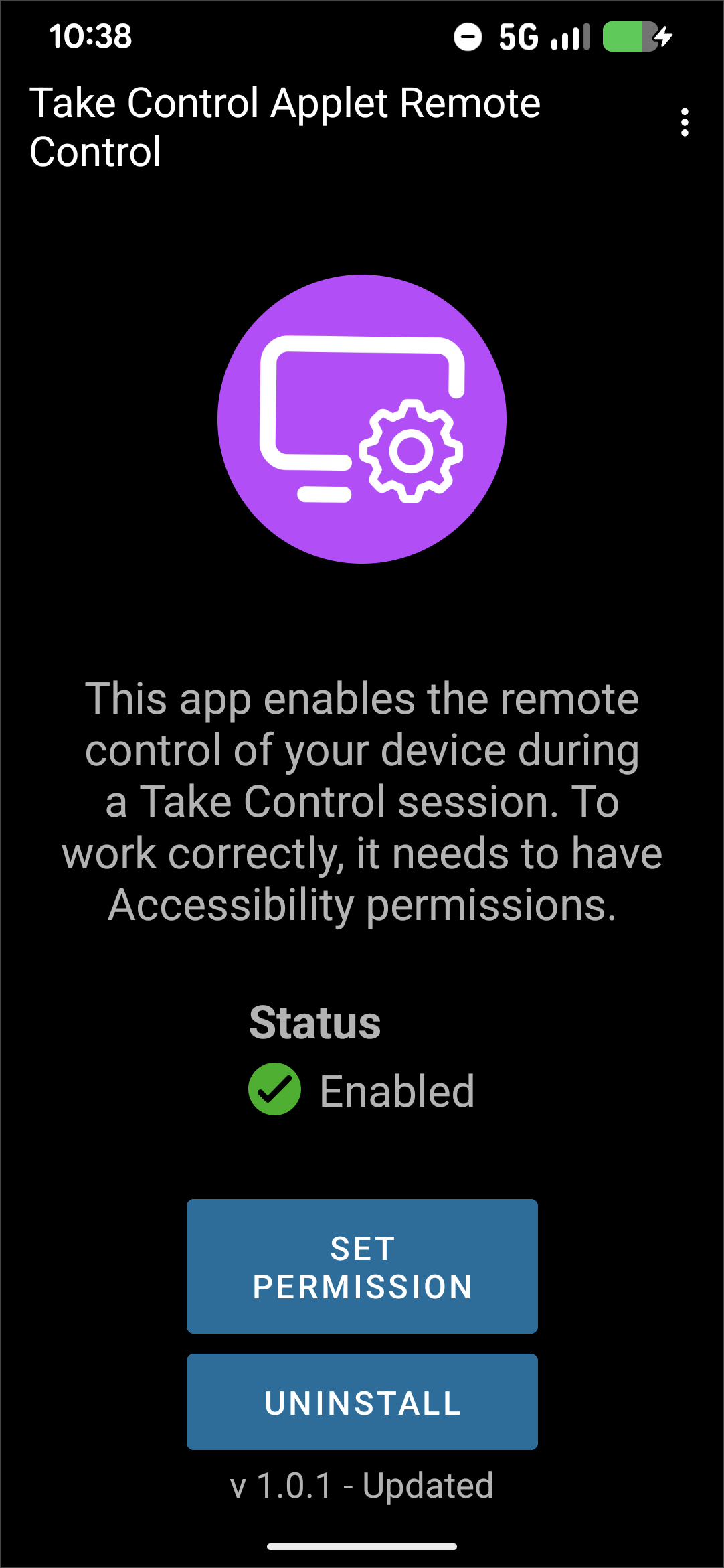
You may need to allow restricted settings (varies by device).
Enable interactive control during a remote session
From the Take Control Applet:
- Select the menu (top-right 3-dots) during a remote session.
- Choose Remote Control.
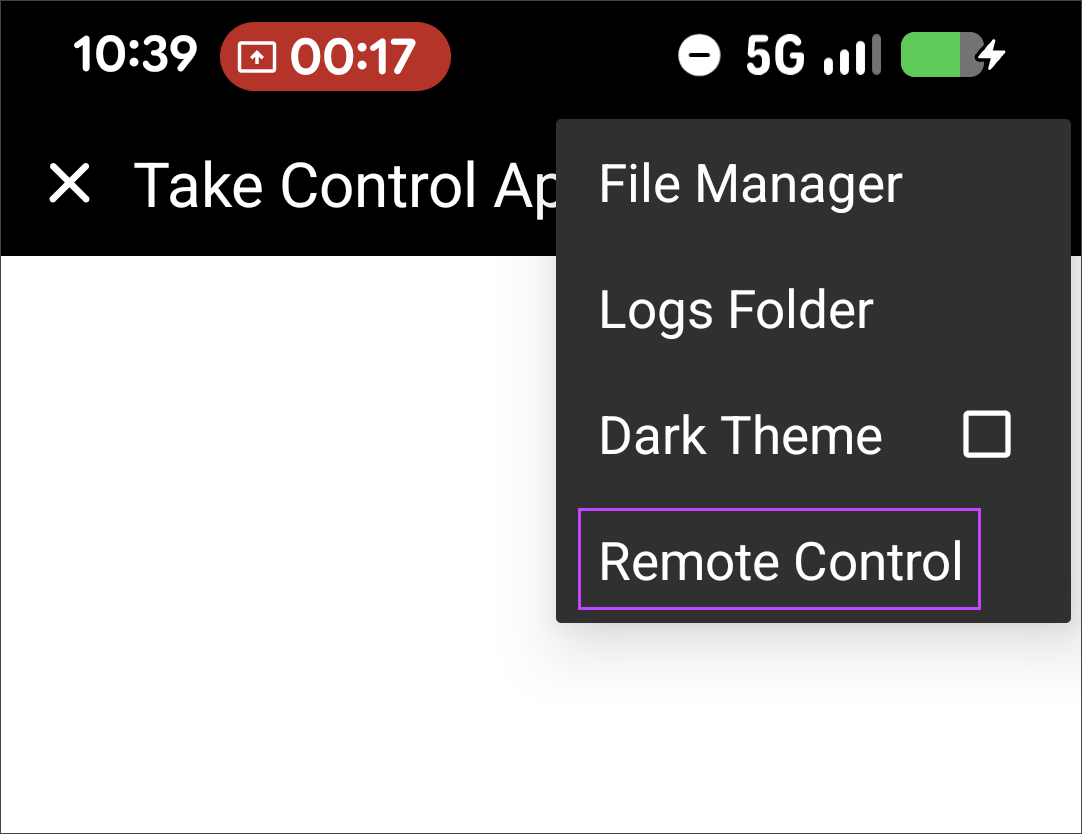
The remote session now has remote control enabled.
Related articles