Set up Entra ID as an identity provider with Take Control
N-able Login with Entra ID works as an identity provider (IdP) that lets users securely access multiple applications with one sign-in. Using Entra ID improves security, simplifies the user experience, and removes the need for users to sign in to each application individually.
By default, the identity providers option isn’t available in the User menu. To enable it, contact our Support Team.
Set up Entra ID as an identity provider for Take Control
- Sign in to Take Control using your N-able Login SSO credentials.
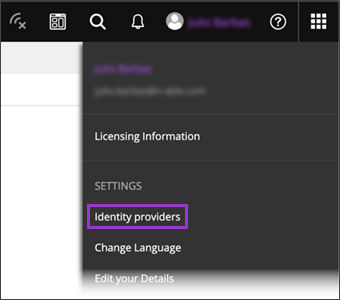
- From the top bar User menu, select Identity providers.
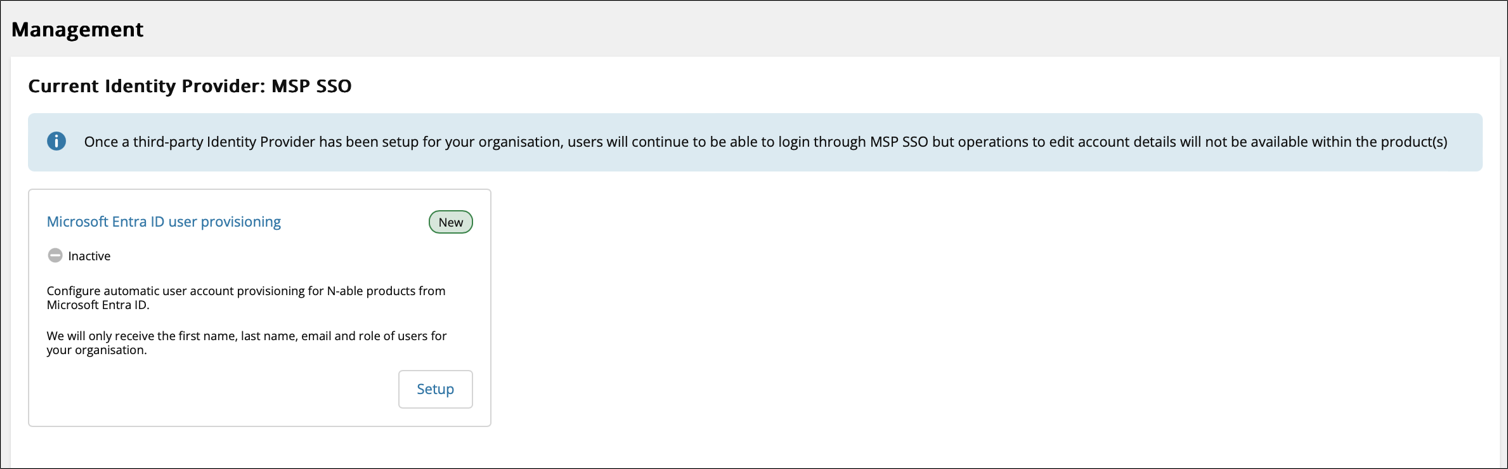
- In the Microsoft Entra ID user provisioning tile, select Setup.
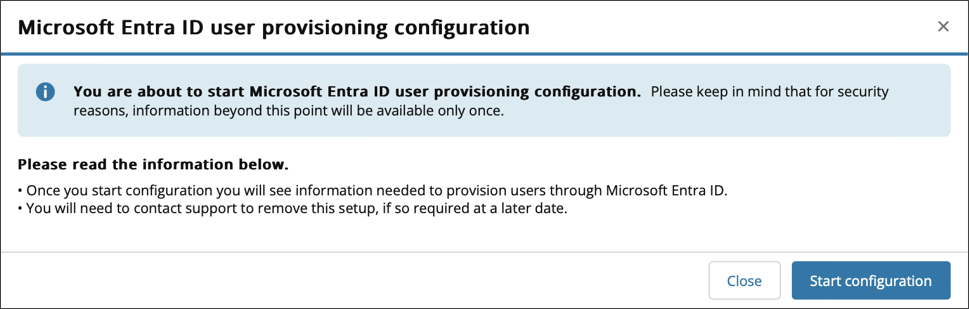
- Review the information on the page and select Start configuration.
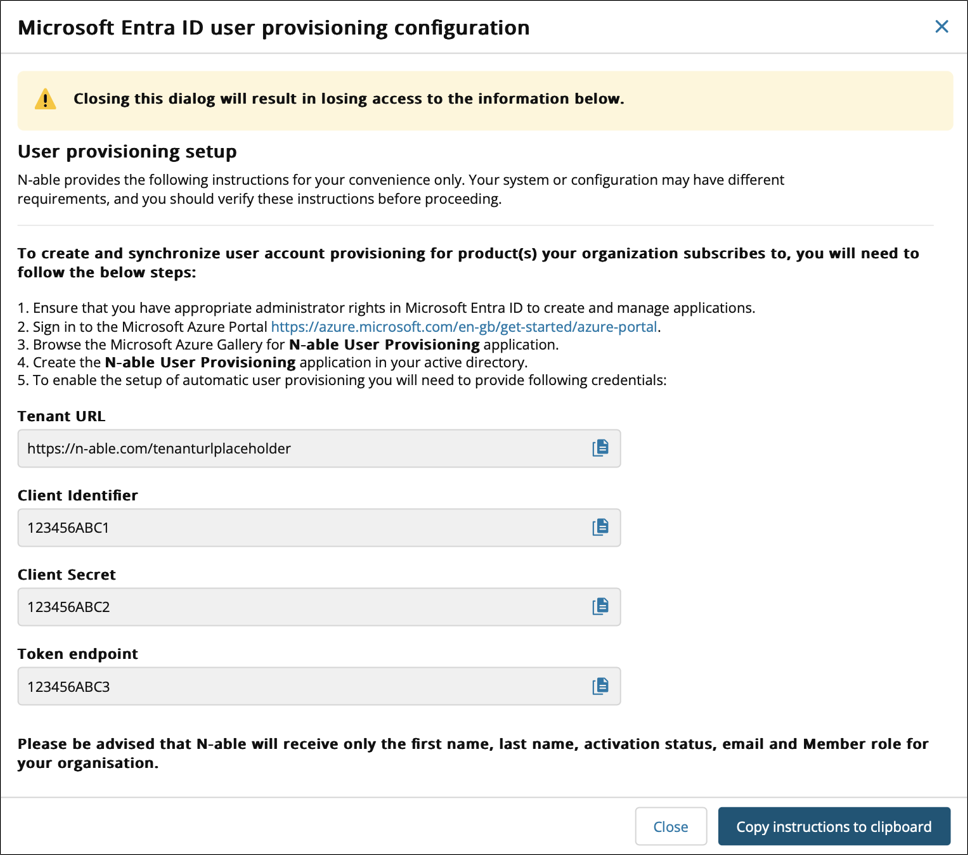
- The system automatically populates the Tenant URL, Client Identifier, Client Secret, and Token endpoint fields. Then select Copy instructions to clipboard.
These values appear only once. Copy them immediately. If you lose this information, you need to contact Support to retrieve it.