
Download and install the Take Control Viewer
Remote sessions are viewed using the Take Control Viewer. Download and install the viewer on the supporting device to match the integration engine used on the remote device:
When providing support to environments using both Take Control (N-able) and Take Control (TeamViewer), both viewer versions are needed on the devices providing assistance.
If the correct viewer is not installed when starting a remote session, you are prompted to download and install it.
Take Control (N-able) Viewer
Available for Windows and macOS.
The Take Control (N-able) Viewer enables you to connect to devices running Take Control (N-able).
By default the Take Control (N-able) Viewer installs to the APPDATA folder but you can install it to a different location.
Download and install the Take Control (N-able) Viewer
Disable browser pop-up blockers. Opt to Remember my choice for takectrsxvp links (or equivalent) and takectrsxvp file associations (if supported in the browser).
- In the All Devices view, select Remote Access > Download Take Control Viewer - N-able.
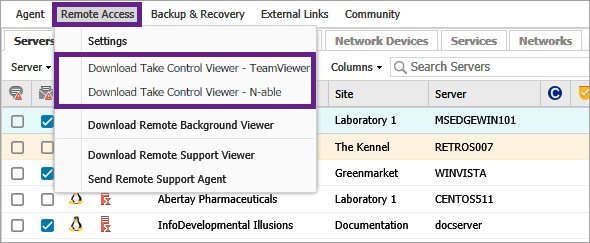
- When the download completes, run the installer.
- The downloaded viewer automatically matches the OS of the computer you used to sign into N-sight RMM.
Download and install the Take Control (N-able) Viewer to a custom location
Available for Windows only.
- Download the Take Control (N-able) Viewer to the device providing assistance.
- Open a command prompt on the device and change directory the location of the downloaded file.
- Run the following command to install the Take Control (N-able) Viewer in the target folder:
TakeControlViewerInstall.exe /D=<drive>:\<folder>
Example:
TakeControlViewerInstall-1.23.45-01012026.exe /D=C:\my_installers
Take Control (TeamViewer) Viewer
Available for Windows only.
The Take Control (TeamViewer) (TeamViewer) Viewer enables you to connect to to devices running Take Control (TeamViewer). Each viewer can run three concurrent remote access sessions.
Download and install the Take Control (TeamViewer) Viewer
- In the All Devices view, select Remote Access > Download Take Control Viewer - Teamviewer.
- When the download completes, unpack the compressed file and run the executable.
- Follow the prompts in the installation wizard.
When the Agent is updated and includes a new Take Control version, update the Take Control Viewer on the local machine. The updated viewer can connect to devices running older Take Control versions.
Host and Viewer coexistence
- The Take Control (N-able) host and viewer can co-exist on the same device, and may also be installed on a device running TeamViewer.
- The Take Control (TeamViewer) host cannot co-exist on a device running the Take Control (TeamViewer) viewer.
-
Take Control (TeamViewer) and TeamViewer cannot co-exist on the same device. If a TeamViewer host is detected during the installation of Take Control (TeamViewer), there is the option to Replace Existing TeamViewer Installation with Take Control in the device's Summary tab.