
Run the Vulnerability scan
You can run the vulnerability scan manually on an individual or multiple devices.
Run the Vulnerability scan on a single device
- Go to Endpoint Remediation > Vulnerability Management in the Left navigation.
- Choose the All Detections tab.
- (Optional) Apply a custom filter.
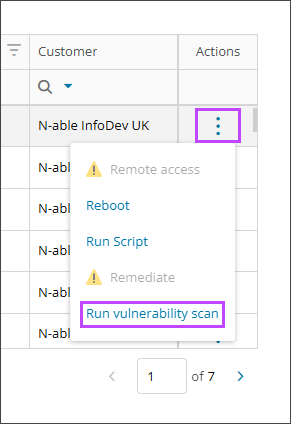
- Select the Actions menu of a vulnerability, and choose Run vulnerability scan.
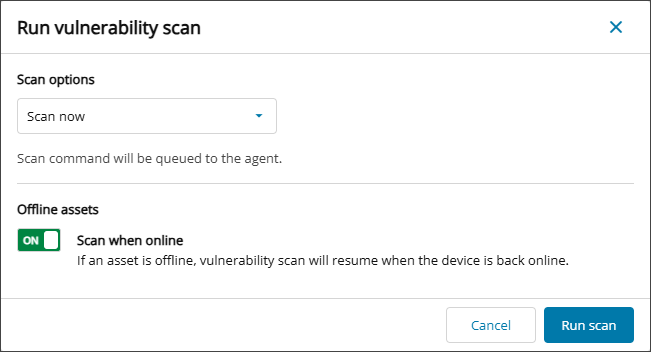
- The Run vulnerability scan dialog opens. Select Scan now from the Scan options drop-down.
- Set the Scan when online toggle to ON or OFF as needed. When enabled, if a device is offline, the vulnerability scan will resume when the device is back online.
- Select Run scan.
- A notification will show at the top right advising success or failure of the scan request.
This is the only option to select for now. More options are in development.
This process can also be performed in the Vulnerability details Assets at risk tab.
Run the Vulnerability scan on multiple devices
- Select Endpoint Remediation > Vulnerability Management in the Left navigation.
- Choose the All Detections tab.
- (Optional) Apply a custom filter.
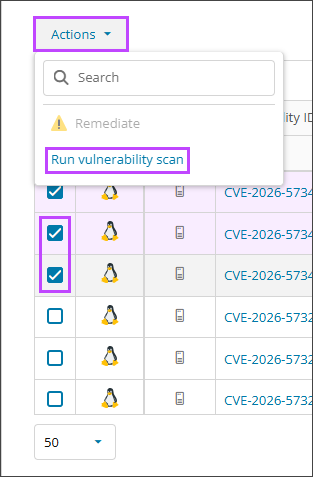
- Select the checkbox to the left of each entry where the scan is to be run.
- Above the Create filter button, Select the Actions menu.
- Choose Run vulnerability scan.
- The Run vulnerability scan dialog opens. Select Scan now from the Scan options drop-down.
- Set the Scan when online toggle to ON or OFF as needed. When enabled, if a device is offline, the vulnerability scan will resume when the device is back online.
- Select Run scan.
- A notification will show at the top right advising success or failure of the scan request.
This is the only option to select for now. More options are in development.
This process can also be performed in the Vulnerability details Assets at risk tab.
Scan progress
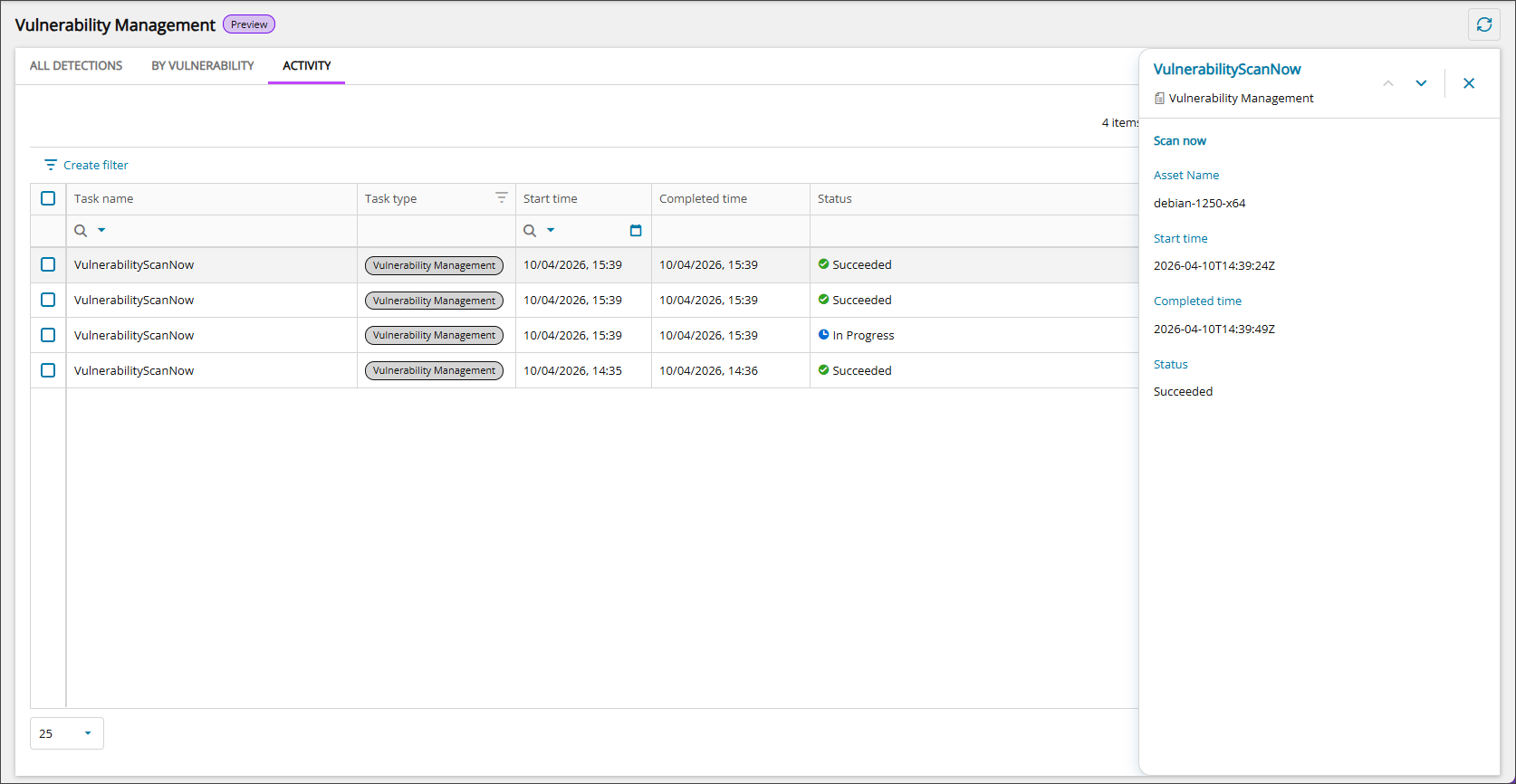
You can view the progress and status of vulnerability scans in the Activity tab of Vulnerability Management.
Selecting a row opens the details panel to show you further information for completed items.
Related articles