View tag definition details

Use the tag details overlay to review tag definitions and where they apply across your environment. The overlay provides quick access to key information, including tag properties, assigned assets, and access settings. Reviewing these details helps you confirm that the tag is configured correctly, understand where it can be used, and verify which assets are affected by dynamic tagging.

Prerequisites

To view tag definitions, your role must include the View definitions permission in the Tag Management section of Ecoverse permissions.

Open the tag details

  1. In the left navigation, go to Tag Management.

  2. Select the row for the tag you want to view.
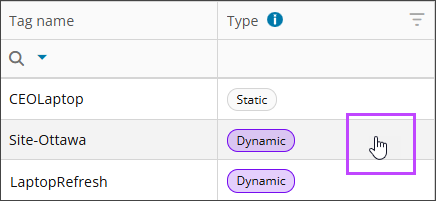
    The tag details overlay opens on the right side of the screen.
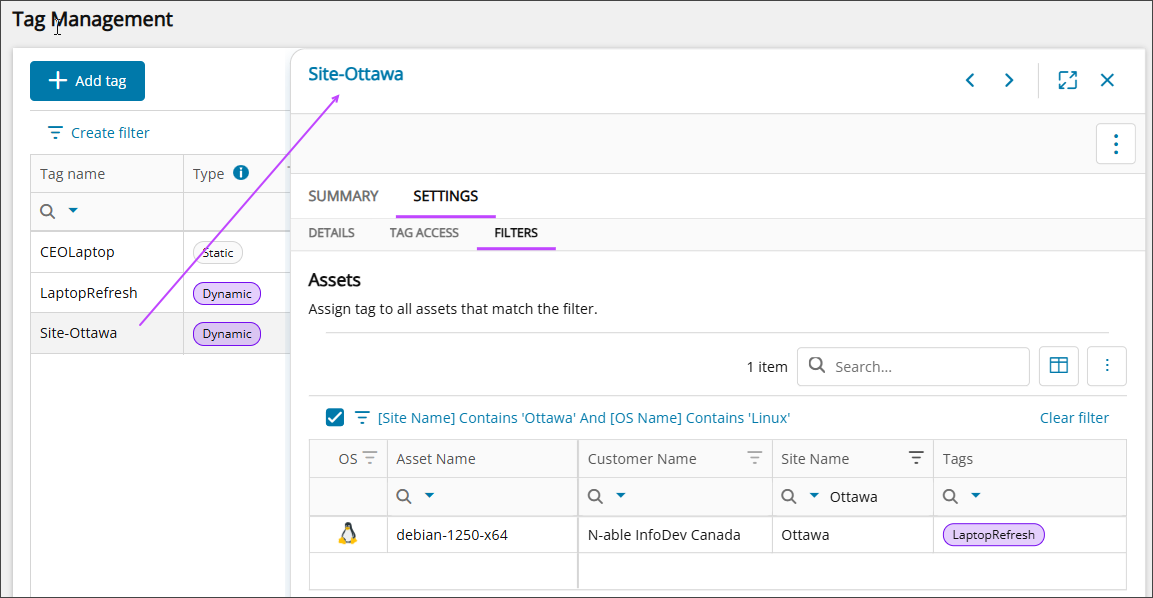
Tag details overlay tabs

The overlay organizes tag information into the following tabs:

Summary

Provides an overview of the tag, including:

  • Properties

    Includes high level tag information such as tag type, description, creation and modification dates, last modified by, and node access.

  • Assets

    Lists all assets currently assigned to the tag. The Assets panel lists information such as OS name, customer, and site.

    The system dynamically assigns tags, so the number of assets can change. To view all assets that match the tag filters, go to Filters under the Settings tab.

Settings

Shows configuration details for the tag:

  • Details

    Includes tag name, description, resource type, and category.

  • Tag access

    Shows which organization, customer, or site the tag can be assigned to.

  • Filters (Dynamic tags only)

    Lists assets that match the current tag filters. Dynamic tagging adds the tag to these assets when you apply new or edited filters.

    Compare the number of assets here with the number in Properties under the Summary tab to confirm if dynamic tagging is complete.