
Provision users to access N-sight
Before you provision users for N-sight, they must be assigned to the N-able User Provisioning application. See Assign users to the N-able User Provisioning application.
Microsoft advises that user provisioning through Entra ID may take up to 40 minutes to complete after you assign users to the application.
Provision all users in the N-able User Provisioning application to access N-sight
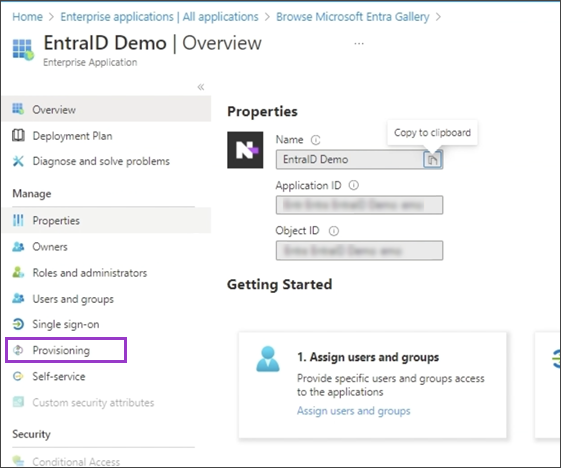
- In your N-able User Provisioning application instance, under Manage, select Provisioning.
- Select Start provisioning.
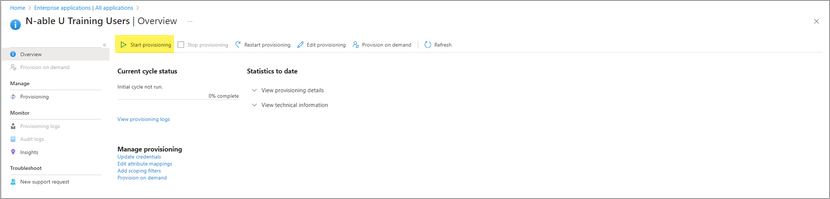
The process starts and displays Complete when it finishes. Users assigned to your N-able User Provisioning application are created automatically in N-sight. Microsoft advises that user provisioning through Entra ID may take up to 40 minutes.
Provision Entra ID users on demand
Because Microsoft advises that Entra ID automatic provisioning may take up to 40 minutes, you might experience delays. You can use the Provision on demand option to create users sooner.
- In your N-able User Provisioning application instance, under Manage, select Provisioning.
- Select Provision on demand.
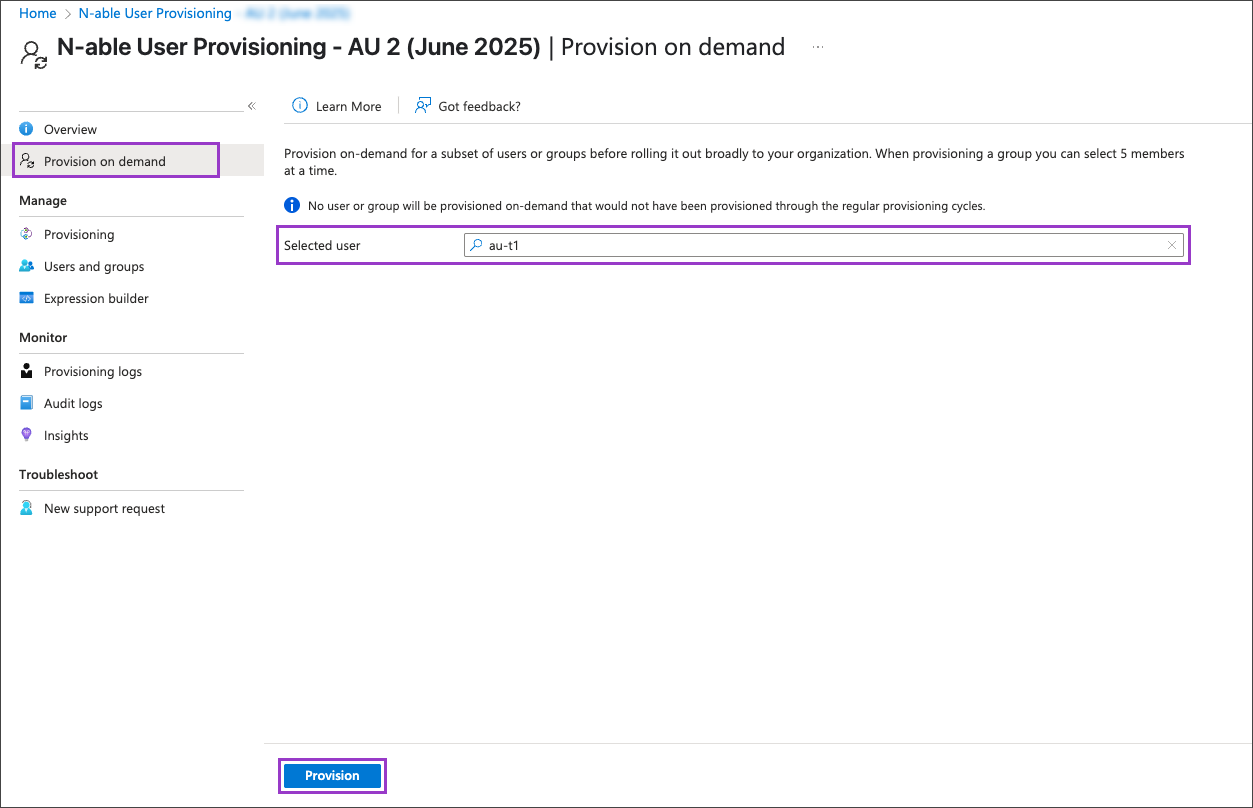
- Search for and select the users you want to give access to N-sight.
- Select Provision.
The selected users are created in N-sight.
Configure the Entra ID users in N-sight
After provisioning completes, new users appear in the N-sight User Accounts dialog with a Pending Configuration role. A Superuser or Agent Key user must assign each user a standard N-sight role. For instructions see, Assign N-sight roles to Entra ID users.