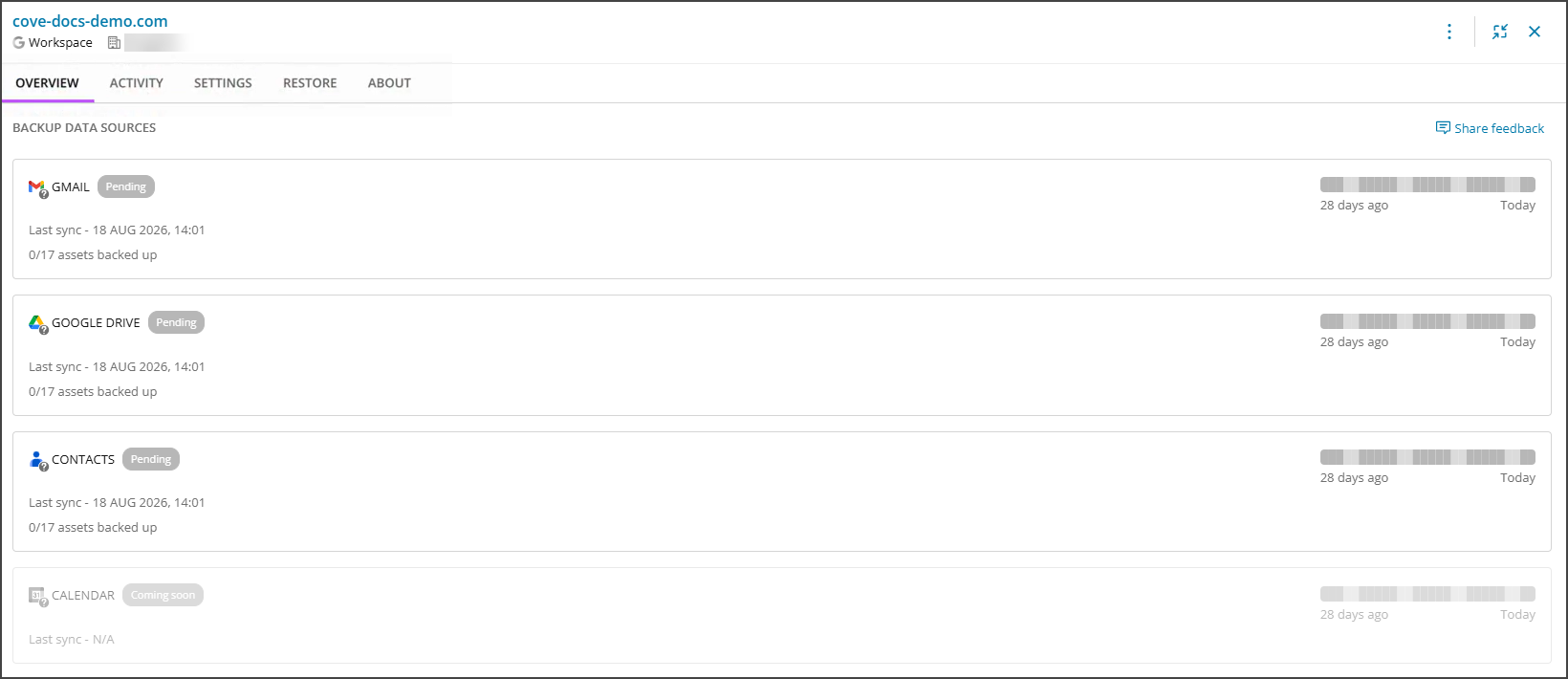
Before granting Google Workspace permissions, ensure you have met all Requirements, added the tenant to Cove Data Protection (Cove) and authorized the client on Google Workspace admin console.
Grant Permissions
- Open a new tab in browser.
- Sign in to the Google Workspace admin console using your Super Admin account.
- From the left menu, navigate to Security > Access and data control > API controls.
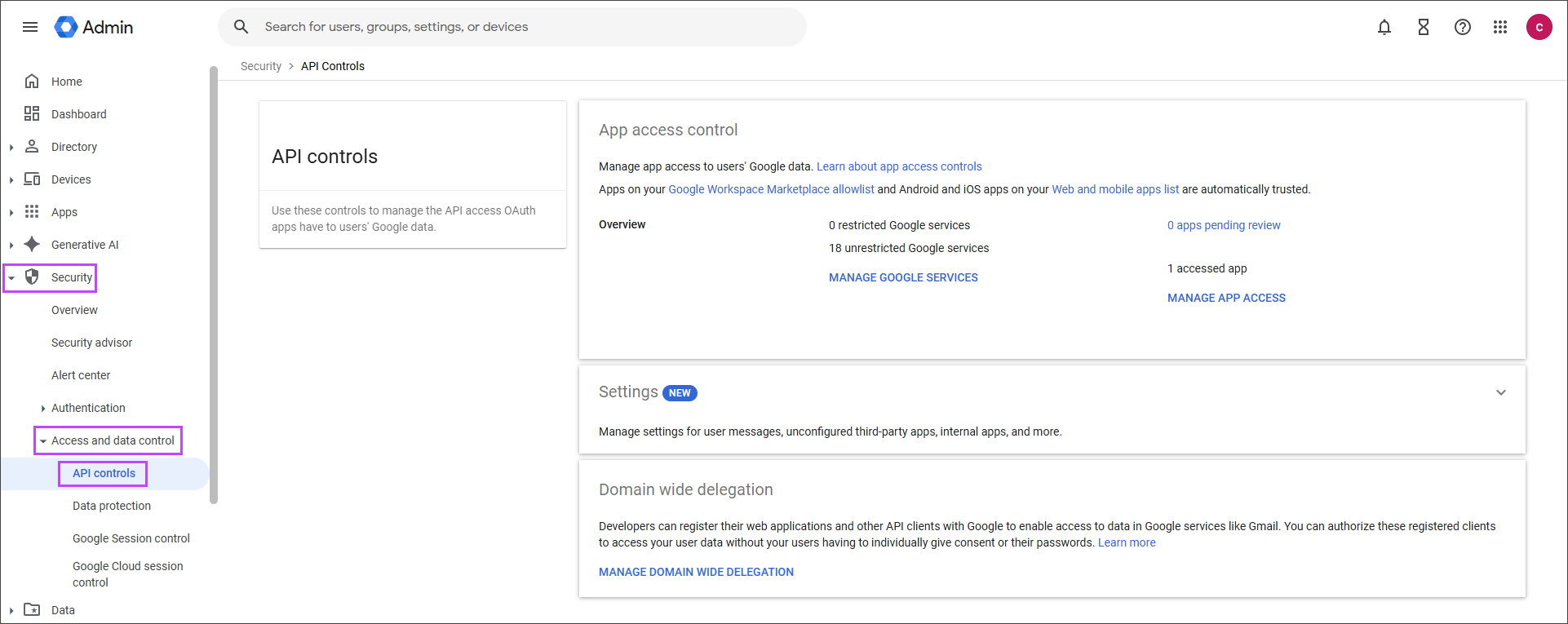
- In the Domain wide delegation section, click Manage domain wide delegation.
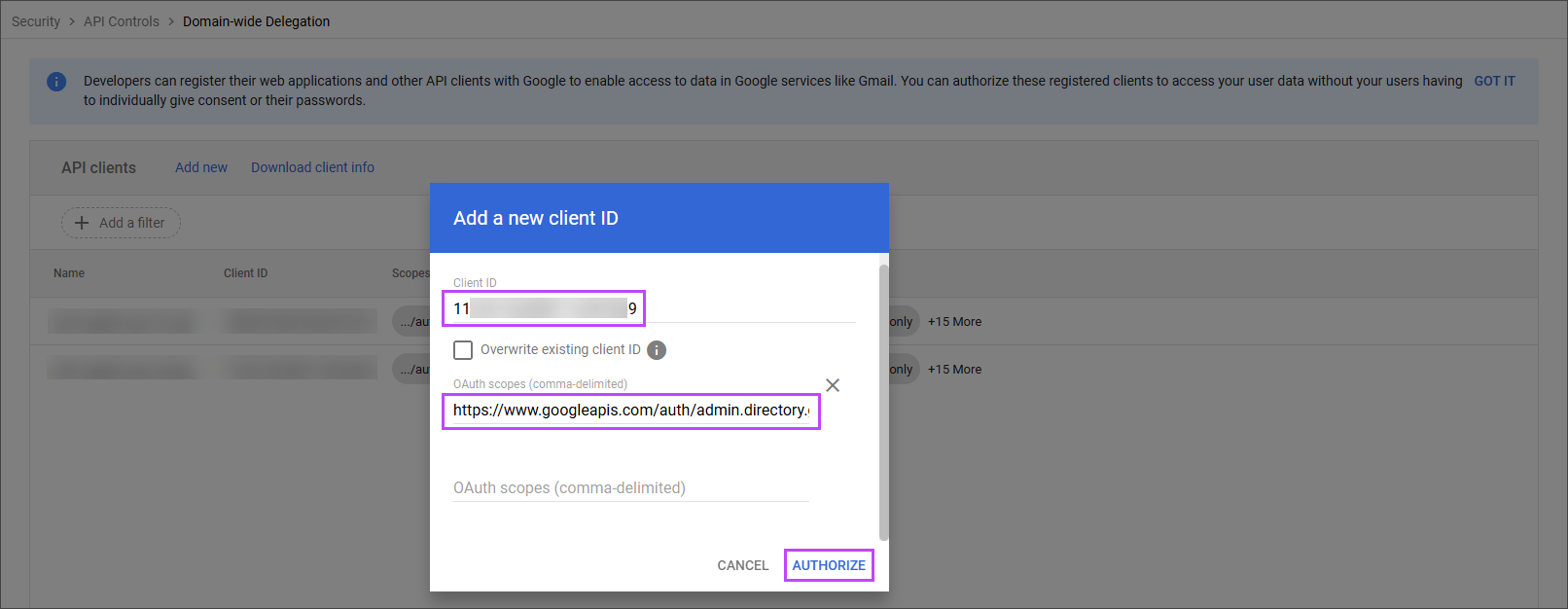
- Click Add new.
- Take a copy of the OAuth 2.0 client ID from the Grant Permissions for Backup page in Cove and paste this into the Client ID field.
- Take a copy of the Scopes list from the Grant Permissions for Backup page in Cove and paste this into the OAuth Scopes field.
- Hit Enter to add the scope list.
- Click Authorize.
- Return to the Cove Management Console and click Verify permissions.
- Select the Google Workspace data to backup:
- Backup the all services for an asset by switching to All Users, then selecting the asset to backup,
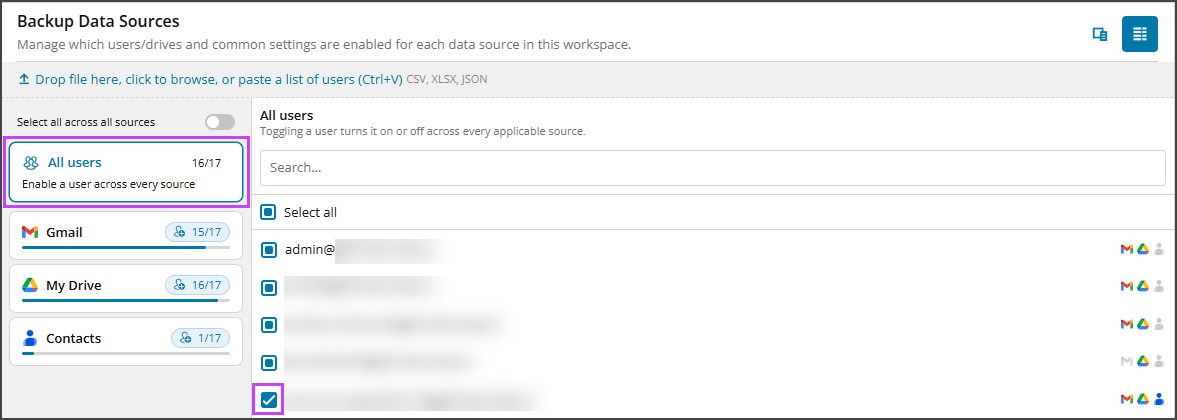
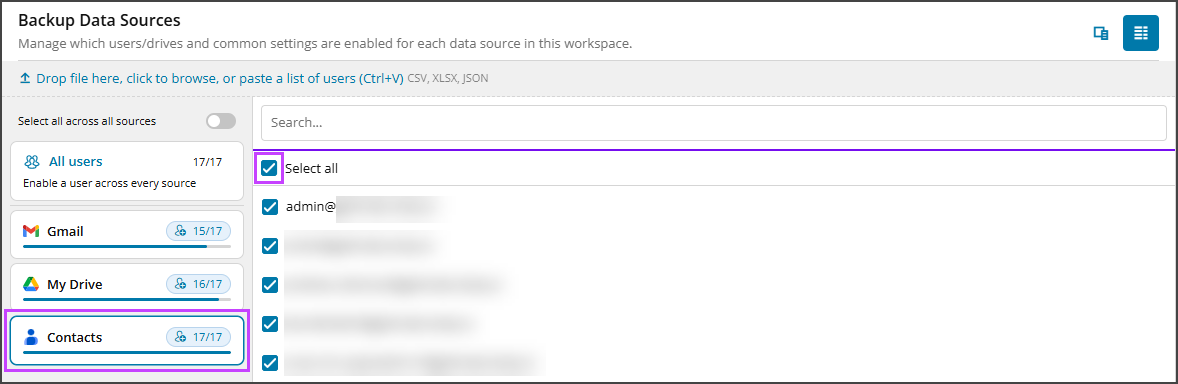
- Backup all assets for a data source/service by switching to the service, then checking Select All,
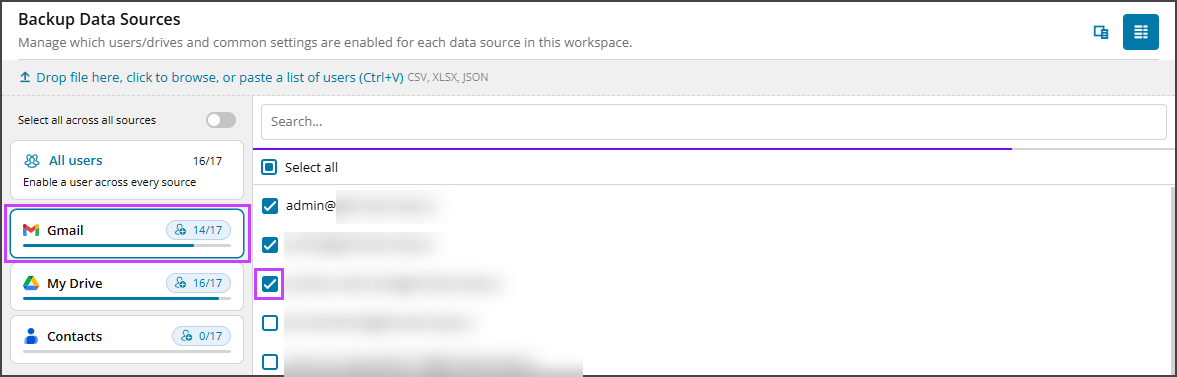
- Backup individual services for specific assets by switching to each service, then checking the specific assets only,
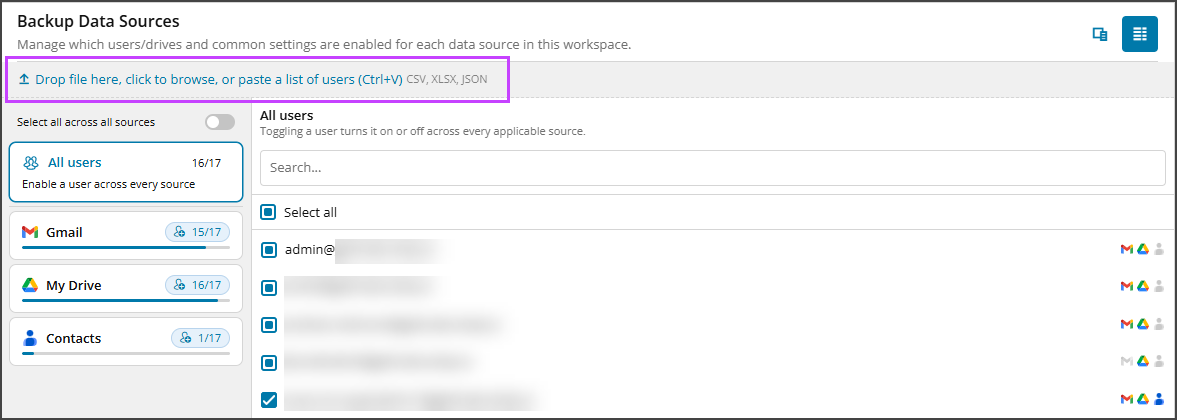
- Drag and drop, click to add, or paste a link to Upload a CSV, XLSX, or JSON file to bulk select service selection per asset.
Or
- Backup the all services for an asset by switching to All Users, then selecting the asset to backup,
- Enable Automatically include new assets for each service to include new assets as they are detected after being added in the Google Workspace admin console.
- Click Configure backup to schedule the first backup for the Workspace.
The backup is scheduled and will complete in due course. The services will display a Pending message until the backup completes.