
Customize a Ecoverse workspace layout
Customize an Ecoverse workspace so it shows the data you need. The workspace saves your settings and applies them the next time you open it.
Before you begin
- Open an Ecoverse workspace.
Show or hide charts
- In the upper-right corner of the workspace, turn Charts on or off.

Show or hide columns
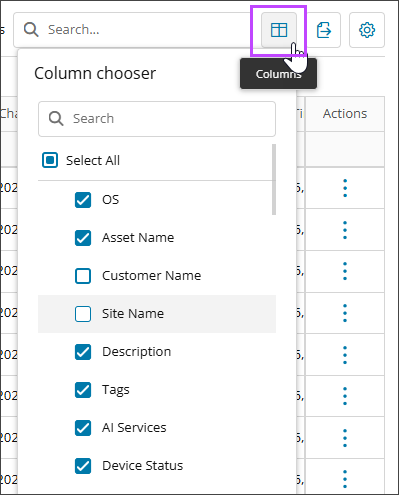
- Above the table, select the Columns icon.
- Select the checkbox next to each column you want to show.
- Clear the checkbox next to each column you want to hide.
- Select anywhere outside the column list to close it.
Resize a column
- Point to the border of the column header until it turns purple.
- Drag the border to the width you want.
Move a column
- Select and hold the column header.
- Drag the column to a new position.
- Release the column header.
Set row density and table styling
- Above the table, select Settings icon.
- Select a row density.
- Default
- Compact
- Tiny
- Select the checkboxes for the table styling options you want.
- Border lines
- Column lines
- Row lines
- Row banding

Reset the table layout
- Above the table, select Settings icon.
- To reset the workspace layout, select Reset table.
Result
The workspace shows your selected layout and keeps it until you change or reset it. To save multiple layouts, save each as a view. For more information, see Save a workspace view.
Related topics