
Create an N-sight Price Breakdown Report in Excel
We have provided an Excel pivot table that offers a clear breakdown of clients and associated charges as an alternative way to view and explore the information previously available through the N-sight RMM Dashboard.
This approach allows you to work directly with your billing data, applying familiar Excel filtering and grouping to analyze costs Using the N‑sight RMM Price Breakdown Report Pivot Table.xlsx alongside your invoice efile, you can quickly combine the data to gain flexible, on-demand insight into your charges.
This process involves the following stages:
Download the invoice from the Partner Success Center
-
Log in to Partner Success Center
-
Go to My Account>Manage Billing to open the billing portal
-
Select either the Payment History or Outstanding Invoices tab
-
If you have more than one product subscription, make sure you are viewing your up-to-date subscription by selecting your 5-digit billing account from the drop-down.
- Five-digit number – invoices billed via N-able Technologies, Inc.
- Nine-digit number starting with the letter A - Invoices billed via N-able Solutions, ULC
-
Click the ellipsis (...)next to the invoice you want to generate the report for, then select Data Usage to download the efile.
Accounts starting with "0xxxxxx-001" are for legacy invoices (N-able Tech) dated 3/31/2020 or older in the drop-down.
Download the Pivot Table and open Excel
-
Download the N-sight Price Breakdown Report Pivot Table v2.xlsx
-
Launch Excel and open both N-sight Price Breakdown Report Pivot Table.xlsx and the invoice efile
Copy the content from the efile
-
Go to the efile
-
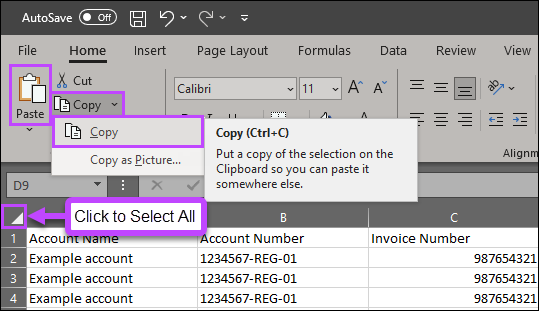
Click the Select All button. Top row, first column
-
Copy the contents. From Home, go to Copy > Copy or right-click in the table and select Copy
Paste the efile content into the pivot table and view the report
-
Click on the Insert efile tab in N-sight Price Breakdown Report Pivot Table.xlsx
-
Click into cell A1 (Account Name), then paste the copied contents from the efile. From Home, click Paste or right-click in the table and select Paste
-
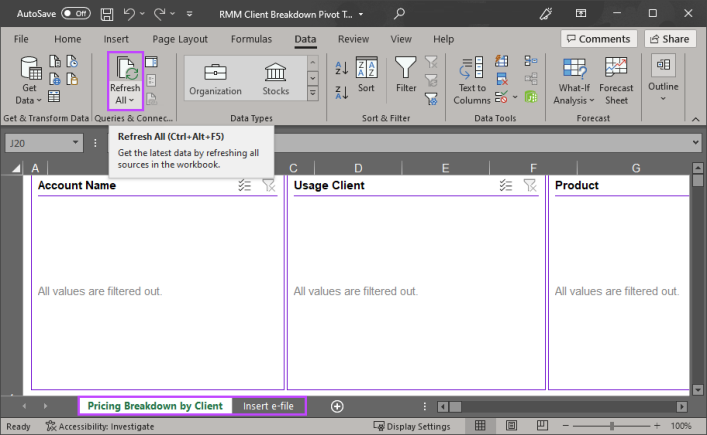
Once the data has transferred, go to the Pricing Breakdown by Client tab
-
Click on the Data menu item
-
Click Refresh all to update the current worksheet
-
This will populate all sections of the report with the imported information from the worksheet
Depending on the volume of data copied from the efile, this process may take a few minutes to complete
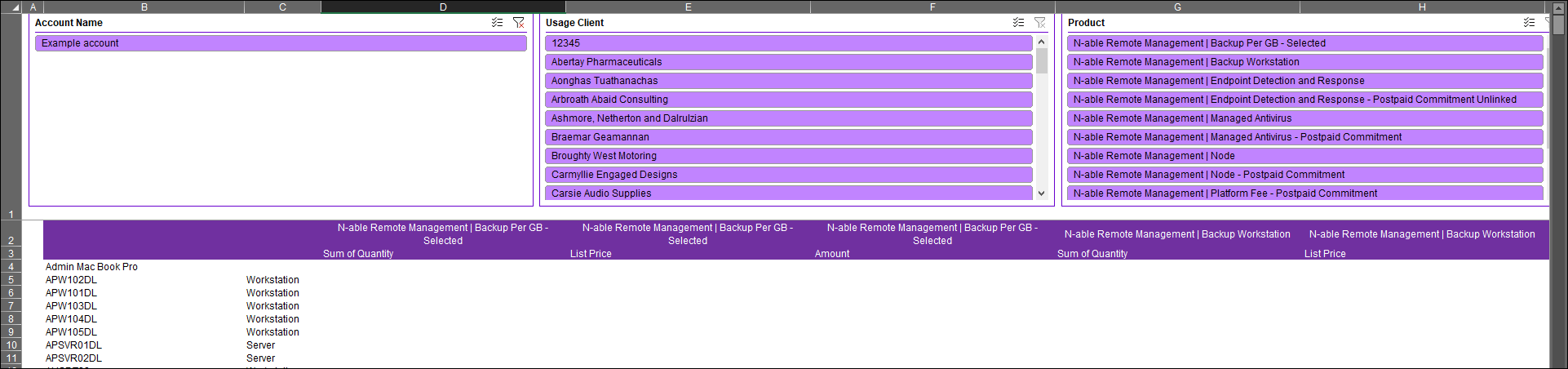
From here, you can select your clients and view a breakdown of their costs across all the N-sight features.
What would you like to do?