
Before beginning the Bare Metal Recovery (BMR), all requirements must be met including Disk size.
To perform a Bare Metal Recovery (BMR) in Nutanix AHV, first ensure you have met the requirements, then proceed to download the Cove Rescue Media ISO image, create or prepare the target virtual machine, and begin the recovery process.
Steps to take:
- Obtain the rescue media (optional)
- Upload rescue media to Nutanix Image Service
- Create the target VM
- Attach the rescue media to target VM
- Boot the target VM
Once these steps have been completed, Boot the Recovered VM.
Nutanix AHV Requirements
Before beginning, ensure:
- Meet the general requirements for Bare Metal Recovery for Linux
- Nutanix Prism login credentials
The source device uses the X86-64 architecture. Nutanix AHV does not support ARM, so ARM64 Linux devices cannot be recovered to Nutanix AHV
Obtain the rescue media (optional)
There are a number of ways to obtain the rescue ISO image:
- Download the Linux Rescue Media file (Linux .iso) directly from the Management Console downloads page.
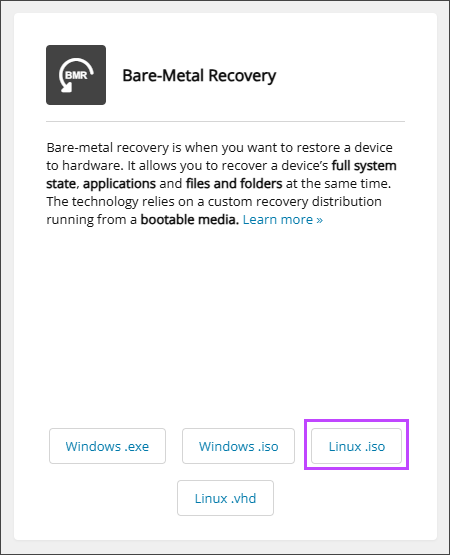
This is useful if your source device is broken or you want to get general ISO image that can be used to recover any Linux device.
- Restore a session-specific rescue ISO image from the Restore tab on the Backup Manager. Session-specific rescue images are built specifically for your source device and include system state information from the device's System State backup session. Session-specific images provide additional level of automation.

- Launch the Backup Manager for the device.
- Navigate to the Restore tab.
- Select the System state data source from the left-hand column.
- Using the Session date and time picker, select a specific backup session, cove-rear.iso.
- Set the restore location where the cove-rear.iso file will be restored.
Or
Upload rescue media to Nutanix Image Service
- Log in to the Nutanix Prism web interface.
- Click the Settings (gear) icon in the upper right-hand corner.
- Select Image Configuration.
- Select Upload Image.
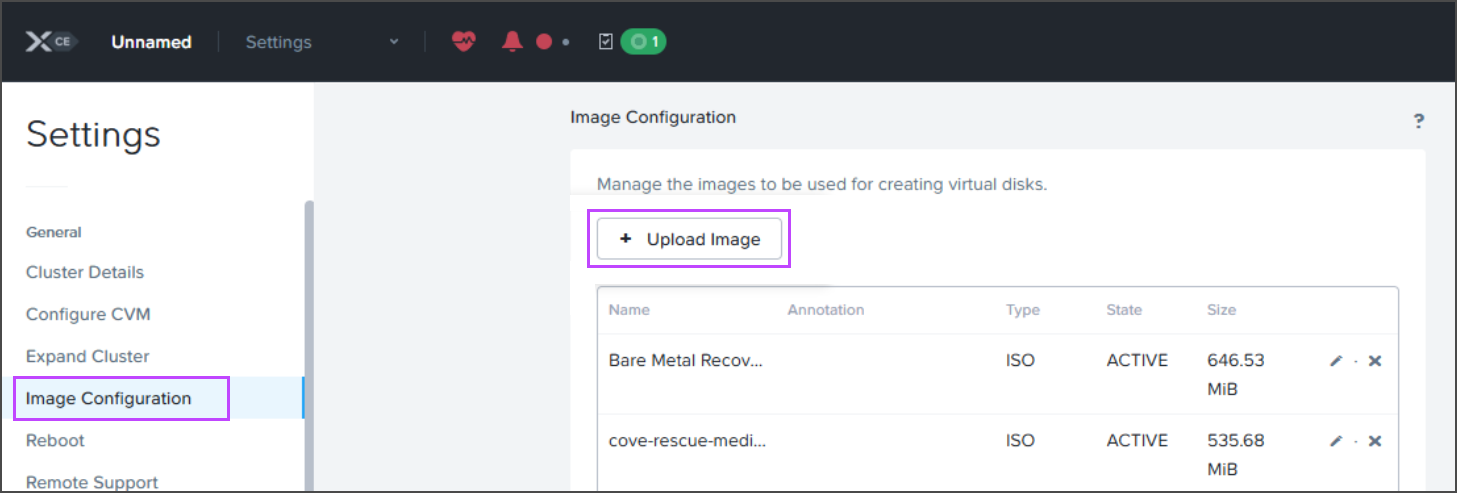
- Give the image a recognizable name, such as
Cove-rescue-media-Linux. - Set Image Type to ISO.
- In Storage Container, select the storage container for the image.
This may be filled in automatically.
- Select Upload a file and choose the downloaded ISO file from Step 1.
- Select From URL and enter the ISO download URL:
https://cdn.cloudbackup.management/maxdownloads/cove-rescue-media-linux.iso
- Click Save.
This starts an upload task. Wait until the task is complete before moving to the next step.
Or
Create the target VM
Skip this step only when the source machine and target machine are the same machine, meaning you are performing a recovery in place.
Via Web Interface
- Select the VM tab to open the list of virtual machines.
- Click Create VM.
- Give the VM a unique and recognizable name.
- Set the number of vCPUs and memory.
- In Boot Configuration, set the same firmware type as the source machine, either Legacy BIOS or UEFI.
Recovery will fail in the case of a firmware type mismatch. The firmware type cannot be changed after the VM is created.
- If the source machine uses UEFI with Secure Boot, select UEFI and enable Secure Boot.
Secure Boot is not available while the VM has any IDE devices.
In this case, the default CD-ROM uses the IDE bus, so you must change the CD-ROM bus type to SATA before enabling Secure Boot:
- In Disks, click Edit on the CD-ROM.
- Set Operation to Clone from Image Service.
- Set Bus Type to SATA (required for Secure Boot, works for all firmware types).
- In Image, select the Cove Rescue Media image uploaded in Step 2.
- Click Update.
- Add the same number of virtual disks as are on the source machine one at a time. For each disk:
- Click Add New Disk.
- Set Bus Type to SCSI.
- In Storage Container, select the storage container for the disk.
This may be filled in automatically.
- In Logical Size (GiB), enter a size equal to or larger than the matching disk on the source machine. When possible, the last partition on each disk is expanded to use the remaining available space.
- Click Add.
- Navigate to Network Adapters (NIC), click Add New NIC.
The VM needs internet access for the recovery.
If you see "A network needs to be created before a NIC can be added", create a network by following the Nutanix Prism documentation.
- Click Save.
This starts the VM creation task. When the task is complete, the VM appears in the Table view.
Via commands
Alternatively, the VM can be created using the Acropolis CLI (aCLI) on a Controller VM (CVM).
For details, see Creating UEFI VMs by Using aCLI and Creating a VM with Secure Boot Enabled in the Nutanix AHV Administration Guide.
Attach Cove Rescue Media
Skip this step if the Cove Rescue Media was attached already.
If the Cove Rescue Media was not attached to the target VM during VM creation, attach it after the VM was been created:
- Select the target VM and click Update.
- In Disks, edit the CD-ROM.
- Set Operation to Clone from Image Service.
- Select the Cove rescue media image.
- Click Update.
- For Legacy BIOS VMs, in Boot Configuration > Set Boot Priority, select the CD-ROM or Default Boot Order (CD-ROM, Disk, Network).
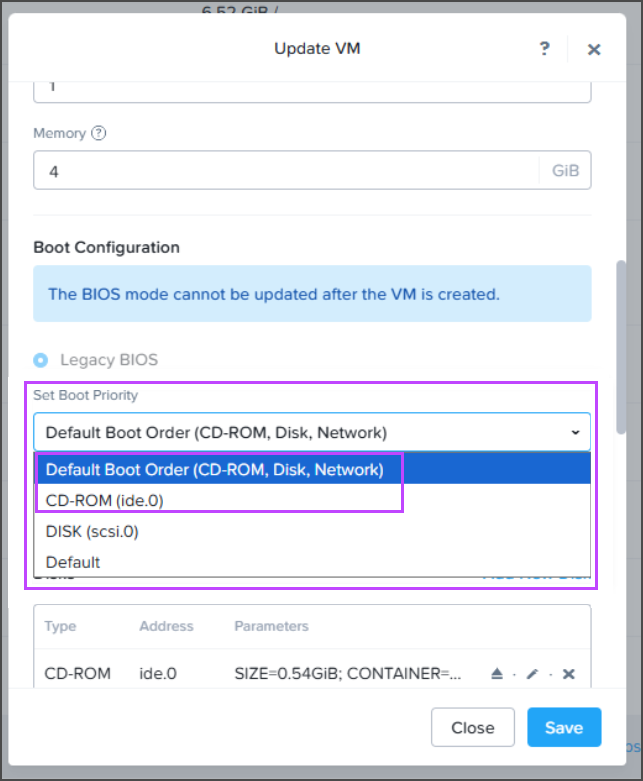
- Click Save.
Boot the target VM
Once the Virtual Machine has been created:
- In the VM tab, switch to the Table view.
- Right-click the target VM and select Power On.
- Right-click the target VM again and select Launch Console.
The Console opens in a new window, and the Cove Rescue Media boot menu opens automatically.
- Select the recovery method and follow the instructions on the Cove Rescue Media screen,
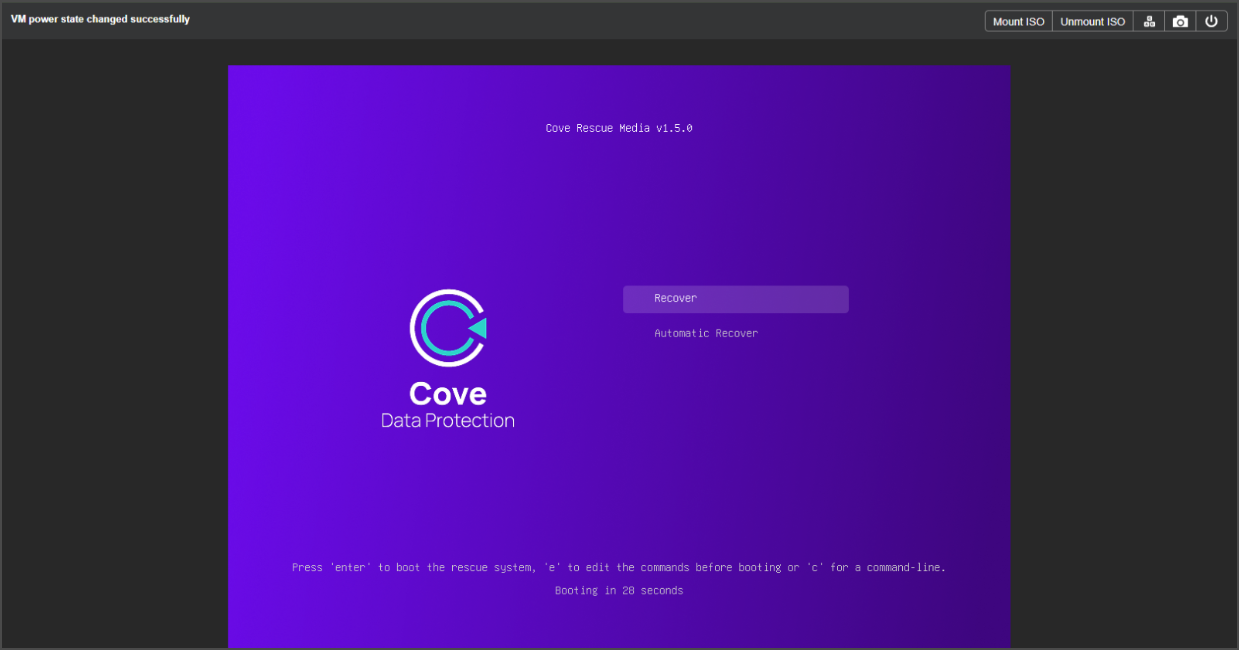
OR
- Follow the instructions to begin recovery to complete the Bare Metal Recovery of the device.
Boot the Recovered VM
After the recovery completes, eject the Cove Rescue Media ISO before rebooting:
- Select the target VM and click Update.
- In Disks, click the Eject icon next to the CD-ROM.
- Click Save.
- Reboot the VM.
Legacy BIOS: If the ISO is not ejected, the VM boots from the Cove Rescue Media again, because the default boot order is CD-ROM, Disk, Network. Eject the ISO, or set Set Boot Priority to the system disk, for example DISK (scsi.0).
UEFI: The VM boots the recovered OS directly, because the recovery adds a boot entry for it to the UEFI boot manager. Ejecting the ISO is still recommended, but it is optional.