
Add Users
You can add new users for your own company and for your customers by:
- Log in to the Management Console under a SuperUser or Administrator account
- In the vertical menu, navigate to Management > Users > User Management
- Click Add user
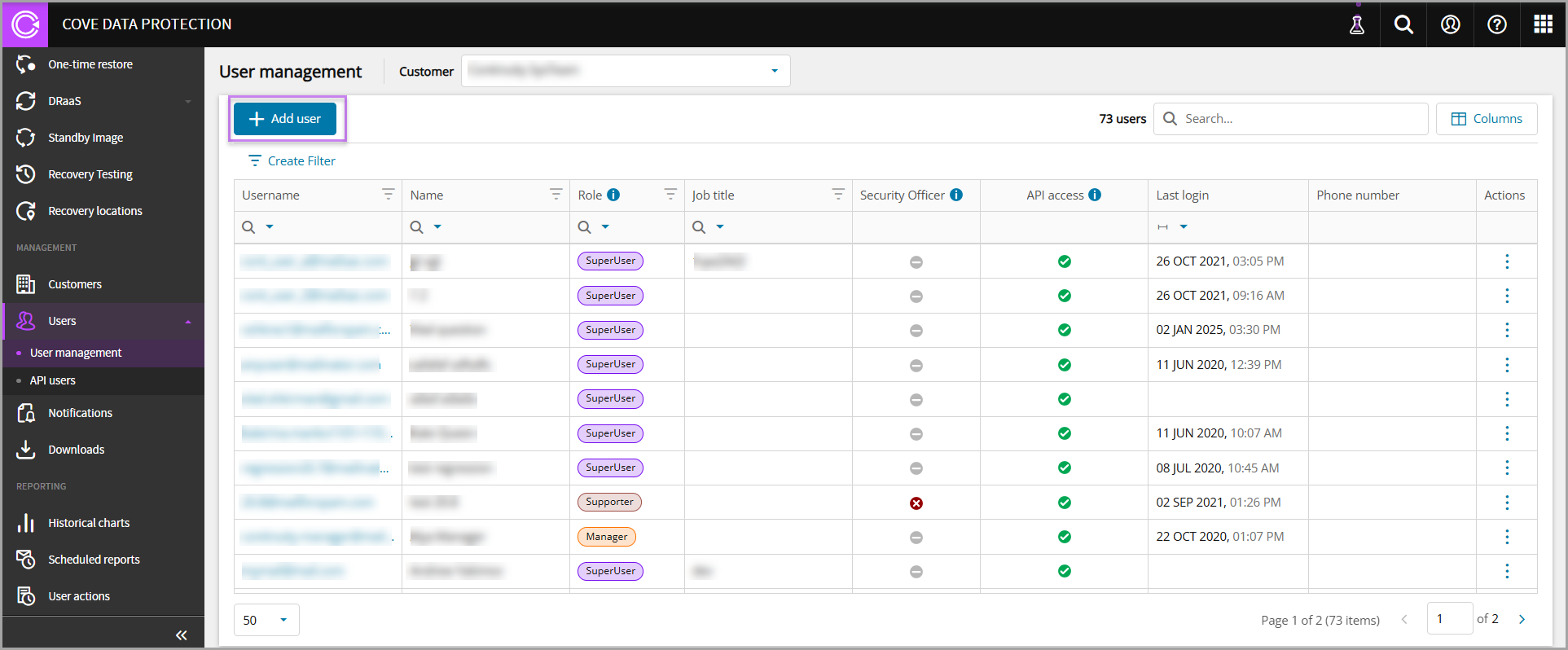
- Fill out the fields for the new user:
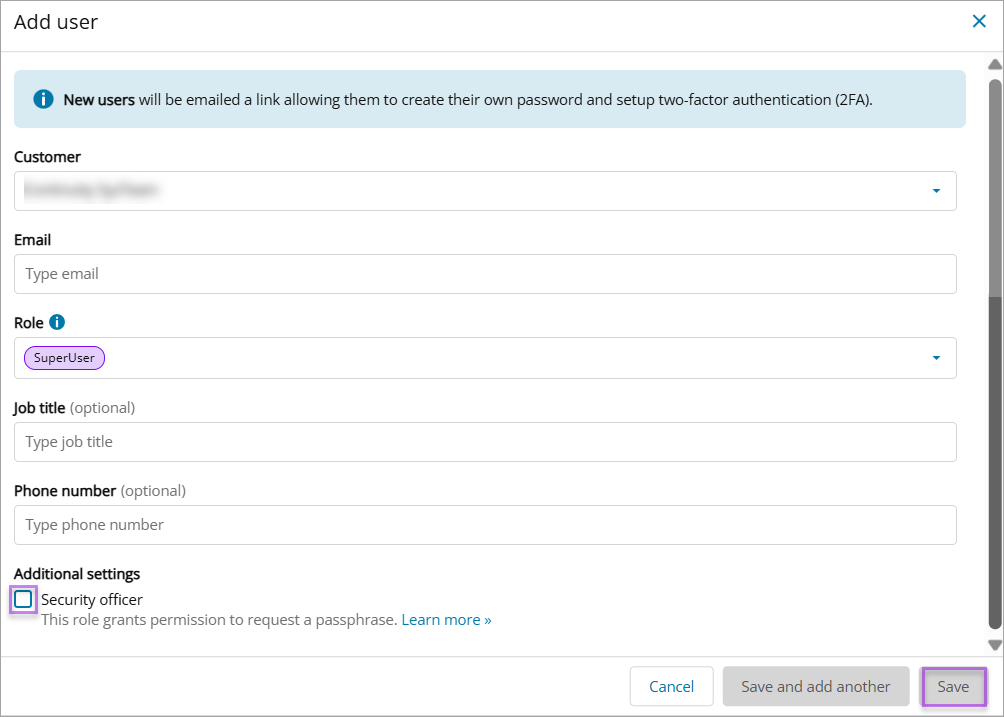
- Using the dropdown, select the Customer to create the user for
- Enter the users email address
- Select the appropriate user role from the Role dropdown
For information on each User Role and the permissions given to each, see User Roles - System Roles
- Optionally, provide the users job title
- Optionally, enter the users phone number
- If the user requires additional permissions, select the checkbox for Security Officer
- Click Save to create the new user
An email notification with a password setup link will be sent to the email address provided when adding the user.
Add API Users
API users can access Cove's API but are restricted from logging into the Cove Management Console.
You can add API users for your own company and for your customers by:
- Log in to the Management Console under a SuperUser or Administrator account
- In the vertical menu, navigate to Management > Users > API Users
- Click Add API user
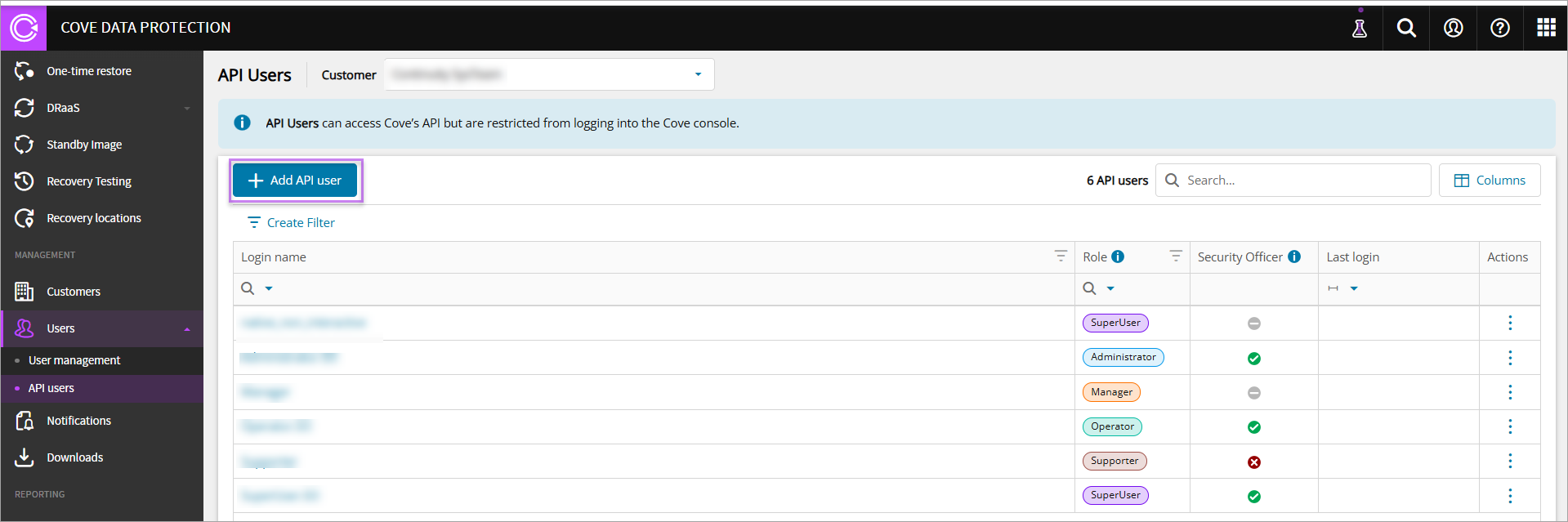
- Fill out the fields for the new API user:
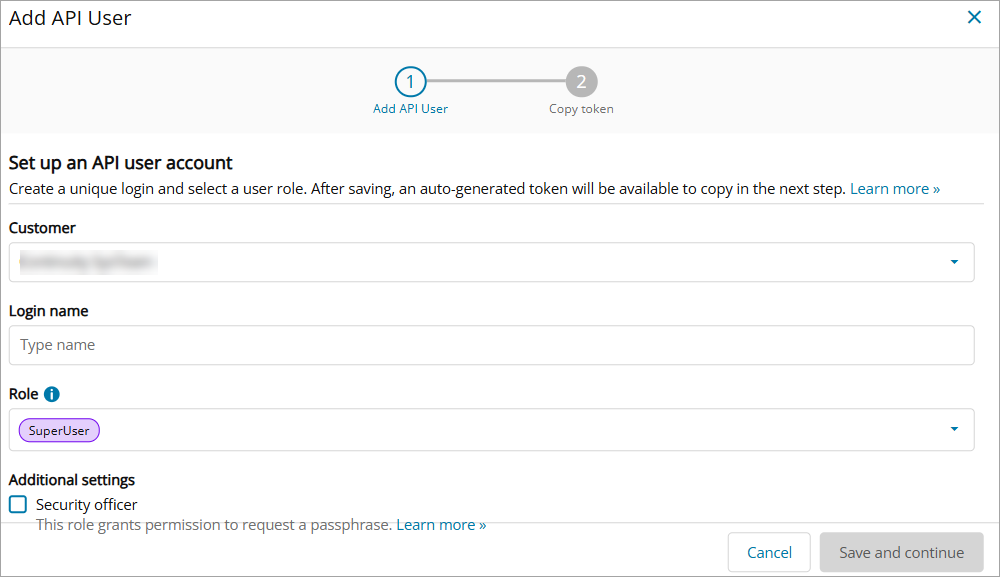
- Using the dropdown, select the Customer to create the user for
- Enter the Requested login name for the API user
A unique, system-generated suffix (e.g.
-ab12c34d) will be appended to the requested login name to guarantee uniqueness across the whole system. - Select the appropriate user role from the Role dropdown
For information on each User Role and the permissions given to each, see User Roles - System Roles
- If the user requires additional permissions, select the checkbox for Security Officer
- Click Save and continue
- Take a copy of the token in the Copy token window by selecting Copy token to clipboard
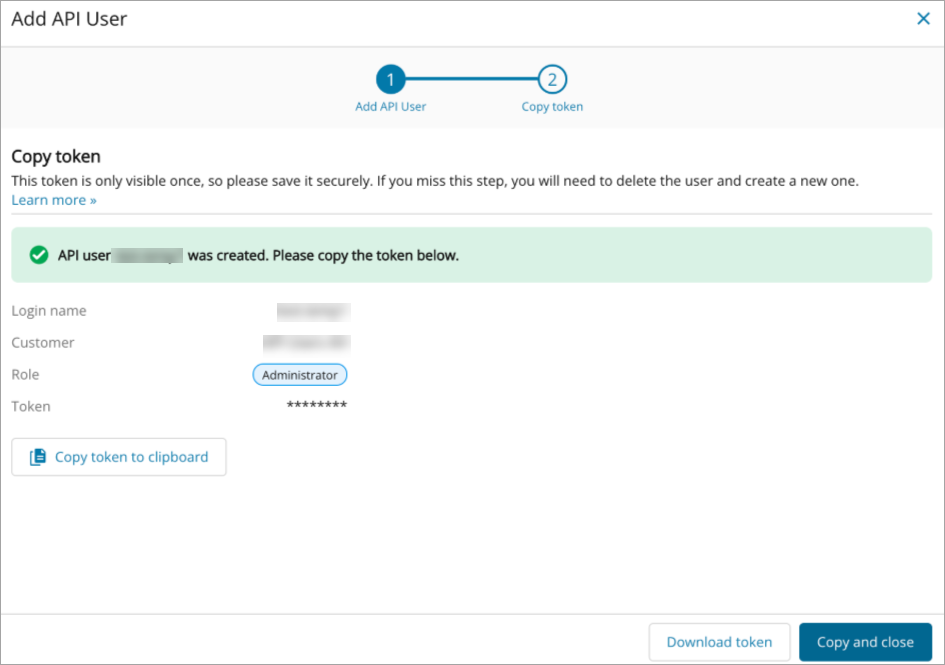
- Click Download credentials to download the token
- Click Copy credentials and close to add the API user
Or
This token is only visible once, so you must save it securely. If you miss this step, you will need to delete the user and create a new one.