
On the Cove Data Protection (Cove) Integrations Dashboard, you can manage your existing HaloPSA connection to make changes to mapping.
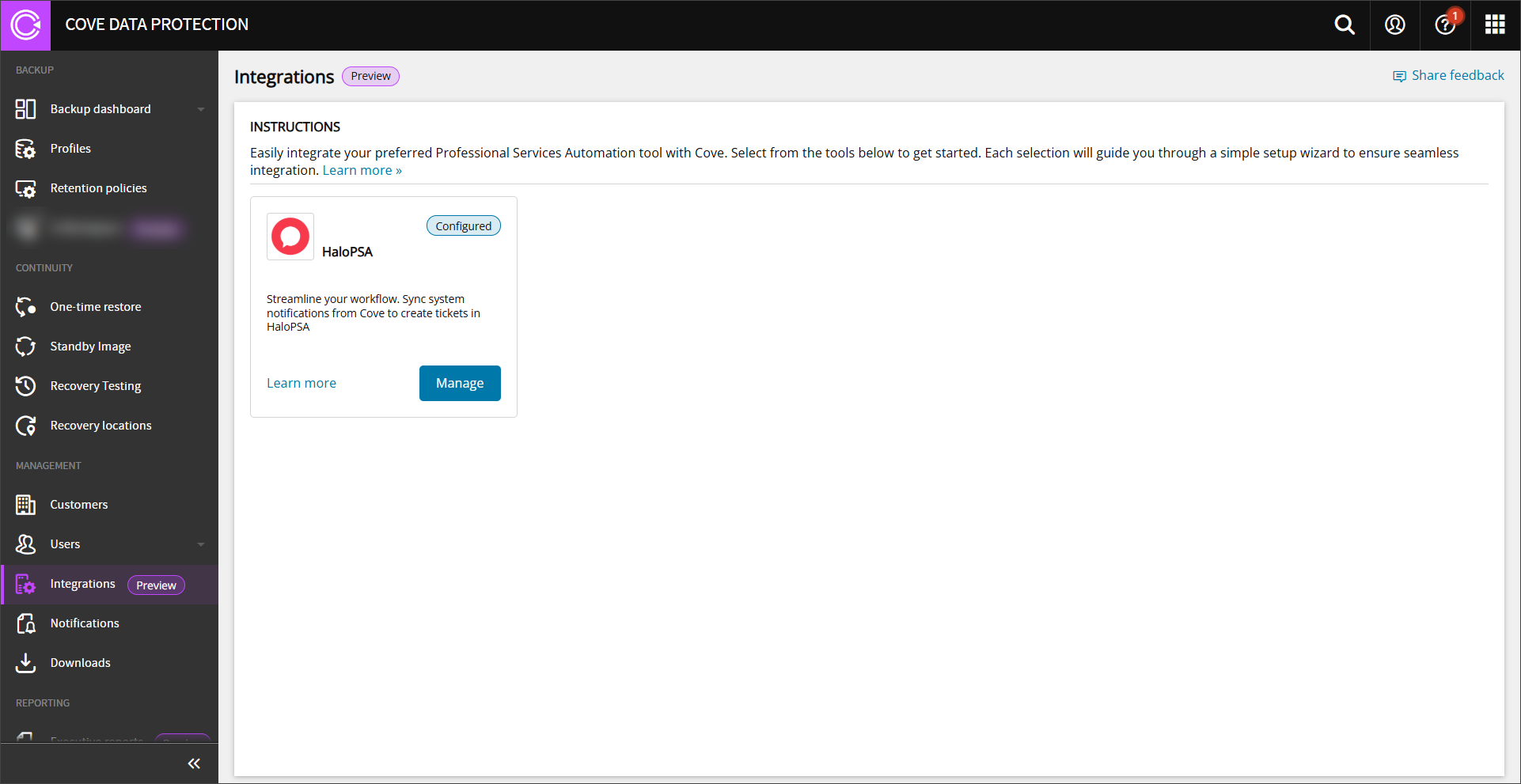
PSA Integration's can be managed and maintained by Reseller customers only.
To do this:
- Log in to the Management Console under a SuperUser or Administrator account
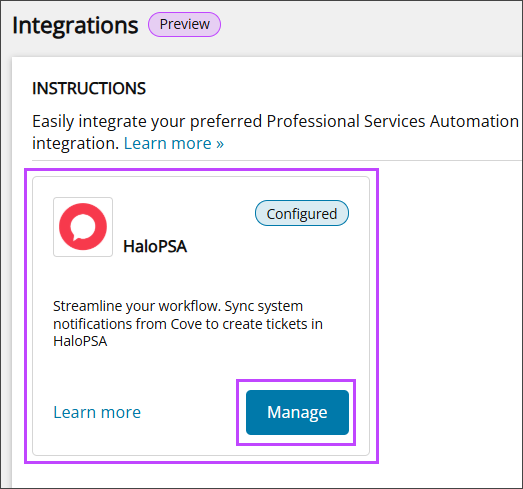
- Select Manage on the HaloPSA tile
- The Configure HaloPSA wizard opens. If no changes are made to the connection details, click Connect.
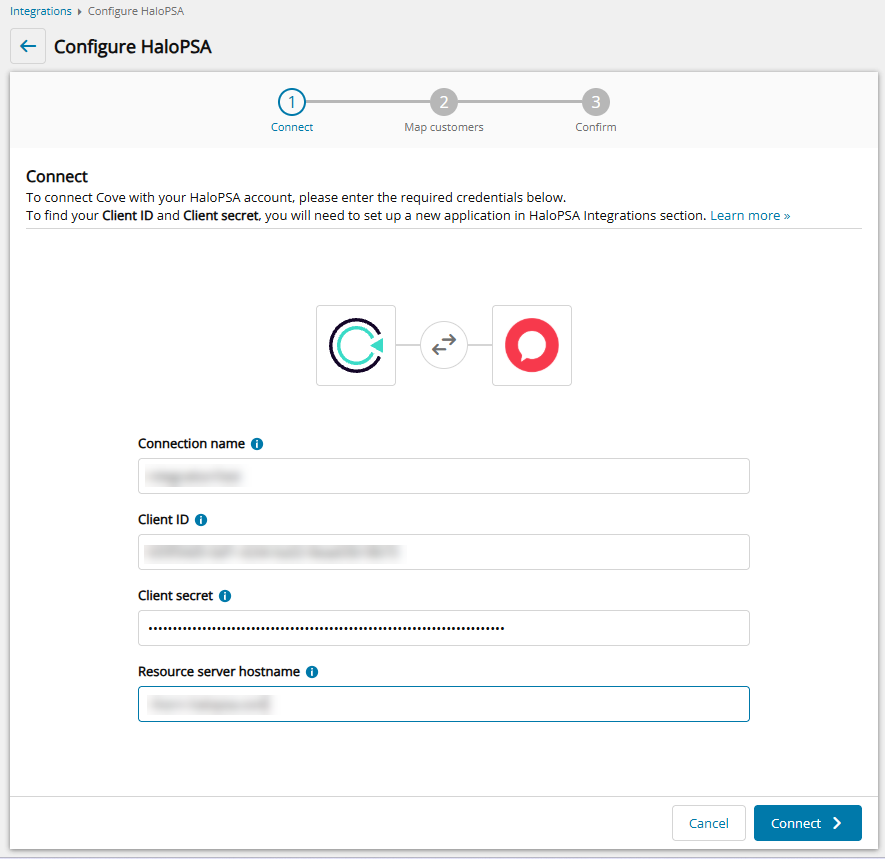
- Click Next to change mapping of customers
- Change the method for customer mapping by clicking change method:
- Auto-Map - match customers by name similarity. Matches above 90% are marked Match, the rest are marked No Match. You can match the remaining ones based on suggested matches.
This action does not replace existing mapping.
- Apply to all - Map every customer to one PSA customer using the dropdown provided. Edit individual rows afterward if needed.
This action does replace existing mapping.
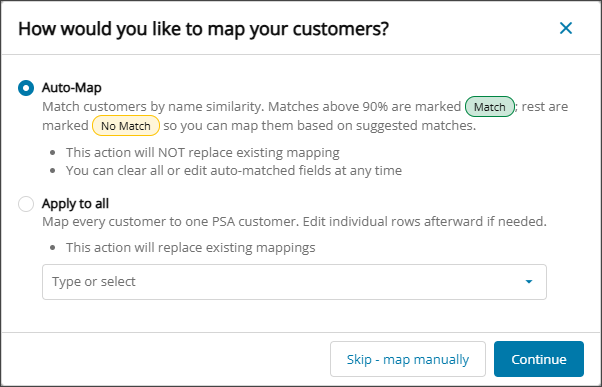
- Auto-Map - match customers by name similarity. Matches above 90% are marked Match, the rest are marked No Match. You can match the remaining ones based on suggested matches.
- Click Continue to map customers as selected or Skip - map manually to map each customer manually
- Make any required changes to the auto-map or apply to all mapping
- To remove mapping, click the X next to the PSA customer name.
- To map a different customer, select from the dropdown.
- To clear all mappings, select Clear all.
This action cannot be undone. Any customers that are mapped manually will be cleared too. If required, you will need to map customers again.
- If using auto-map, some rows may not meet the match criteria and will not have been auto-mapped. For these customers, use the dropdown in each PSA customer field and select from the Suggested Matches
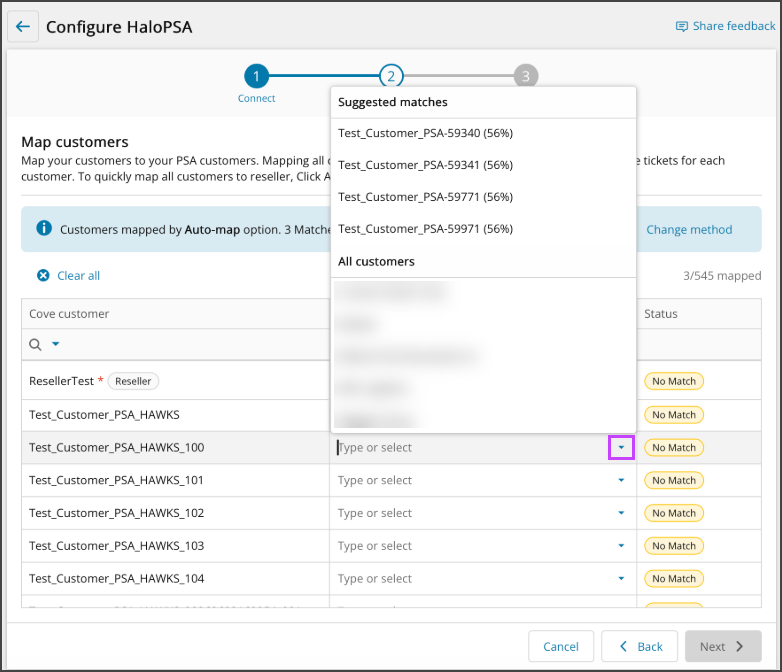
- If mapping each Covecustomer to its own PSA customer manually, select this using the dropdown in each PSA customer field
If there are unmapped PSA customers in the table, any PSA ticket notifications set up for them will be assigned to the PSA customer mapped to the Cove
- Select Next.
- Review the connection details and customer mappings and click Confirm.
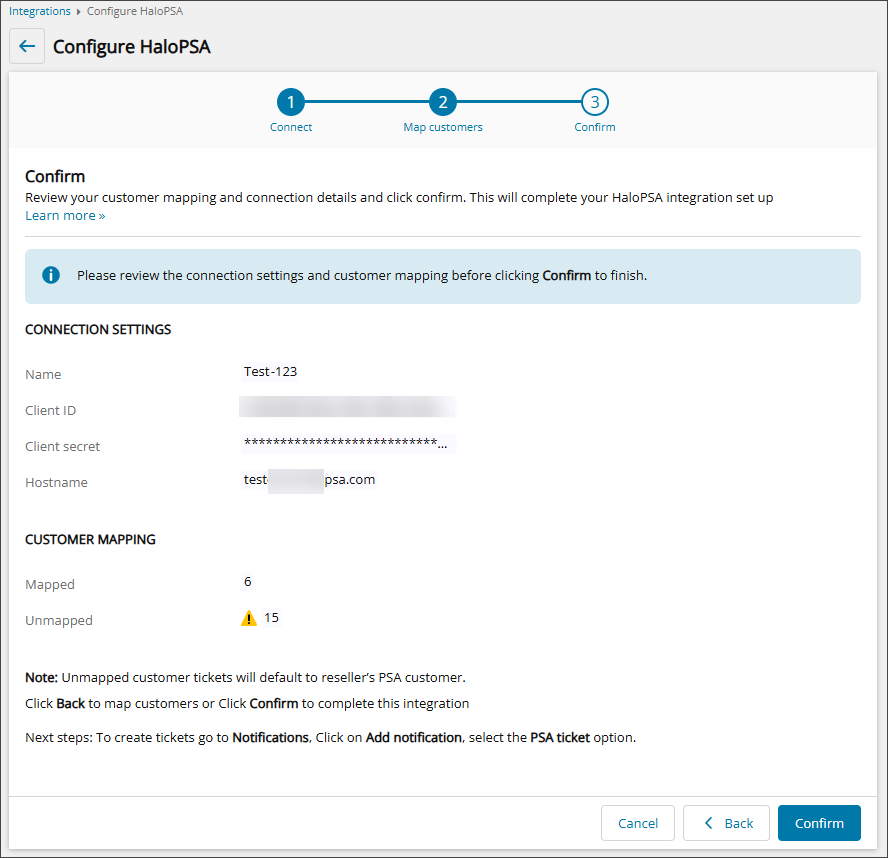
- Once complete, a success message will display to advise that the HaloPSA changes have been made and integration is now active.
Once the connection has been successful, a confirmation message appears to advise and you will be able to edit customer mappings associated with the tenant details provided that Cove retrieves from HaloPSA.

 Related Topics