
After the installation, Cove Data Protection (Cove)'s Backup Manager opens as a web application.
In-Agent Authentication
In order to enhance access security from update 22.2 onward, opening the Backup Manager on the device is now done via in-agent authentication.
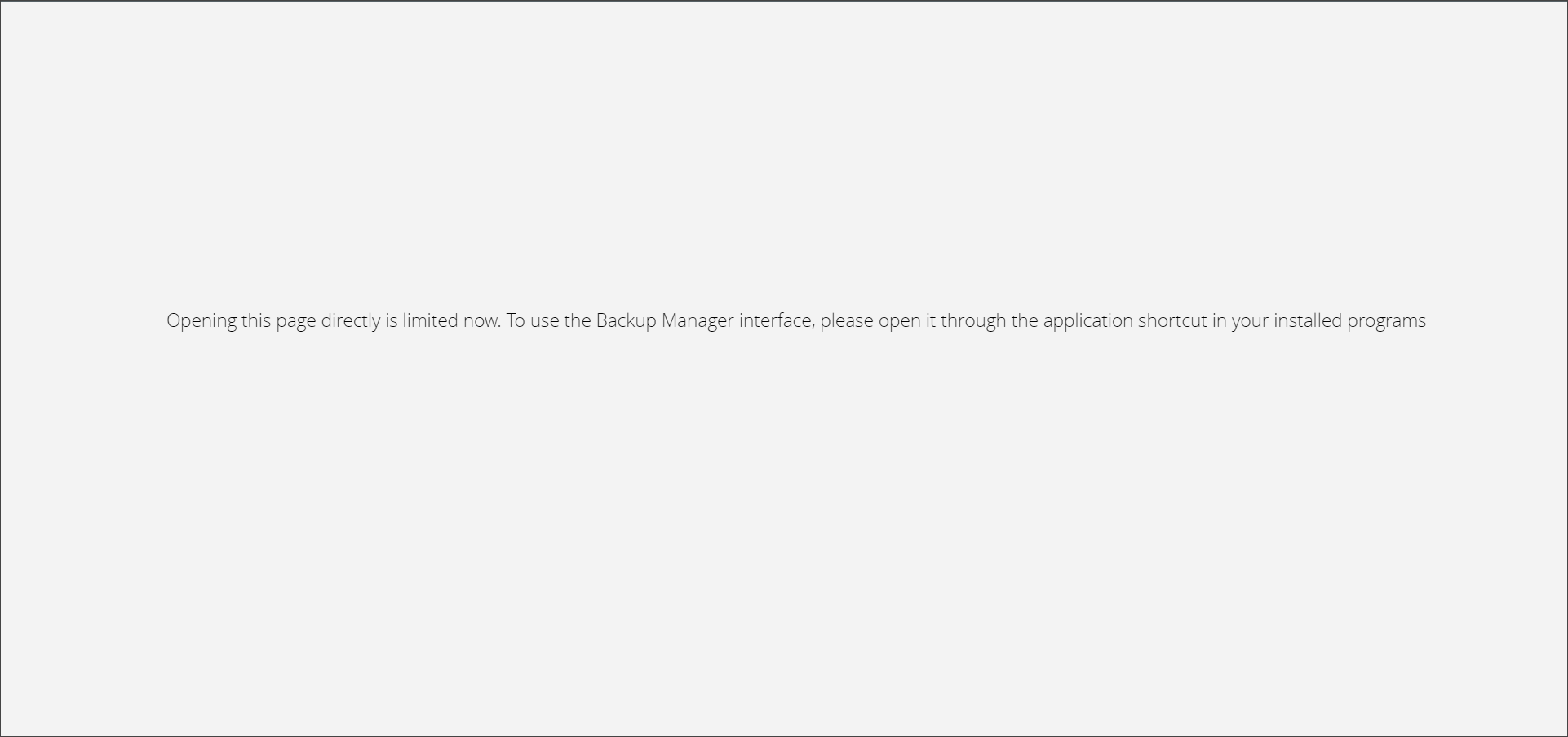
This means that you can no longer browse directly to http://localhost:5000 (or alternate port number if this was changed) on the devices web browser.
The following message will be displayed when trying:
For the following older Windows operating systems, this new feature required you to install Microsoft fix #3024777:
- Windows 7
- Windows 8
- Windows 8.1
- Windows Server 2008 &R2
- Windows Server 2012 & R2
This security enhancement also means that the Backup Manager can only be opened on the device by a local administrator or a member of the automatically created "N-able Backup Users" group.
Add users to the "N-able Backup Users" Group (Windows Only)
To add users to this group:
- Open the Start menu on the device
- Type Computer Management, then hit Enter
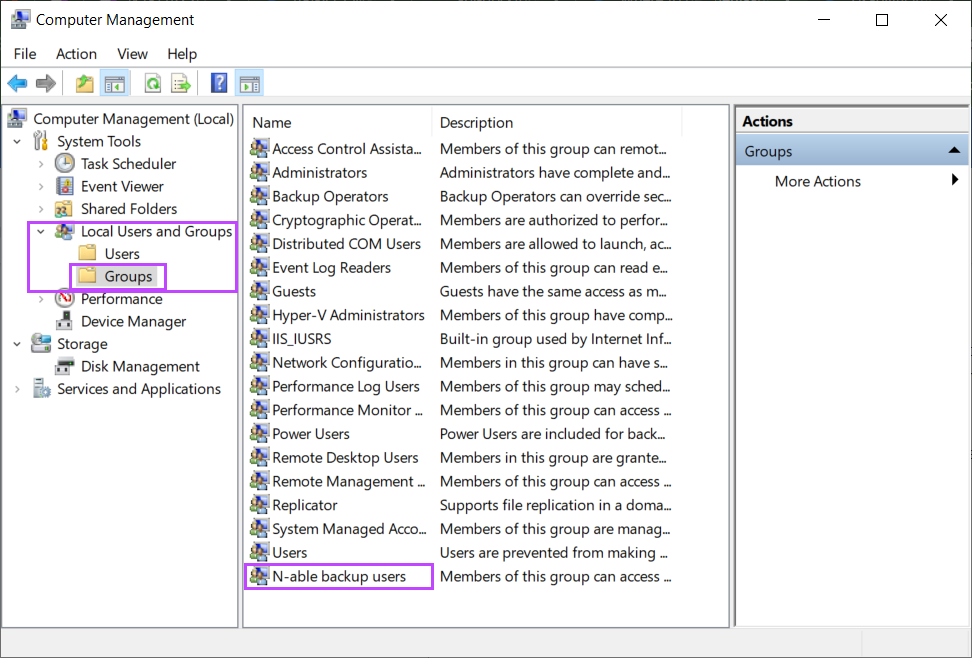
- In the Computer Management window, expand Local Users and Groups and open the Groups view
- Right click the N-able Backup Users group and select Properties
- Under the Members section, select Add
- Enter the User in the Select Users window and click OK
- Click Apply, then OK in the N-able Backup Users Properties window
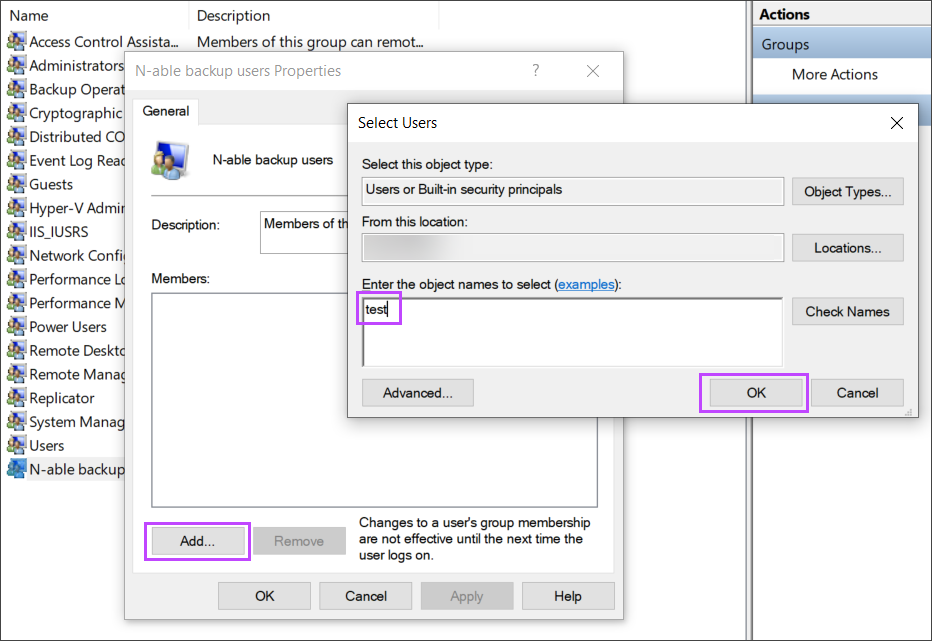
Once complete, user will be able to start the Backup Manager and work within this to perform manual backups and restores.
Launch Backup Manager on Windows
To start the Backup Manager on Windows devices:
- Open the Start menu
- View the list of installed applications
- Click Backup Manager
- Approve permissions for this application to make changes
Launch Backup Manager on macOS
To start the Backup Manager on macOS devices:
- Open the Finder
- From the Sidebar, choose Applications
- Click the Backup Manager icon
Ensure you enable Full Disk Access for the Backup Manager before running backups on macOS 10.14 Mojave or later.
Launch Backup Manager on Linux
To start the Backup Manager on Linux devices:
- On the host machine, open the Terminal
- Execute the
ClientToolcommand as the root user by using the following command:sudo ./ClientTool bm-ui.open
Launching devices Backup Client remotely
Any of the devices' Backup Manager's can be opened in a browser (no installation necessary). This is possible at the time the device is running on a remote computer. The Backup Manager you are connecting to should allow remote connections (the Accept remote connections setting should be on if the Backup Manager has this setting).
- Open a web browser and go to https://backup.management
- Find the device on the list
- Click the device name to open the Device Properties window
- Select Launch backup client
- Enhanced Device Properties:

- Classic Device Properties:

- Enhanced Device Properties:
If the connection cannot be established, you can manage the device using remote commands. See remote commands for full details.
If the Launch backup client button is greyed out for a device, this means that the device is offline or the Backup Service is not running.
If the device is a laptop, it must be open and logged on in order for the backup processes to run and allow remote access through the console.