
Backup Manager can be installed in Restore-Only Mode on a new machine but using existing device configuration, the current backup history will transfer over so long as the installation file provided for the existing device is used.
- Login to the Cove Data Protection (Cove) Management Console
- Find the device in to re-install from the Backup Dashboard
- Click the device name to open the device properties
- Open the Action Menu by clicking the three vertical dots on the right-hand side of the device properties window
- Select Restore-only software
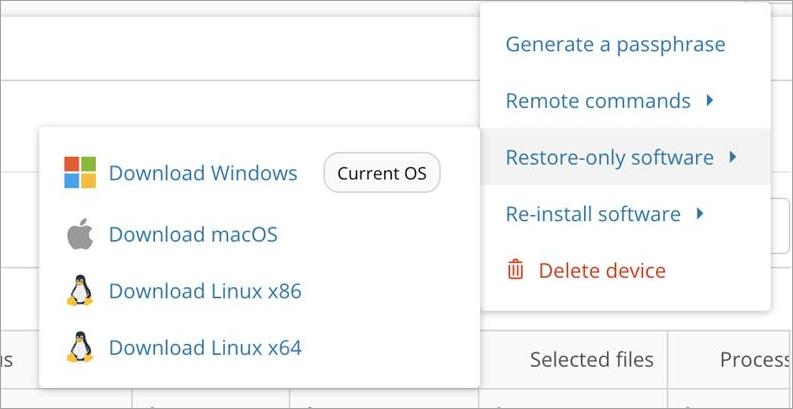
This is only available from Enhanced Device Properties. If you have turned this off in the Features lab window, please enable it to see this option
- Download the appropriate file for your operating system
Do not rename the installation file on your device
The generated download file is exclusive for this particular backup device and cannot be used to install a fresh instance of Backup Manager. This is because this download file contains installation data specific to the machine, such as Device Name and Installation key
- Double click the file to run the installer
You will be prompted for a passphrase during the installation. For details on generating a passphrase, see Get Passphrase for Managed Device
- Click Finish
It may take some time for the Backup Manager to download all data relating to the device from the cloud
- Confirm the device is in Restore-Only mode by opening the Backup Manager and checking for the Restore-only mode banner

If you do not see this banner, the device has not successfully entered Restore-Only mode
Do not click Switch to standard mode until you have completed your required tasks as this will take the device into standard mode and may (depending on configuration) cause a backup to run on the device