
Update OS version on Apple devices
Use commands to update the operating system (OS) on Device Management for Apple (DMA) enrolled devices. The Update OS command updates software on Mac computers, iPhones, iPad tablets, and Apple TVs.
To send OS update commands to DMA enrolled devices, your user role must have the Update OS Version permission enabled. For more information see the Device Management for Apple section
- DMA sends OS update commands to Apple devices to download and install available updates. Device response isn’t guaranteed.
- Depending on the configuration and enrollment, end users may need to enter admin credentials.
- Versions older than macOS 13 Ventura and iOS 16, may succeed but installs the latest OS version. For example, macOS 12 updates to macOS 13.4. Compatibility decreases with each older version.
Schedule an Apple OS update for devices from DMA
-
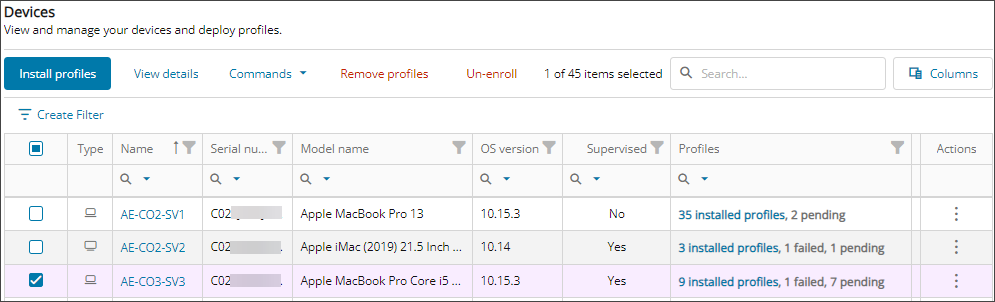
The Devices tab shows each device's name, serial number, OS version, profiles and more.
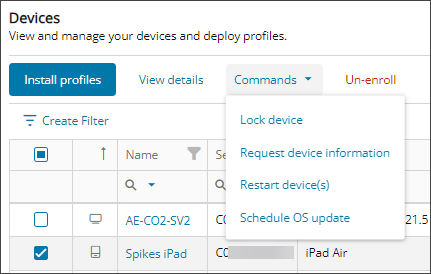
- Select the checkbox for one or more devices and use the Commands drop-down menu to select Schedule OS Update.
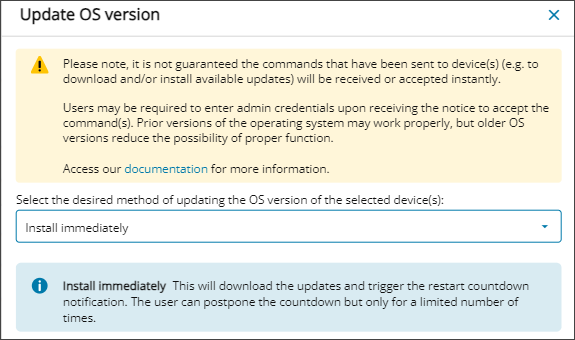
- Select the method you want to use for updating the OS version.
- Review the resulting note information and select Update to confirm the command.
The command is sent to the devices. The action is completed or queued for processing, and you can view the result in the Command log.
Update the Apple OS version on a device from the All Devices view
-
In the left-hand navigation menu, click Views > All Devices.
-
Select the checkbox(es) next to the device(s).
-
Select DMA> Commands > Update OS Version.
The Commands option is available when a device is enrolled in Device Management for Apple.
- Select an update option.
On unsupervised devices, the Update OS Version command prompts the user instead of running automatically.
- If prompted, review the OS command notice and select Yes, I understand.
The command is sent to the device. The action is completed or queued for processing, and the result is returned to N-central where you can view it in the Command log.
Update options
Option Note Download or install the update, depending on the current device state This option lets the OS decide which action to take based on whether a user is logged in and working or based on its configuration. This is the safest option and is considered the default option. Download the latest update without installing it Download the latest update and trigger the restart countdown In iOS and tvOS, this installs a previously downloaded software update. In macOS it downloads the software update and triggers the restart countdown notification via Notification Center.
Download the latest update and notify the user via the App Store Only available for macOS. Download or install the latest update, force a restart if required This option lets the OS decide which action to take based on whether a user is logged in and working, or based on its configuration, but also make a device restart mandatory. Only available for macOS.
Updated: Nov 17, 2025