
Edit tags
When you edit a tag, the system automatically updates the assets that use or match the tag.
You cannot change a tag between static and dynamic.
Before you begin
-
Your role must include the Custom Properties Create/Edit/Delete permission in the Administration section.
- The tag must be in your own organization or a child organization. You can't edit tags inherited from a parent organization, and you can't assign assets to a dynamic tag by hand.
Steps
- Go to Ecoverse > Configuration> Tag Management.
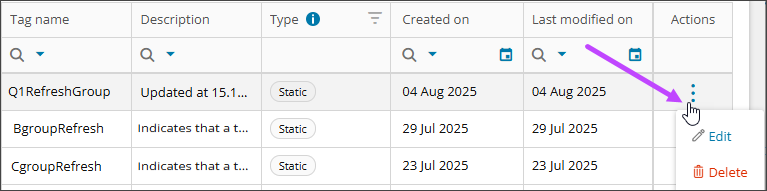
- Select the tag to open its details or select Edit from the Actions menu in the tag's row.
- Go to the Settings tab.
- Update the Tag name or Description as needed.
- The tag name can contain only letters, numbers, hyphens, and underscores. It cannot contain spaces or special characters.
- To change the organization where the tag is available, select a different Scope.
- For a static tag, add or remove assets where you want the tag to apply.
- For a dynamic tag, update the filter conditions that determine where the tag applies.
- Select Save.
Result
A success message briefly appears in the upper-right corner. The system saves your changes and automatically updates the assets that use or match the tag.