
Tag Management overview
Tags let you label and organize assets based on how your business operates. Create tags to filter assets and target groups of assets with actions such as policies, without selecting each asset individually.
In Tag Management, scope determines where tags apply. Tag level and asset count help you understand a tag's impact before you change or delete it.
Get started with tags
Create tags to help you filter, organize, and target assets.
Create tags
When you create a tag:
- Select the scope where the tag is defined .
- Choose a tag type:
- Dynamic: Create filter rules that automatically assign the tag to matching assets. Tag assignments update as asset properties change.
- Static: Select a fixed set of assets and manually assign the tag.
- Select or define the assets for the tag.
For instructions, see Create a dynamic tag or Create a static tag.
Use tags to filter and organize assets
After you create a tag, it appears in Tag Management and the Assets view. You can:
- Filter assets by tags across platform views.
- Use policies to target tagged assets.
- Add assets to existing tags.
Tag types

Dynamic tags
Dynamic tags automatically group assets that match filters you define. As asset properties change, the system adds or removes the tag to keep the group current.
For example, create a dynamic tag for servers that haven't checked in for seven days. The tag is removed when a server checks in again.
Benefits of dynamic tags
- Automatic grouping: Keeps assets grouped by properties such as configuration, risk, compliance status, or role.
- Operational insight: Identifies assets that need attention.
- Policy targeting: Apply policies to tagged assets automatically.
Static tags
Static tags apply only to the assets you choose. Select assets when you create a tag, and add or remove assets at any time. You can also assign static tags to assets from the Assets view.
Use static tags for stable asset groups that rarely change, such as department assignments or critical assets.
Examples:
- Use tags such as VIP, Break/Fix, or Onboarding to provide context during triage.
- Use tags such as CriticalAsset or CustomBuild to help with root cause analysis and automation.
Tag scope, level, and asset count
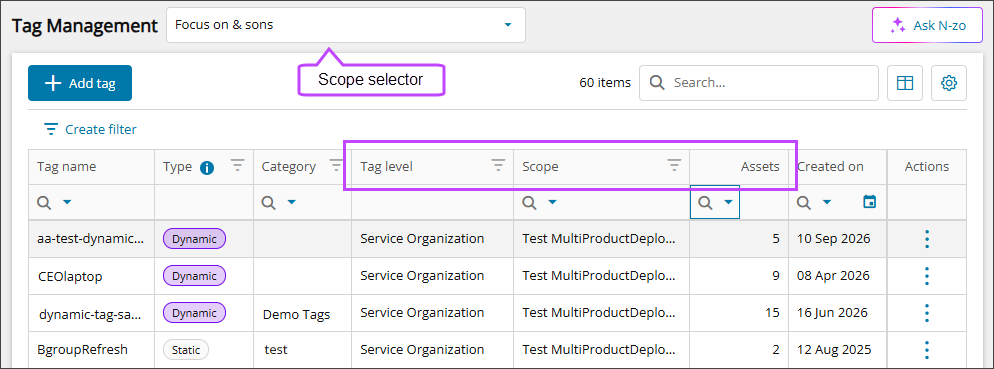
Scope selector
Use the scope selector at the top of Tag Management to choose the organization whose tags you want to see. By default, the selector points to the highest-level organization you have access to. The tags in the table match your selection.
Understand the scope hierarchy
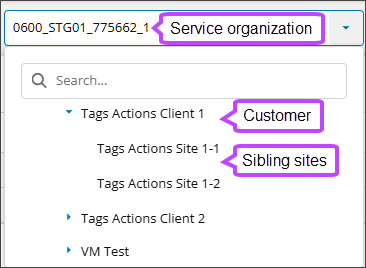
The tags available to you depend on the selected scope.
- Service organization: Tags created for that service organization and in its children. Tags from sibling service organizations aren't available.
- Customer: Tags created for that customer and tags inherited from its parent. Tags from sibling customers aren't available.
- Site: Tags created for that site and tags inherited from its parents. Tags from sibling sites aren't available.
Identify where a tag is defined
Use these columns to identify where each tag is defined:
- Tag level: The organization level where the tag is defined, such as service organization, customer, or site.
- Scope: The name of the organization that owns the tag.
For an inherited tag, Scope shows the parent organization that owns it. You can filter and sort both columns.
Asset count
The Assets column shows the number of assets associated with a tag. A tag with no associated assets shows 0. You can sort by this column.
The count:
- Shows tag associations, not whether a policy was successfully applied.
- Includes assets you can't view. The count can therefore be higher than the number shown in the tag details.
- Updates after the system finishes applying a new or changed tag. Dynamic tags can take longer to update.
To view the associated assets, select the tag to open its details. The Assets count is not a link.

Related topics