
About script configuration
When adding a script to the Script repository, you will need configure various settings. The below information describes these areas.
Details tab configuration details
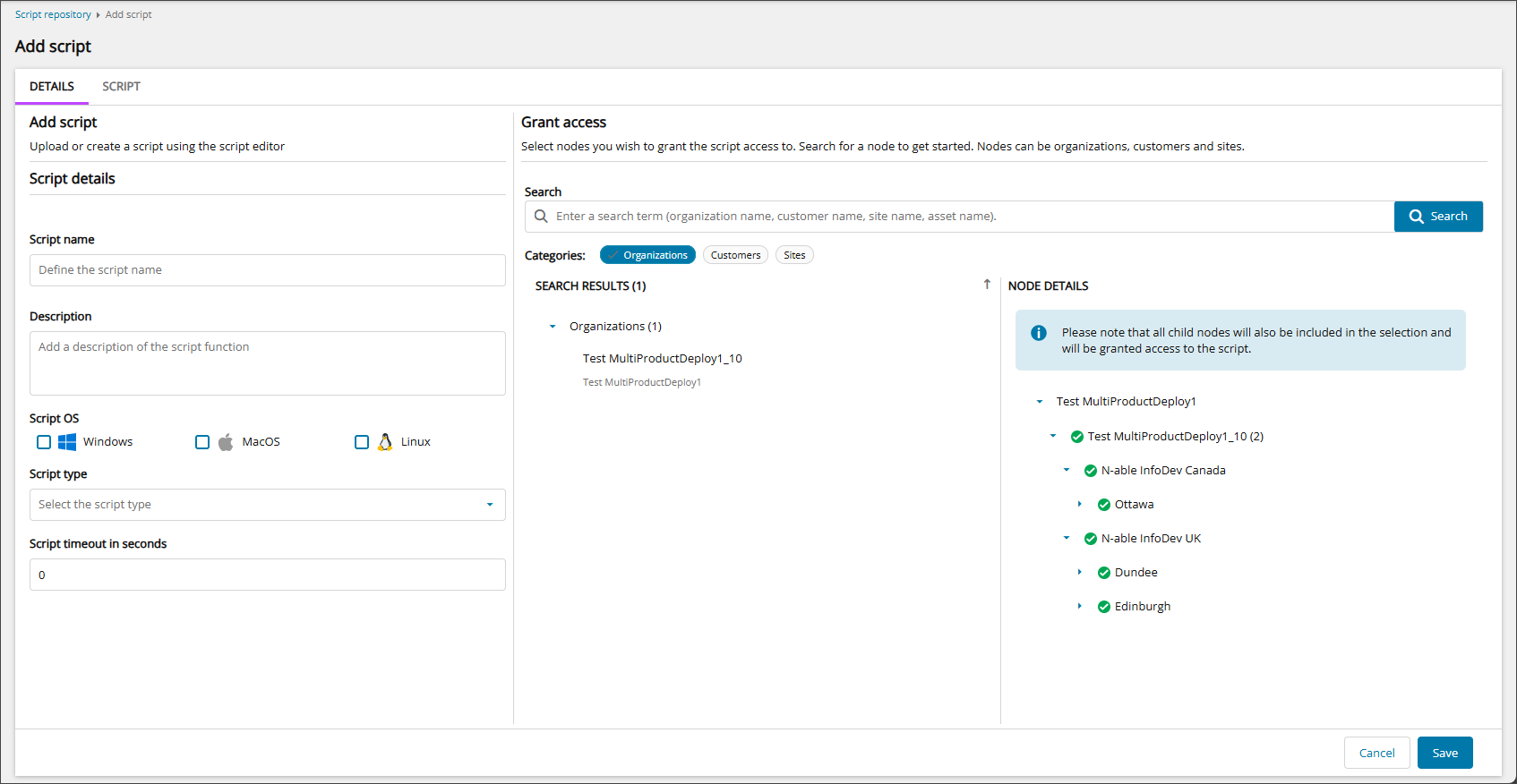
Script details
Update the Script details to your requirements:
- Script name: Enter the name of the script. This name will be displayed in the Script repository and in the N-central UI.
- Description: Provide a detailed description to help users understand the purpose and functionality of the script. This description should clearly explain what the script does, including any specific requirements or dependencies.
- Script OS: Choose the operating system(s) to ensure the script is only available for supported environments. This can include Windows, macOS, and Linux.
- Script type: Select the Script Type (language) from the drop-down menu. We currently support:
- Windows: PowerShell, PowerShell Core, and Python.
- macOS and Linux: PowerShell Core, Bash, Python, and Shell.
- Script timeout in seconds: (default: 3600) Enter a script timeout duration. This ensures that the script will be terminated after a specified duration.
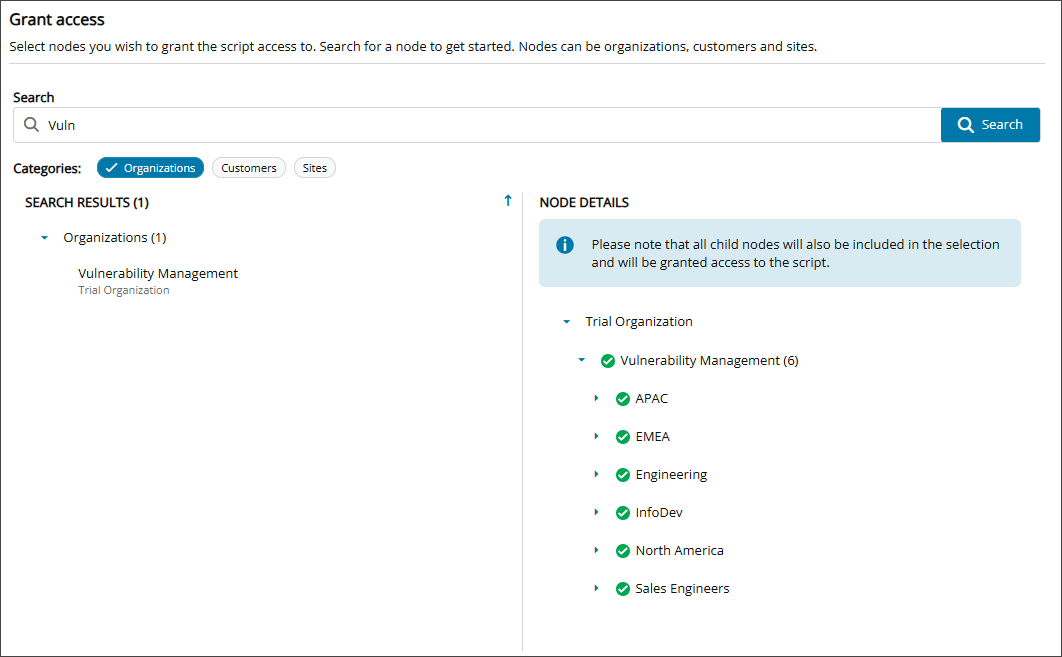
- Grant access:
- Enter a search string to find a node (service organization, customer, or site), then select Search.
- (Optional) Select or clear the node Categories to filter the search results.
- From the search results, select the node where you want to allow the script to be run.
All child nodes will also be included in the selection allowing the script to be run.
The maximum duration a script can run is 3600 seconds.
Script tab configuration details
After you've populated the Details tab fields, proceed to the script itself.
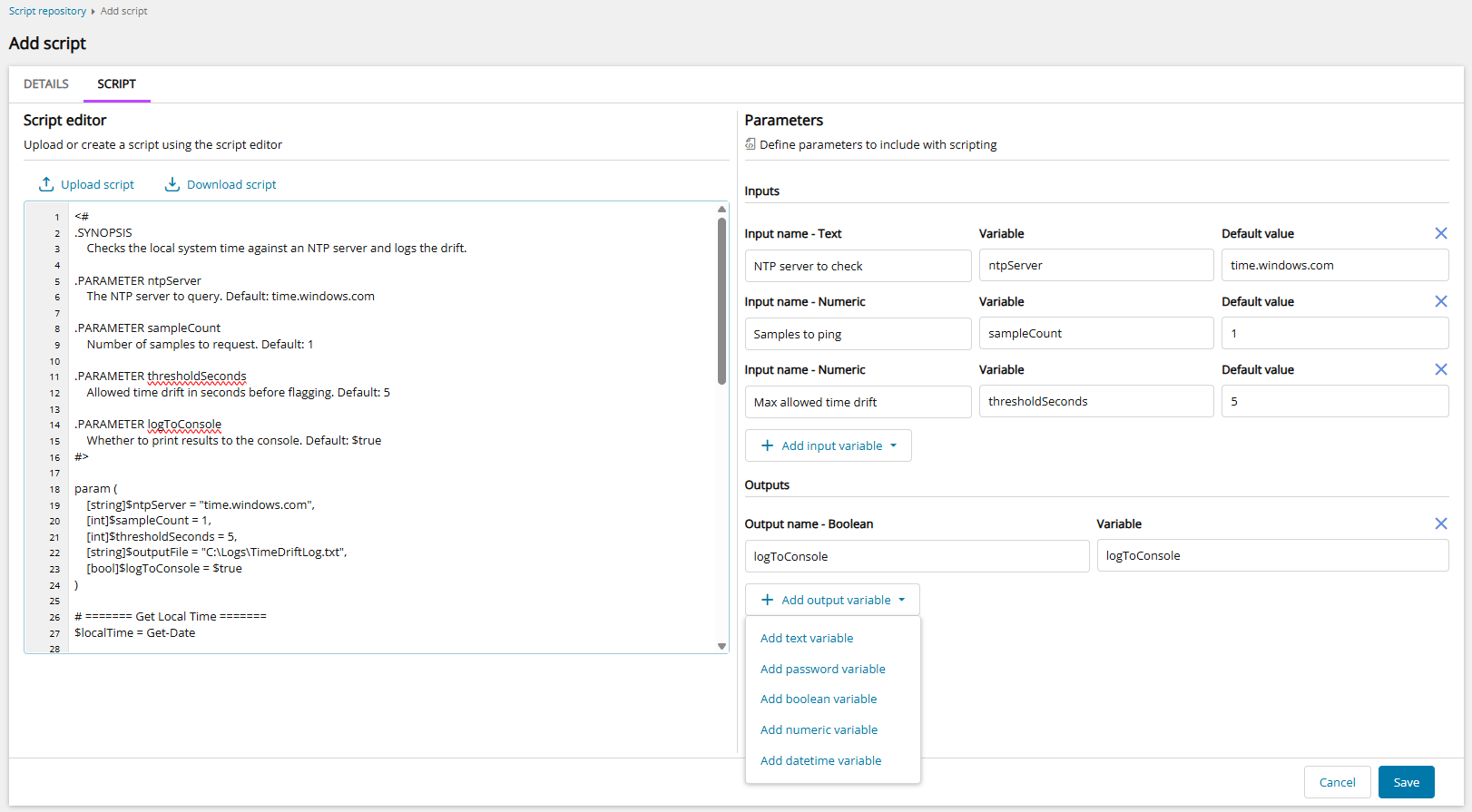
Script editor
You can either create your script using the Script Editor or, if you already have the script you wish to use, upload it to the Script repository via the Upload Script button. After uploading, you can make any necessary adjustments in the Script Editor.
To store a local copy of the script for testing or as a backup, click the Download Script button once you are satisfied with the script.
The maximum supported script size is 1 MB.
To ensure scripts perform as expected, we recommend thoroughly testing them locally before deploying through the script manager.
Parameters
Configure the variables that control how the script behaves, including the inputs provided before execution and the outputs generated after it runs.
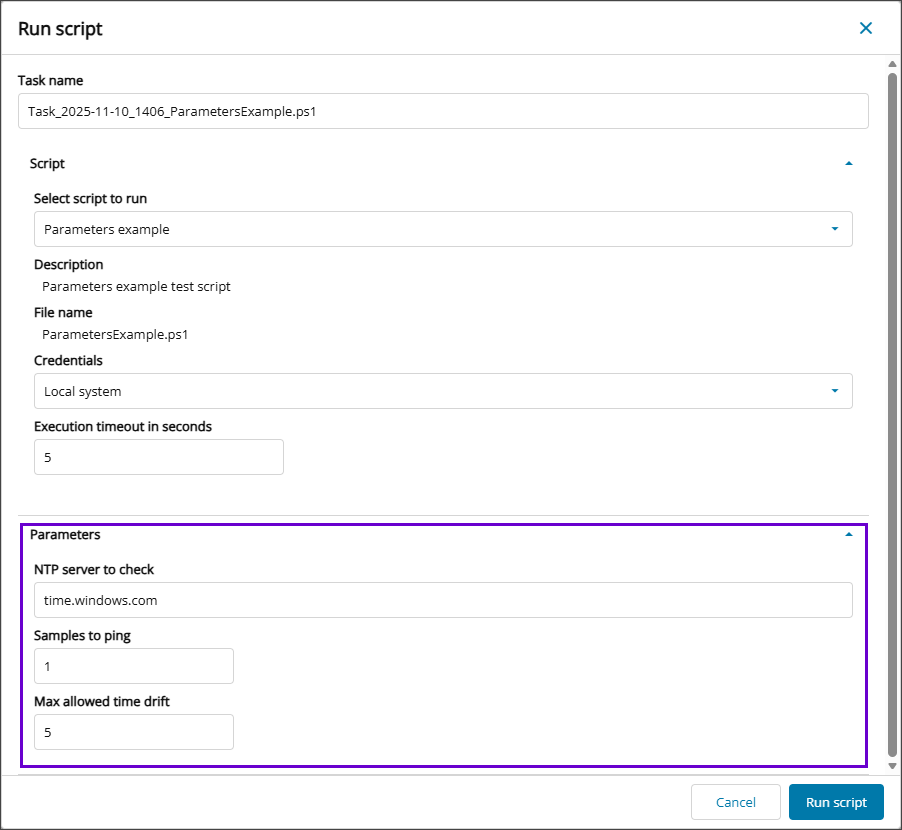
Inputs are the values or settings passed to the script to perform its tasks. When running a script on a device, the Run Script dialog will prompt for these inputs to be defined.
Outputs include the results, data, and any messages the script produces after execution.
Inputs and Outputs
Variable names should begin with a letter and can include letters, numbers, and underscores. Avoid using spaces or special characters
To add input or output parameters, select the Data Type from the Add <data type> variable drop-down below the Inputs or Outputs section. The supported Data Types include:
- Text: Strings of characters, such as words or sentences.
- Integer: Numbers which are integer values.
- Floating-point: Numbers which are floating-point values.
- Password: Sensitive information. Warning: Passwords will appear in the Edit Script dialog.
- Date/Time: Dates and times, allowing for operations on calendar dates and times of day.
- Boolean: True or false values.
Once added, populate the following information for the input or output parameter:
- Input/Output name - data type: The identifying name of the variable.
- Variable: The name of the parameter used in the script.
- Default value: The default value assigned to the parameter.
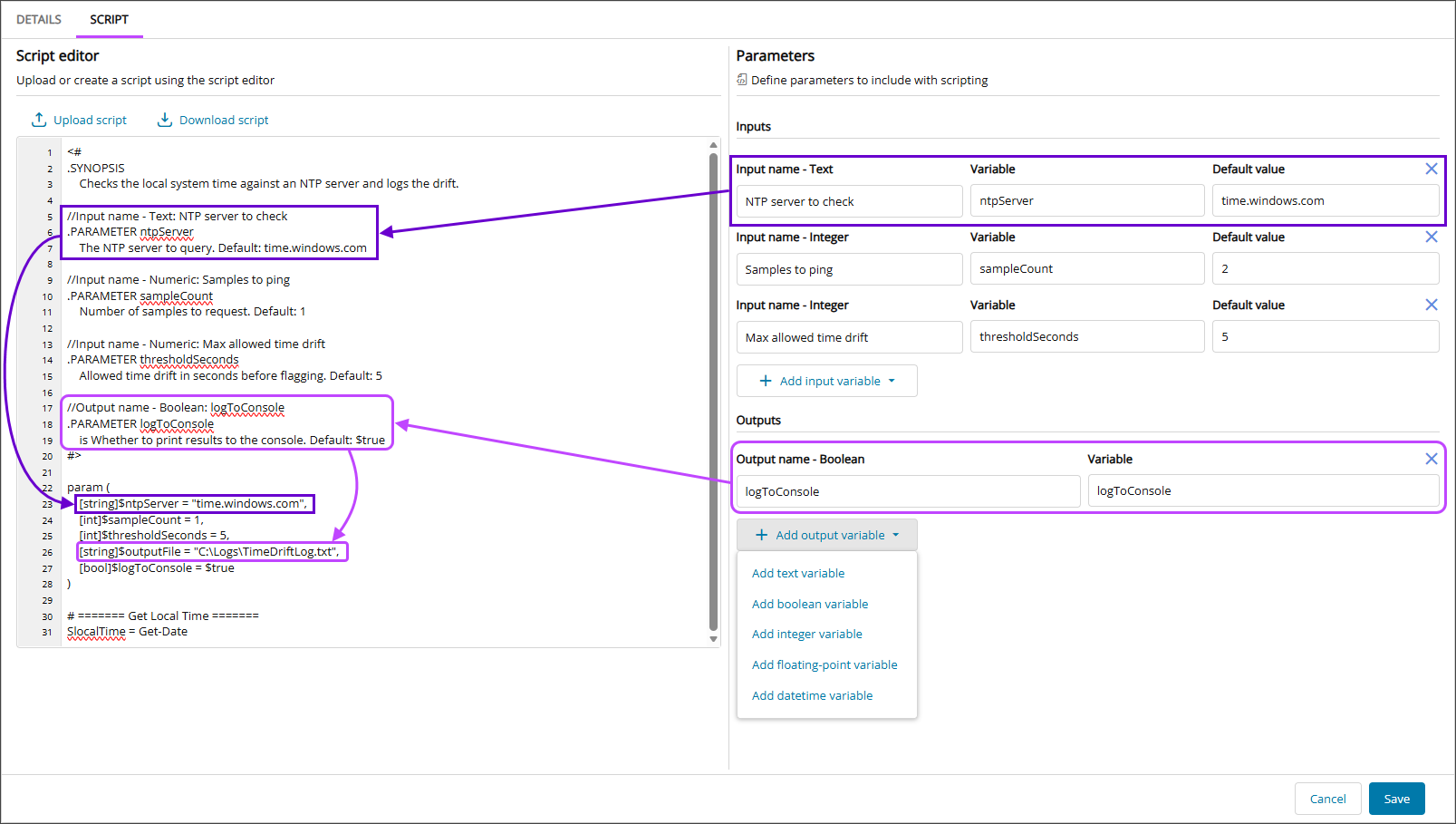
When you run a script, the Run script dialog will allow you to define the parameters variable value
Related articles