
Manage tags from Assets view
Use tags to organize and manage assets by business purpose. This article explains how to view all tags assigned to assets, and how to add and remove static tags. For an overview of tagging, see Tag Management (New).
For example, partners may tag assets as critical so N-central can treat them differently from standard assets. These assets might follow specific patching or vulnerability policies, such as more frequent scans or tighter automated remediation.
Show tags assigned to an asset
- From the left panel, select the level to work at.
- Go to Views > Assets.
- Find the asset, then hover over the tag count to view its assigned tags.
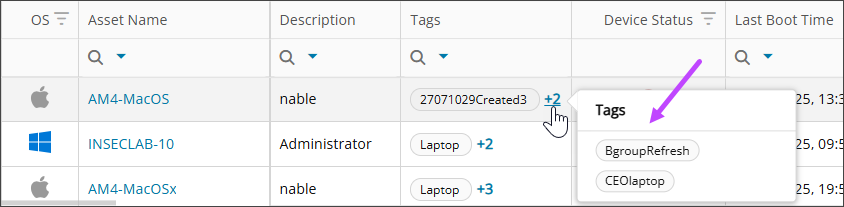
You can also view the tags assigned to an asset in the .
Assign static tags to multiple assets
- From the left panel, select the level to work at.
- Go to Views > Assets.
- Select the assets you want to tag, and select Actions > Manage Tags.
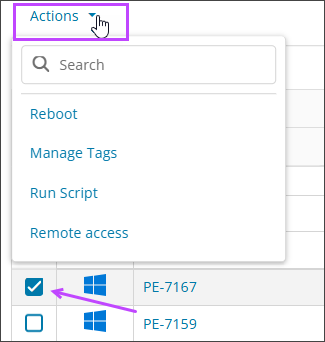
- In the Manage Tags dialog, under Select Tags, search for the tags you want to assign.
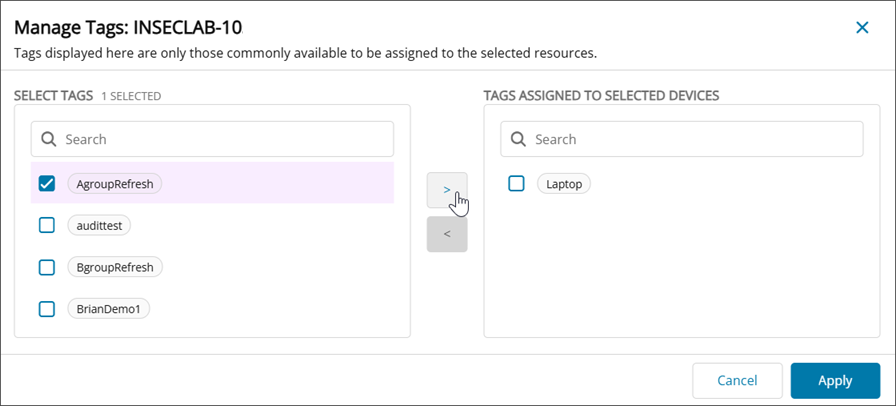
- Select the tags, then choose the arrow to move them under Tags assigned to selected devices.
- Select Apply to save the changes.
Assign static tags to a single asset
- From the left panel, select the level to work at.
- Go to Views > Assets.
- Find the asset you want to tag.
- From the Actions menu in that row, select Manage Tags.
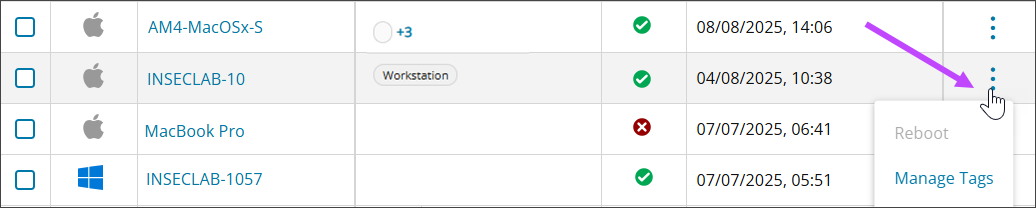
- Under Select Tags, search for the tags you want to assign.
- Select the tags, then choose the arrow to move the tags under Tags assigned to selected devices.
- Select Apply to save the changes.
You can also Manage Tags from the .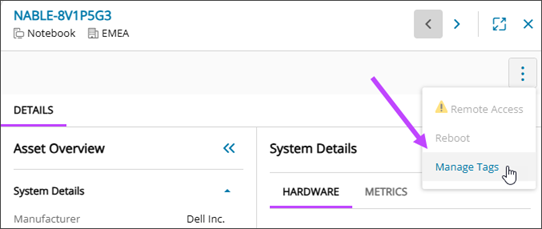
Remove static tags
- From the left panel, select the level to work at.
- Go to Views > Assets.
- Select the assets where you want to remove tags, and select Actions > Manage Tags.
- Under Tags assigned to selected devices, select the checkboxes for the tags you want to remove.
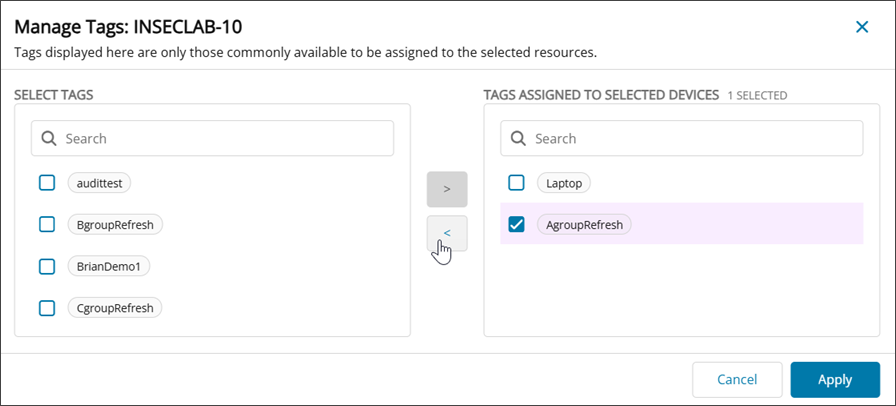
- Choose the arrow to move the tags under Select Tags, then select Apply.
Related topics