
Enable Ecoverse capabilities
Ecoverse provides access to the newest capabilities in N-central. These capabilities help you manage devices, improve security, and work more efficiently through a modern, integrated experience. Current Ecoverse features include:
-
Asset Views – View and manage device information across your environment.
-
Patch Management – Deploy and manage operating system and third-party software updates.
-
Vulnerability Management – Identify, prioritize, remediate, and verify vulnerabilities.
-
N-zo AI Assistant – Use AI-powered guidance to surface insights, prioritize actions, and support decision-making.
Before you begin
-
Confirm you are running N-central 2025.2 or later.
-
Verify you have Product Administrator permissions.
-
Understand that linking users to N-able Login cannot be reversed.
To use Ecoverse capabilities, you must configure user access and, in some environments, complete additional setup tasks. Complete the following tasks to enable N-able Login (MSP SSO), assign Ecoverse permissions, and enable Analytics for onprem deployments.
 Create an N-able Login admin user
You must enroll at least one admin user into N-able Login. This N-able Login admin user will have access to the N-able Login features, including the Entra ID setup.
-
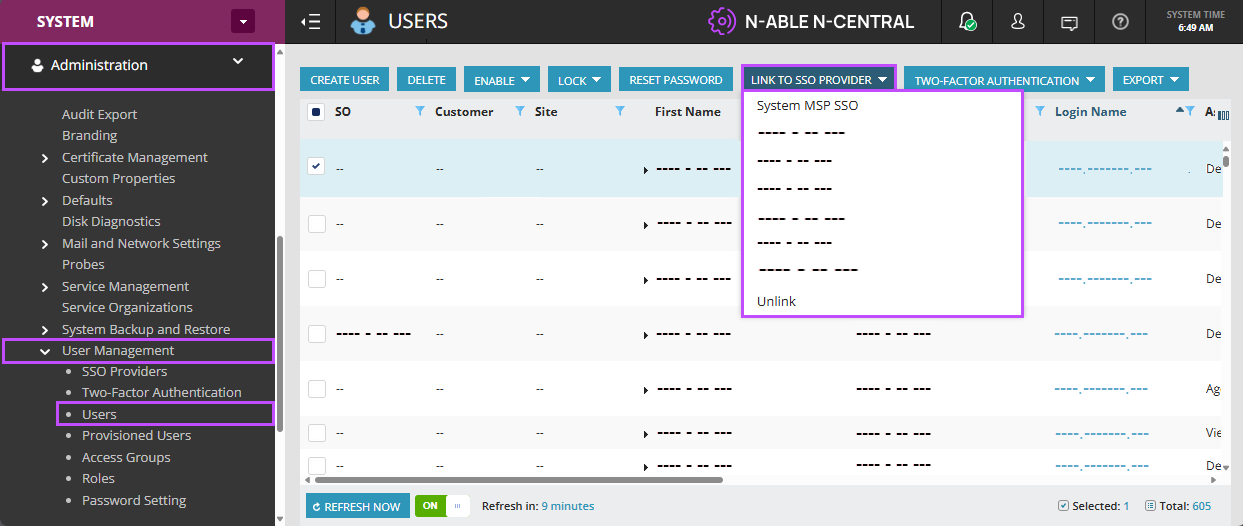
Go to Administration > User Management > Users.
-
Select a local admin user (or create a new one for this role).
-
Select LINK TO SSO PROVIDER and select [System] N-able Login. If on a hosted system, select [Company] N-able Login
If one or more users are already linked to another IdP, you must select and unlink each one from that provider before linking them to N-able Login. From LINK TO SSO PROVIDER, select Unlink.
-
Select Accept.
To complete the N-able Login registration process, the new or existing user must have access to a valid and active mailbox.
-
Log out of N-central.
Once enrolled N-able Login, the new admin user must log out of N-central and log back in using their new N-able Login credentials to complete the setup process.
-
The new admin user will receive an email message with a Set up your account button to set up their N-able Login (MSP SSO) account.
Enroll users into N-able Login

Use N-able Login to provide single sign-on (SSO) access to N-central applications and services. You must link users to N-able Login to automatically send them an enrollment invitation. Users complete the enrollment process from the email to activate their account and access supported services.
If you use an on-premises deployment, start at the System level. If you use a hosted deployment, start at the Service Organization (SO) level.
There are two ways in which you can enroll existing users into N-able Login; from the SSO Providers page and the Users page.
From the Users page
You cannot reverse this action after you connect a user to N-able Login.
-
Log into N-able N-central.
-
Go to User Management > Users.
-
Select the user(s) you want to enroll.
If one or more users are already linked to another IdP, you must select and unlink each one from that provider before linking them to N-able Login. From LINK TO SSO PROVIDER, select Unlink.
-
From LINK TO SSO PROVIDER, select the appropriate N-able Login provider:
-
Hosted: Company N-able Login
-
Onprem: System N-able Login
-
-
Select the I have read and understand that I will not be able to disconnect N-able Login checkbox and then select Apply.
- User(s) will receive an email to complete the enrollment.
Connecting a user to N-able Login cannot be reversed.
If a user was previously enrolled as an N-able Login user, their original registration link will be overwritten with a new one.
The link in the welcome email is valid for 7 days. If it expires, repeat steps 3 to 7 to re-enroll the user into N-able Login and resend the welcome email.
From the SSO Providers page
-
Log into N-able N-central.
-
Go to User Management > SSO Providers.

-
In the Name column, do one of the following:
-
If on a hosted account, select the provider, Company N-able Login.
-
If on an onprem account, select System N-able Login.
-
-
To link N-central users to N-able Login, click the Linked users tab and then click LINK USERS.
You cannot unlink users after you have connected them to N-able Login.
This step cannot be undone.
-
Select users that you want to enroll into MSP SSO and then click LINK.
N-able Login filters out users that are not eligible (already linked to another IdP) to enroll into N-able Login. You must unlink those users from their provider before linking them to N-able Login. Select the user, and from the LINK TO SSO PROVIDER menu select Unlink.
-
Select the I have read and understand that I will not be able to disconnect N-able Login checkbox.
-
Select LINK.
Assign Ecoverse permissions
-
Go to Administration > User Management > Roles.
-
Select the role assigned to users who need Ecoverse access.
-
Enable the required Ecoverse permissions.
The default Administrator and Technician roles already include Ecoverse permissions.
You must update custom roles manually.
Enable data storage in the cloud
If you run an on-premises N-central instance, you must enable Analytics to store data in the cloud, a requirement for Ecoverse features. If you use hosted N-central, skip this step because Analytics is already enabled.
This task requires Product Administrator permissions.
To enable data storage in the cloud
-
Go to Administration > Analytics > Data Export.
-
Enable Analytics.
-
Configure each Service Organization as needed.
Video walkthrough
Watch a visual guide covering all three steps: Accessing Ecoverse Features (YouTube)