
At the Super-Admin level, you can configure a set of default domain settings to be applied to all domains unless changed manually at the domain level. These Default Domain Settings can be changed in Incoming > Default Domain Settings.
In the Domain Level Control Panel, select Incoming > Domain Settings.
The Domain Settings page is displayed for the Domain:
- Primary Contact Email - This is the email address of the person who will receive the emails for this domain
- Email notifications From address - This is the sending address for all emails sent to addresses at this domain, for example 'notifications@demo-domain.invalid'
- Enable logging of invalid recipients - When enabled, incoming messages sent to an invalid recipient (e.g. a misspelled email address) will still be logged
- Direct delivery for email and domain aliases - When selected, this means that when aliasing is in use, emails will be delivered to the alias address, instead of the original one. This applies to both email and domain aliasing
- Rejected Local-Part Characters - When the system detects any of these characters in the local part of a recipient's email address in an incoming email, the email will be rejected
- Timezone - Select the timezone that the domain is based in
The Log Search still shows the message for the original address.
Rejected Local-Part Characters
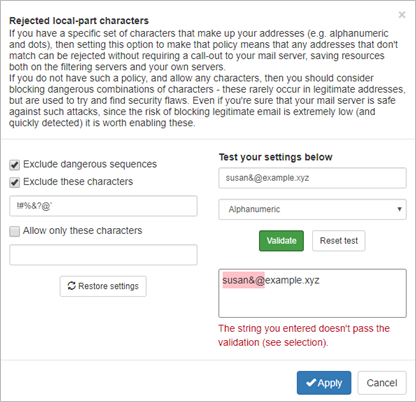
The Rejected local-part characters page allows you to list the characters that will not be accepted in the local part of an email address (the text before the @ symbol e.g. <localpart>@domain.xyz). If any of the listed characters is detected, the message will be rejected and not quarantined.
In this page you can also test the settings you have configured:
Advanced settings
Advanced settings can be found by clicking the Advanced settings link just below the page description.
The Advanced settings page is displayed and allows you to configure the following settings:
- Administrator's Contact - Clearing this field will set a blank Administrator contact
- Maximum bounces per hour - The maximum number of bounced messages per hour
- Days to keep log messages - How long would you like to store messages for
- Maximum days to retry - The maximum number of days to retry delivery of messages
- Disable catch-all check - Disable the catch-all check when it fails to work properly with servers that have a non-standard behaviour such as Microsoft Exchange 2013
- Priority increase for training - If you are 100% sure that users at this domain are correctly training messages, then you can increase the weight of the training process for this domain.
Raising this weight will increase the importance of user training as a general filtering factor, thus altering the filtering results. Some automated secondary review processes for messages will be postponed when this option is in use, meaning that training will have an impact more quickly.
Make this change with caution.