Use policies to manage patching
Policies help you define and apply patch management settings across devices. By using policies, you can standardize how patches are approved, deployed, and maintained throughout your environment.
If you have permission to manage the Patch service, you can also manage Patch policies.
Patch policies use the same configuration workflow for Windows, Apple, and Linux devices. When you create or edit a patch policy, you configure settings that control patch approvals, installation schedules, reboot options, and asset targeting.
-
Create a policy or open an existing patch policy under the specific operating system (Linux, macOS or Windows). For information on creating and managing policies, see Policy Management. For details on supported third-party patches and Windows patch classifications, see Manage third-party patches for Windows devices and Windows patch classifications.
-
In Patch Approvals, configure the patch approval settings:
-
On OS Approvals, specify how operating system patches are approved for deployment.
You can automatically approve all operating system patches or control approvals by classification. The classifications vary by operating system, and you must select at least one classification.
Declined patches are not installed and appear in the Declined on column on the Available Patches page.
-
Select Application Approvals to specify how application updates are approved:
- Set a Default approval for new applications to specify the approval applied to applications that are added after the policy is configured.
-
To apply the same approval status to all listed applications, set Bulk update approvals to Approve, Decline, or Ignore, as required.
- Choose Mixed to set a combination of approval types for applications.
Search for applications by vendor or application name, or expand a vendor to configure individual applications.
-
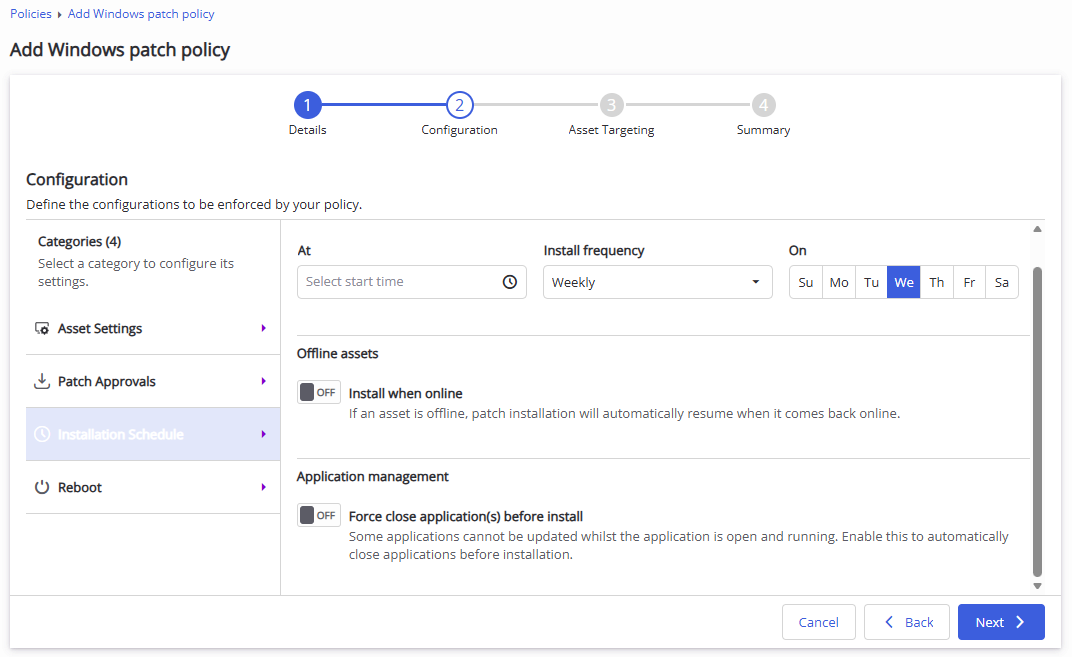
- Select Installation Schedule, and specify when approved patches are installed and how installation retries are handled when a device is unavailable during a scheduled installation. Turn on Application management to automatically close running applications when required to install an update.
- Select Reboot, and specify whether devices restart after patch installation. If you turn on Show reboot dialog to user, users can snooze or cancel a scheduled restart. If a user takes no action, the device restarts as scheduled.
- Currently, if you select Reboot after patch, the device always restarts after patch installation, even if the installed patch does not require a restart.
- Restart dialog options are available on Windows and Apple computers only.
- Select Asset Targeting, and select the tags for the assets that you want the policy to target.
Only tags that belong to the selected policy scope are available for selection. Tags already used by another policy are listed but cannot be selected.
An asset can match the targeting criteria for more than one policy. Only one policy applies to the asset, based on policy order.
- Save the policy settings.