
There are two ways to create a custom retention policy. You can either duplicate an existing policy; or by adding a new policy.
Create from duplicate
To create a new policy by duplicating an existing one:
- Log in to the Management Console under a SuperUser or Administrator account
- Navigate to Backup > Retention Policies in the left-hand vertical menu
- Find the policy you wish to copy and either:
- Click the three vertical dots to open the Action menu
- Select Copy retention policy
- Select Copy from the top bar
Or
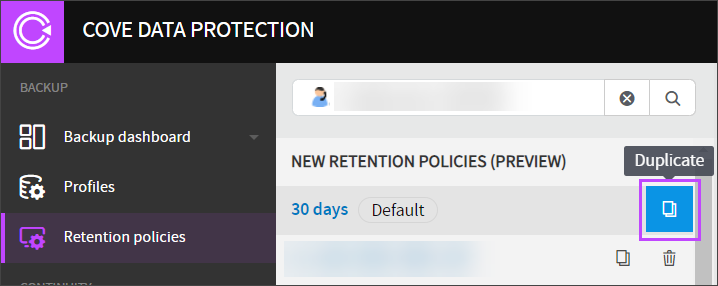
- Rename the cloned policy that has opened something recognizable
- Change the Customer the retention policy belongs to if required
- Make any required changes to backup retention settings, which can be set using:
- Keep all intra-daily backup sessions: 1-30 days
- Last backup session of the day: 14-365 days
- Last backup session of the week: Up to 52 weeks
- Last backup session of the month: Up to 36 months
- Last backup session of the year: Up to 10 years
- Save all changes
Add a new policy
- Log in to the Management Console under a SuperUser or Administrator account
- Navigate to Backup > Retention Policies in the left-hand vertical menu
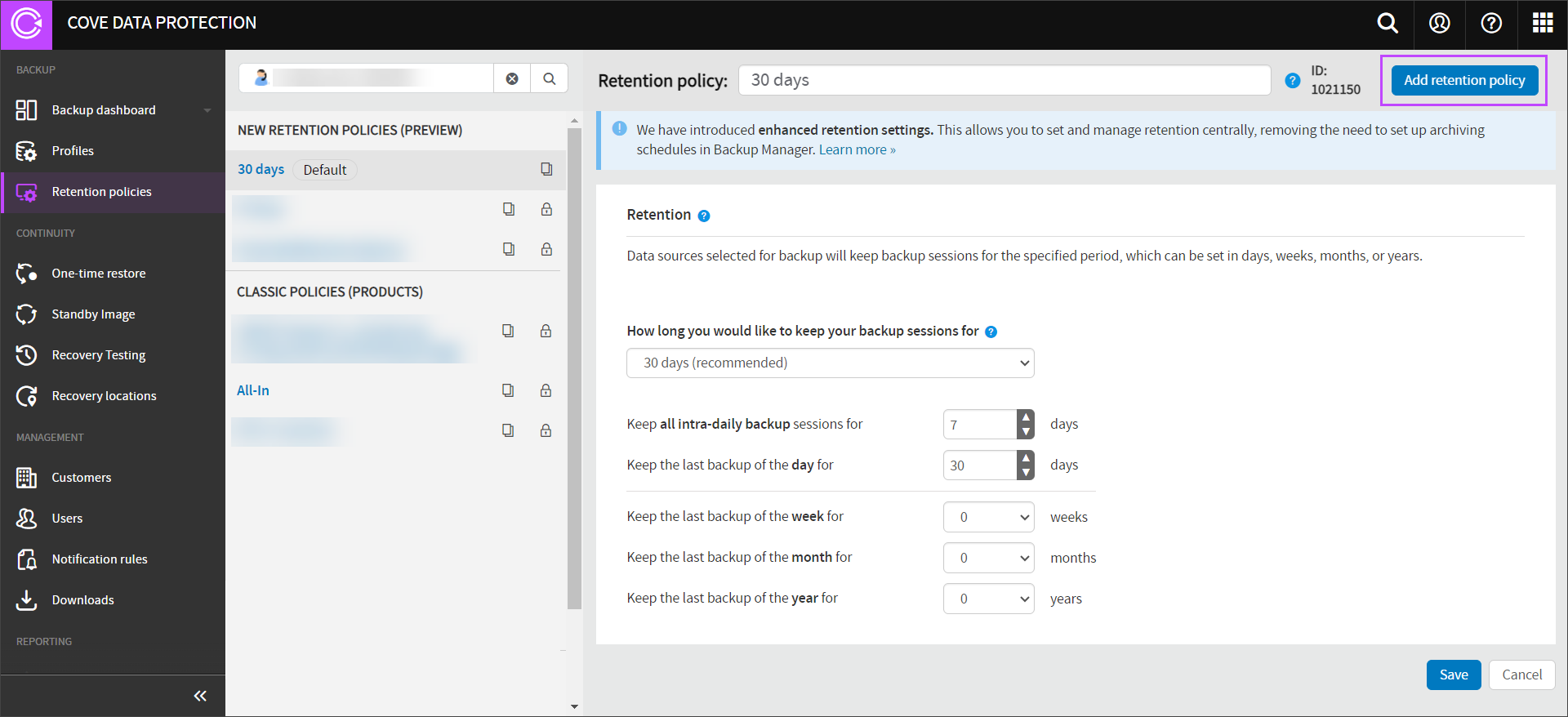
- In the top right-hand corner, click Add retention policy
- Give the retention policy a Name
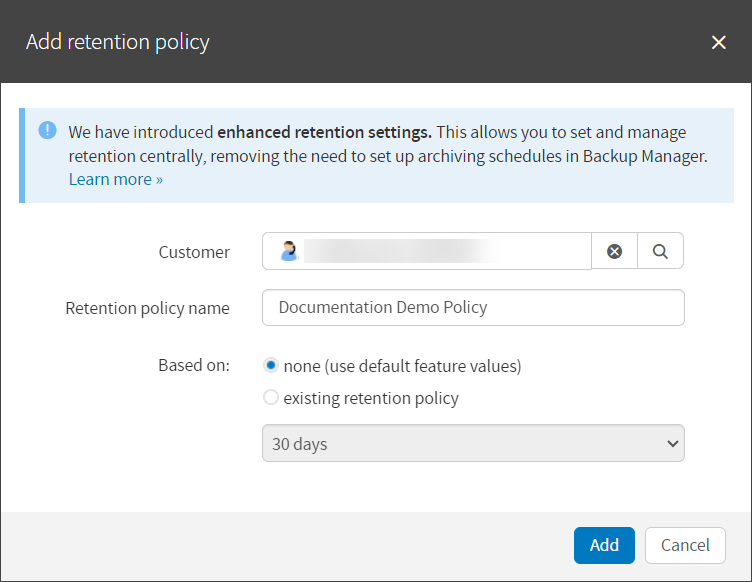
- Select the Customer the policy will belong to
- Set the retention settings as required, using:
- Keep all intra-daily backup sessions: 1-30 days
- Last backup session of the day: 14-365 days
- Last backup session of the week: Up to 52 weeks
- Last backup session of the month: Up to 36 months
- Last backup session of the year: Up to 10 years
- Save all changes