
Out-Of-Date Notifications
When a PSA configuration is deleted or re-created, existing PSA notifications remain pointing to the old configuration. These notifications are classed as 'out-of-date'.
Identify out-of-date notifications
On the Notifications page, a warning icon appears before the name of any PSA notification that references an old configuration.
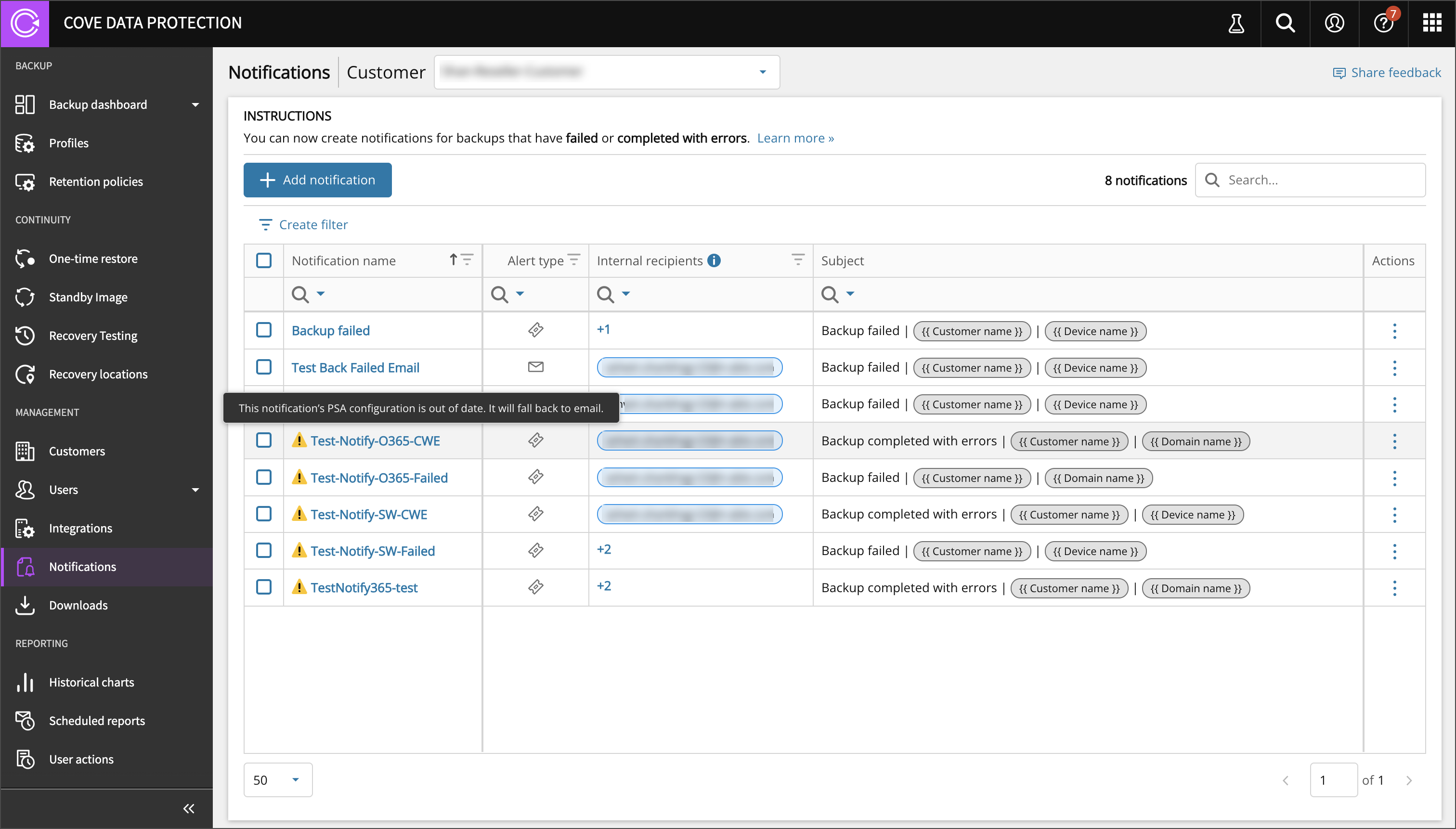
The warning icon appears when the notification’s PSA configuration does not match the current PSA configuration and remains until the notification is updated to use the current configuration or is deleted.
It is not cleared automatically.
Update an out-of-date notification
- On the Notifications page, find the out-of-date notification with the warning icon from the list of notifications
- Click the Notification name to open the Edit Notification window
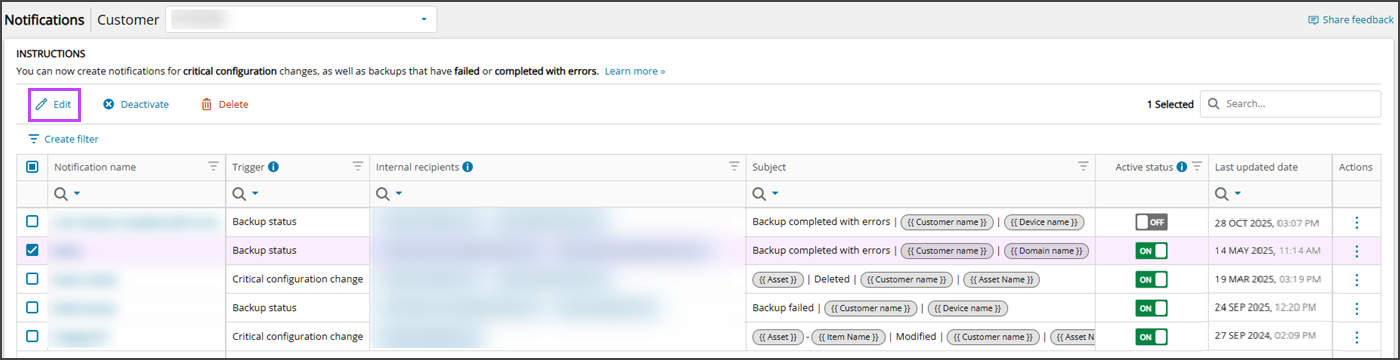
- Place a check in the box to the left-hand side of the Notification Name column and click Edit from the top bar
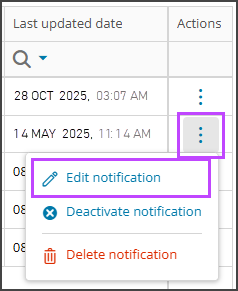
- Open the action menu to the right-hand side of the Active Status and click Edit Notification
- On the Edit Notification page, review the warning banner at the top of the page, above Notification Details: “This notification’s PSA configuration is out of date. Review the PSA settings and save the notification to update it.”
- Update the PSA settings.
- Click Save.
Or;
Or;
When you save, the notification is updated to use the current PSA configuration and provider. The warning banner and the warning icon on the Notifications page no longer appear.