
Custom branding can be enabled for any customer level and allows you to set the email address used for automated email reports, custom header text for the Cove Data Protection (Cove) Management Console and Backup Manager GUI, as well as the colours, header image and favicon for the Backup Manager GUI.
Custom Branding Behavior
- When the custom branding toggle is OFF in the End-Customer's custom branding tab, custom branding is inherited automatically from the parent customer
- Turning the toggle ON at the End-Customer level means unique branding for that individual End-Customer, overriding the parent customer’s branding
Enable Custom Branding
To enable custom branding:
- Log on to the Management Console
- In the Management section of the vertical menu, click Customers to open the customer Management window
- Select the name of the customer to enable custom branding for
- Switch to the Custom Branding tab
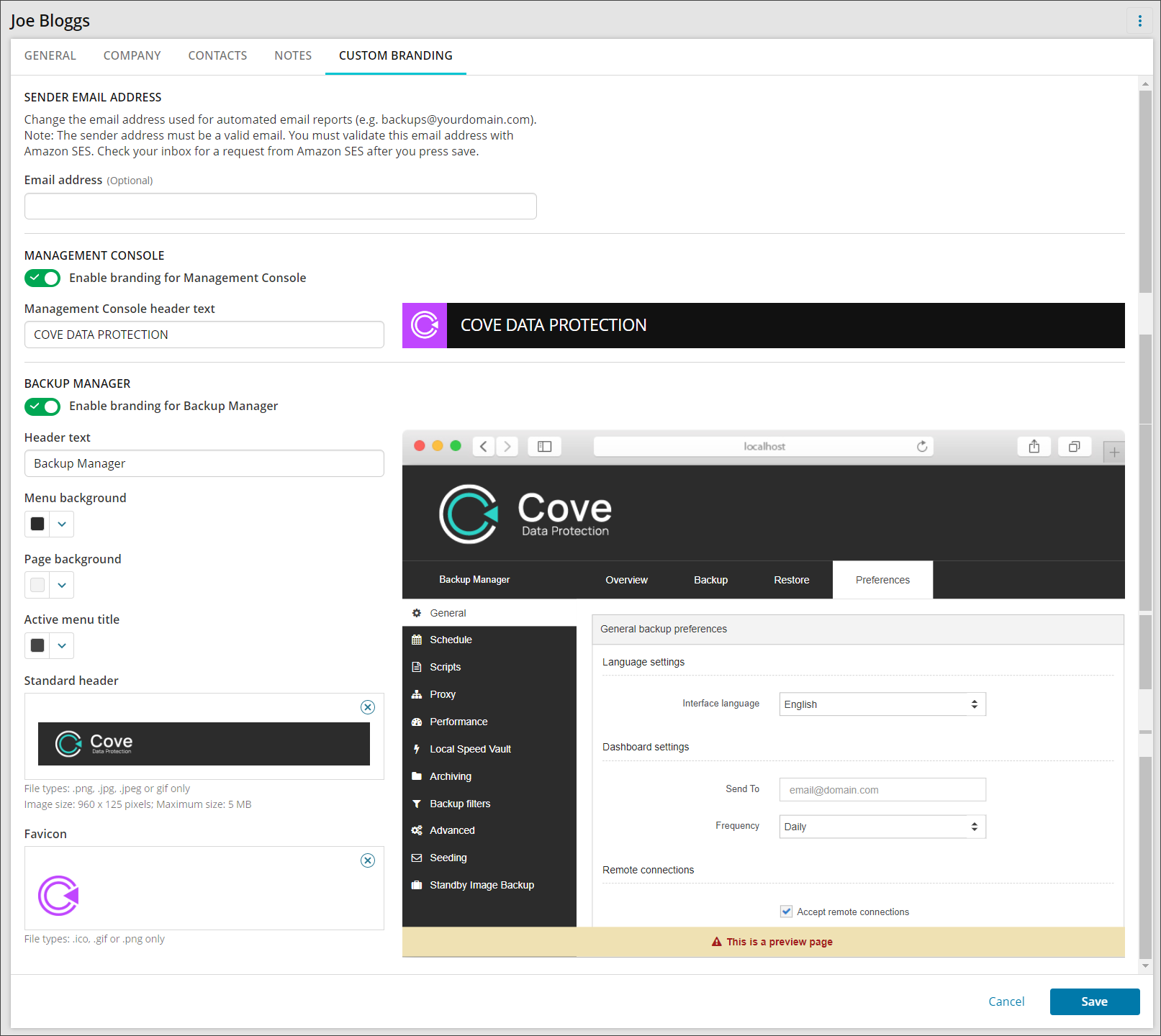
- Configure the branding as required:
- Sender Email Address - the email address used for scheduled reports (e.g. backup-reports@yourdomain.com).
The default address is backup@n-able.com
Be aware if you use a custom sender address you must verify the address by clicking on the verification link sent to this email address's inbox. If this does not happen then you will not receive any backup related emails (Let's get started, Backup daily Dashboards, reports, email views etc.).
- Enable Branding for Management Console - Once enabled, the following additional option is given:
- Management Console header text - change the text shown in the header of the Management Console from the default of Cove Data Protection to something in line with your custom branding
- Enable branding for Backup Manager - Once enabled, the following additional options are given:
- Backup Manager Header Text - change the text shown in the header of the Backup Manager tool from the default of Backup Manager to something in line with your custom branding
- Menu Background - use the colour picker, RGB, HSL or Hex code to select a colour matching your branding
- Page Background - use the colour picker, RGB, HSL or Hex code to select a colour matching your branding
- Active Menu Title - use the colour picker, RGB, HSL or Hex codes to select a colour matching your branding
- Standard Header - remove the default Cove header image and drop or browse to add a custom header image
- Favicon - remove the default Cove favicon image and drop or browse to add a custom favicon image
- Sender Email Address - the email address used for scheduled reports (e.g. backup-reports@yourdomain.com).
- Click Save