Once a device has been added to the Cove Disaster Recovery As A Service (DRaaS) plan, an overview of the device's DRaaS data and properties can be carried out from within the DRaaS overview, by navigating to Continuity > DRaaS > Overview from the vertical menu on the left hand side
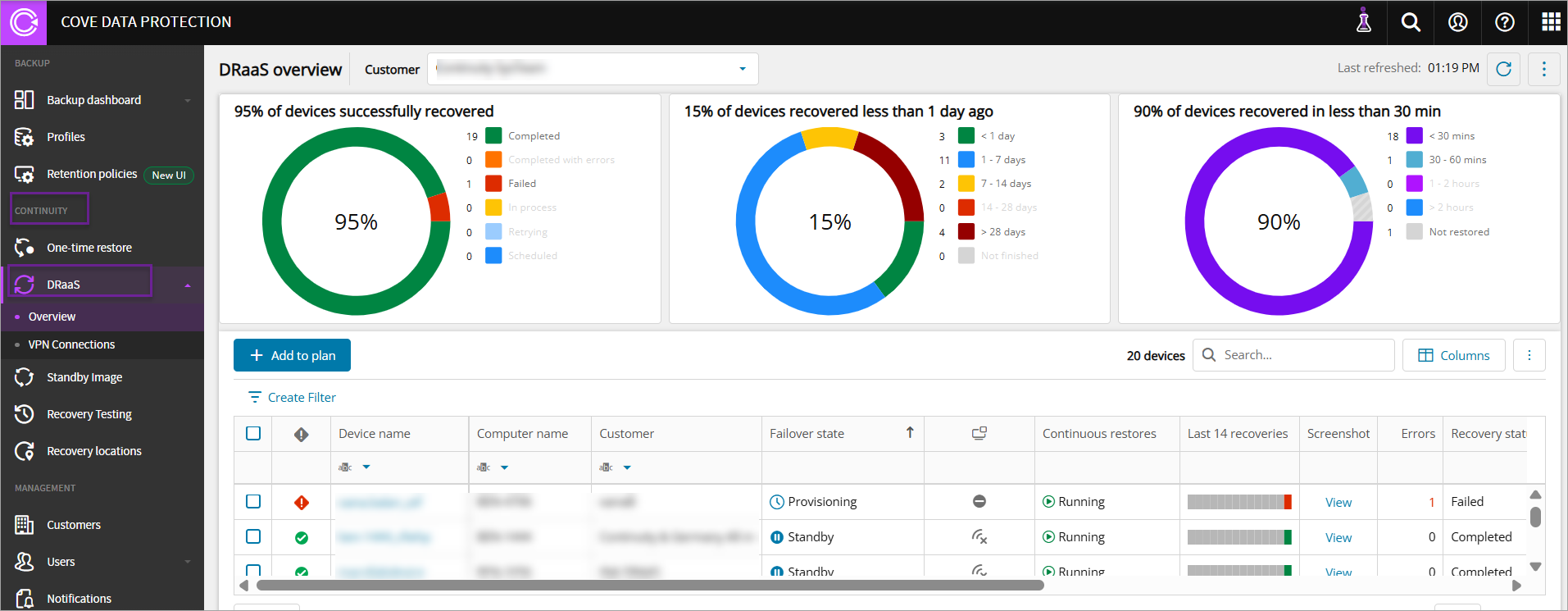
The DRaaS overview Dashboard allows you to:
- Add a new device to plan
- Start Failover
- Stop Failover
- View the settings and boot test results for the device
- Expose the VM to the internet
- Remove devices from the DRaaS plan
- Filter the devices that are on the DRaaS plan
- Search the devices that are on the DRaaS plan
- Sort and manage columns on the Dashboard view
- Access the console remotely via Take Control
View settings and boot test results
It is possible to access the boot test results and view DRaaS settings in a number of different locations.
Via device properties
- Log in to the Management Console under a SuperUser or Manager account
- Remain on the Backup Dashboard, or navigate to Continuity > DRaaS > Overview
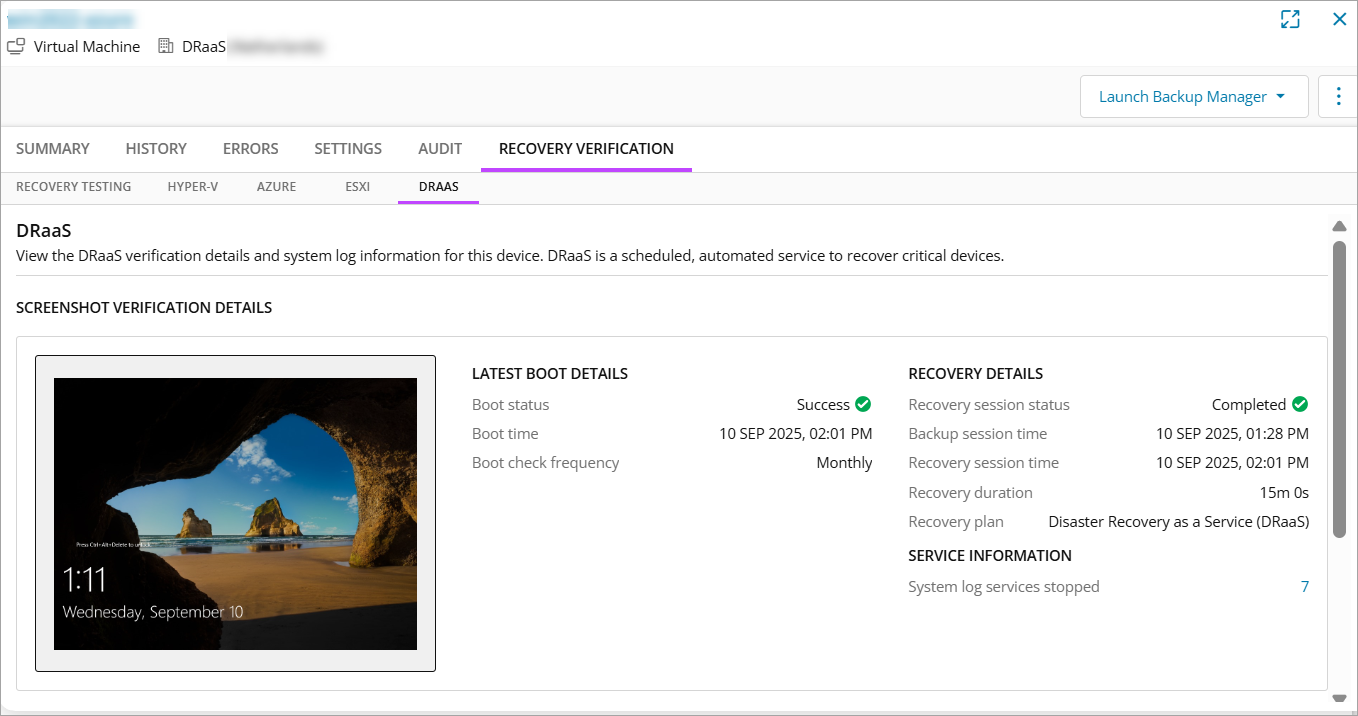
- Select the device you wish to see the settings or check the boot test results for by clicking the device name or 'View' in the Screenshot column. The device properties opens.
- Switch to the Settings tab to view the DRaaS plan settings
- Switch to the Recovery Verification tab then DRAAS to view the screenshot and recovery details
Via Quick Access
- Log in to the Management Console under a SuperUser or Manager account
- Navigate to Continuity > DRaaS > Overview
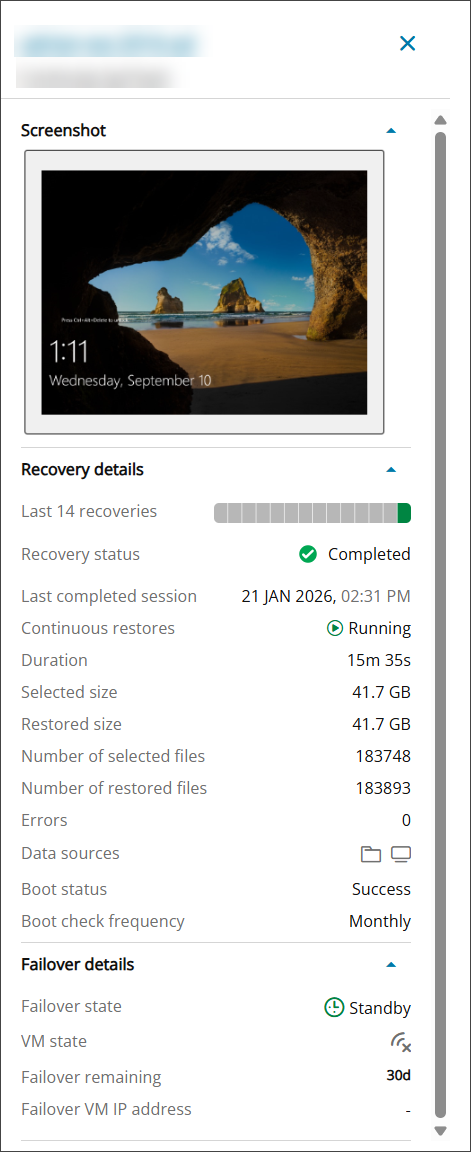
- Click the content in any column other than Device Name or Screenshot to open the DRaaS Properties panel
Remove Device from Plan
- Log in to the Management Console under a SuperUser or Manager account
- Navigate to Continuity > DRaaS > Overview
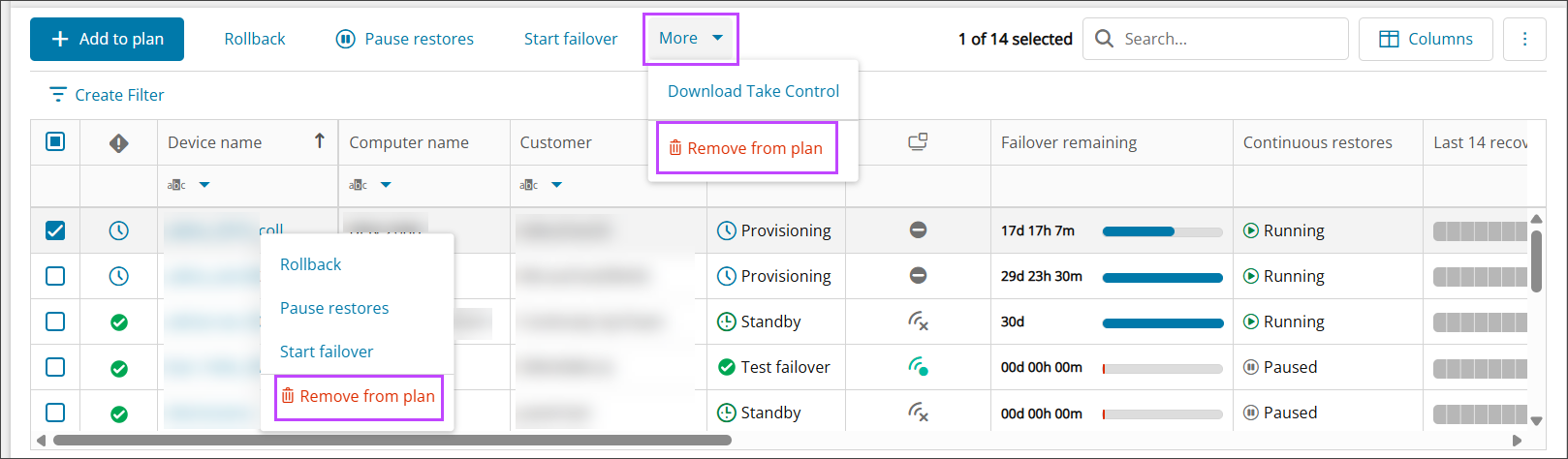
- Select the device(s) you wish to remove the plan from using the checkboxes to the left of the device name or by right clicking the device name
- From the top bar, select More > Remove from plan. From the action menu, select Remove from plan
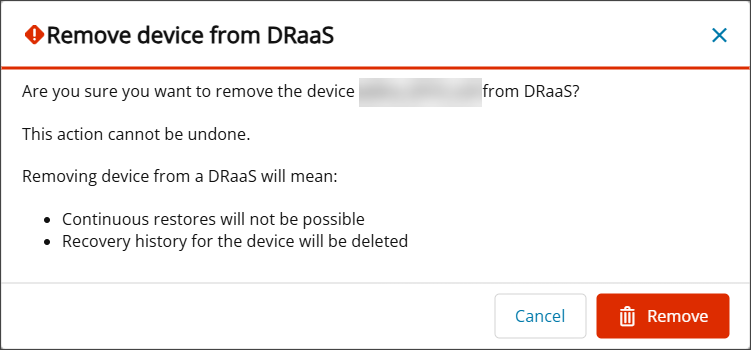
- Confirm your intention to remove the device from the recovery plan by clicking Delete
Filter
It is possible to create custom filters using the Filter Builder to find specific DRaaS devices from the list.
- To create a custom filter, click Create Filter above the DRaaS devices list to open the Filter Builder

- In the Filter Builder window, create the filter using the And selection:
- Device Name to which the following may be applied:
- Contains - Text box to enter the filter text
- Equals - Text box to enter the filter text
- Computer Name to which the following may be applied:
- Contains - Text box to enter the filter text
- Equals - Text box to enter the filter text
- Customer to which the following may be applied:
- Contains - Text box to enter the filter text
- Equals - Text box to enter the filter text
- Is any of - Select from the list of Customers
- Is none of - Select from the list of Customers
- Failover State to which the following may be applied:
- Is any of - Select from the list of failover states:
- Provisioning
- Standby
- Test failover
- Production failover
- Preparing test failover
- Preparing production failover
- Test failover failed
- Production failover failed
- Stopping failover
- Is none of - Select from the list of failover states
- Provisioning
- Standby
- Test failover
- Production failover
- Preparing test failover
- Preparing production failover
- Test failover failed
- Production failover failed
- Stopping failover
- Is any of - Select from the list of failover states:
- VM State to which the following may be applied:
- Is any of - Select from the list of VM States
- Off
- On
- Starting
- Stopping
- Is none of - Select from the list of VM States
- Off
- On
- Starting
- Stopping
- Is empty
- Is any of - Select from the list of VM States
- Failover remaining is:
- Time exceeded
- Time left
- Continuous Restores to which the following may be applied:
- Is any of - Select from the list of VM States
- Running
- Paused
- Is none of - Select from the list of VM States
- Running
- Paused
- Is any of - Select from the list of VM States
- Screenshot to which the following may be applied:
- Is
- Available
- Not Available
- Is empty
- Is
- Recovery Status to which the following may be applied:
- Is any of - Select from the list of recovery statuses
- Completed
- Completed with errors
- Failed
- Invalidated
- Unresponsive
- Scheduled
- In process
- Retrying
- Is none of - Select from the list of recovery statuses
- Completed
- Completed with errors
- Failed
- Invalidated
- Unresponsive
- Scheduled
- In process
- Retrying
- Is any of - Select from the list of recovery statuses
- Last completed session is:
- <1 day
- 1-7 days
- 7-14 days
- 14-28 days
- >28 days
- Not finished
- Restored size to which the following may be applied:
- Is - Use the markers on the sliding bar to set a lower and upper size limit to filter for
- Is empty
- Duration is:
- <30 mins
- 30-60 mins
- 1-2 hours
- >2 hours
- Not restored
- Boot status to which the following may be applied:
- Is any of
- Success
- Failed
- Is none of
- Success
- Failed
- Is empty
- Is any of
- Failover VM IP address
- Contains - Text box to enter the filter text
- Equals - Text box to enter the filter text
- Public VM IP address
- Contains - Text box to enter the filter text
- Equals - Text box to enter the filter text
- Private VM IP address
- Contains - Text box to enter the filter text
- Equals - Text box to enter the filter text
- Number of selected files to which the following may be applied:
- Equals - Text box to enter the filter text
- Is less than - Text box to enter the filter text
- Is greater than - Text box to enter the filter text
- Is less than or equal to - Text box to enter the filter text
- Is greater than or equal to - Text box to enter the filter text
- Is empty
- Number of restored files to which the following may be applied:
- Equals - Text box to enter the filter text
- Is less than - Text box to enter the filter text
- Is greater than - Text box to enter the filter text
- Is less than or equal to - Text box to enter the filter text
- Is greater than or equal to - Text box to enter the filter text
- Is empty
- Selected size to which the following may be applied:
- Is - Use the markers on the sliding bar to set a lower and upper size limit to filter for
- Is empty
- Status of the last completed session to which the following may be applied:
- Is any of - Select from the list of statuses
- Completed
- Completed with errors
- Failed
- Unresponsive
- Is none of - Select from the list of statuses
- Completed
- Completed with errors
- Failed
- Unresponsive
- Is empty
- Is any of - Select from the list of statuses
- Data sources include:
- Text box to enter the filter text
- Recovery location to which the following may be applied:
- Is any of - Select from the list of locations
- Germany
- United Kingdom
- United States
- Is none of - Select from the list of locations
- Germany
- United Kingdom
- United States
- Is any of - Select from the list of locations
- TC Agent Status to which the following may be applied:
- Is any of - Select from the list of statuses
- Not installed
- Installed
- Online
- Offline
- Is none of - Select from the list of statuses
- Not installed
- Installed
- Online
- Offline
- Is empty
- Is any of - Select from the list of statuses
- VPN Tunnel to which the following may be applied:
- Is any of - Select from the list of VPN tunnel statuses:
- Active
- Inactive
- Is none of - Select from the list of VPN tunnel Statuses:
- Active
- Inactive
- Is any of - Select from the list of VPN tunnel statuses:
- Device Name to which the following may be applied:
- Click OK
Searches can be layered, e.g. Recovery Location is any of 'Germany' and Duration is '1-2 hours'. Once the filter is created, this will appear above the updated list similar to: [Recovery Location] is any of 'Germany' And [Duration] is '1-2 hours'
Search
Searching within the DRaaS overview can be done by using the search box over to the right hand side of the page, just above the devices list. The search can be performed by any text field.
Manage Columns
The following columns are displayed by default:
- Device name
- Computer name
- Customer
- Failover state:
- Provisioning
- Standby
- Test failover successful
- Production failover successful
- Preparing test failover
- Preparing production failover
- Test failover failed
- Production failover failed
- Stopping failover
- VM State: Indicated by the VM State icon (
 ). The following Virtual Machine (VM) states that appear once any device is added to plan:
- On
- Off
- Starting
- Stopping
- Failover remaining: The time that the device can remain in failover, with the maximum period being 30 days
- Continuous restores
- Running
- Paused
- Last 14 recoveries: The restore details of last 14 recoveries
- Screenshot: The View link that provides Recovery details
- Errors: The number of errors of the last completed recovery session
- Recovery Status
- Completed
- Completed with errors
- Failed
- Invalidated
- Unresponsive
- Scheduled
- In process
- Retrying
- Recovery progress: The restore progress indicator, once device added to plan
- Last completed session: A timestamp (date, month, year, and time) of the last completed session
- Restored size
- Duration
- Boot status
- Success
- Failed
- Failover VM IP address: The IP address that is configured for the device in the Failover wizard
- TC agent status : The status of the Take Control agent
- Online
- Offline
- Not Installed
- VPN Tunnel
- Active
- Inactive
- Public VM IP address
- Private VM IP address
- Boot check frequency (optional): The frequency of the boot check
- Number of selected files (optional): The number of files that have been selected to be restored
- Number of restored files (optional): The number of files that have been restored
- Selected size (optional): The selected size of backed up files to be restored
- Status of the last completed session (optional): The status of the latest completed restored session
- Data sources (optional): The sources that have been backed up to be restored
- Recovery location (optional): The region of the Recovery Agent where the restore is situated
Add/Remove Columns
You can change the columns displayed by using the Columns button in the top bar, towards the upper right-hand side of the page:

Add or remove any columns using the check boxes to the left of each column listed:
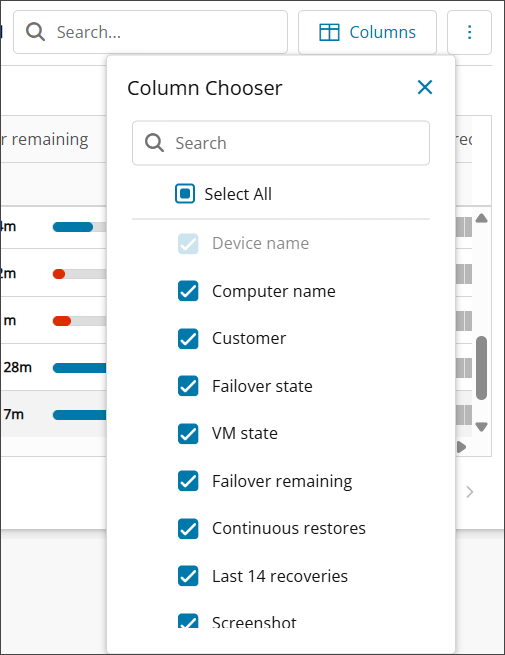
The table will automatically update when any changes are made to column selection
Resize Columns
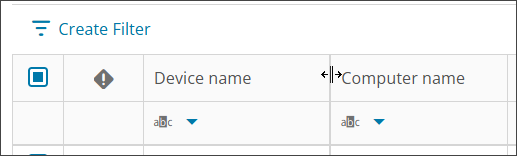
Columns can be resized by hovering over the dividing line and dragging this to the left or right to make the column wider or narrower: