
Before beginning, ensure you have :
- Reviewed the Requirements.
- Taken the Preparation steps.
Instructions
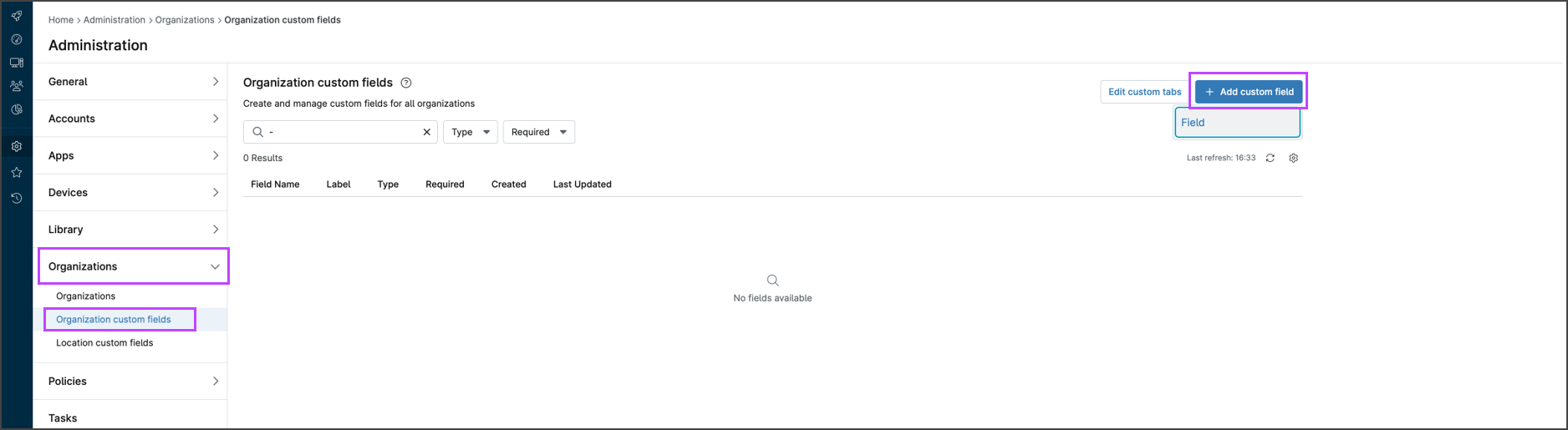
- In the NinjaOne dashboard, navigate to Administration > Organizations > Organizations Custom Fields
- Click Add Custom Field
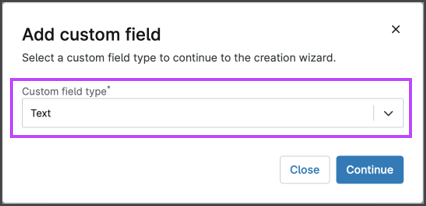
- Select Text in the custom field type dropdown
- The custom field settings must be set in the tabs as follows:
- Overview tab:
- Label: Cove Installation ID
- Name: CoveInstallationID
- Inheritance tab:
- Enable inheritance for: Organization
- Permissions tab:
- Automations: Read Only
- API: None
- Technician access: Editable
- Details tab: leave all settings as default values
- Overview tab:
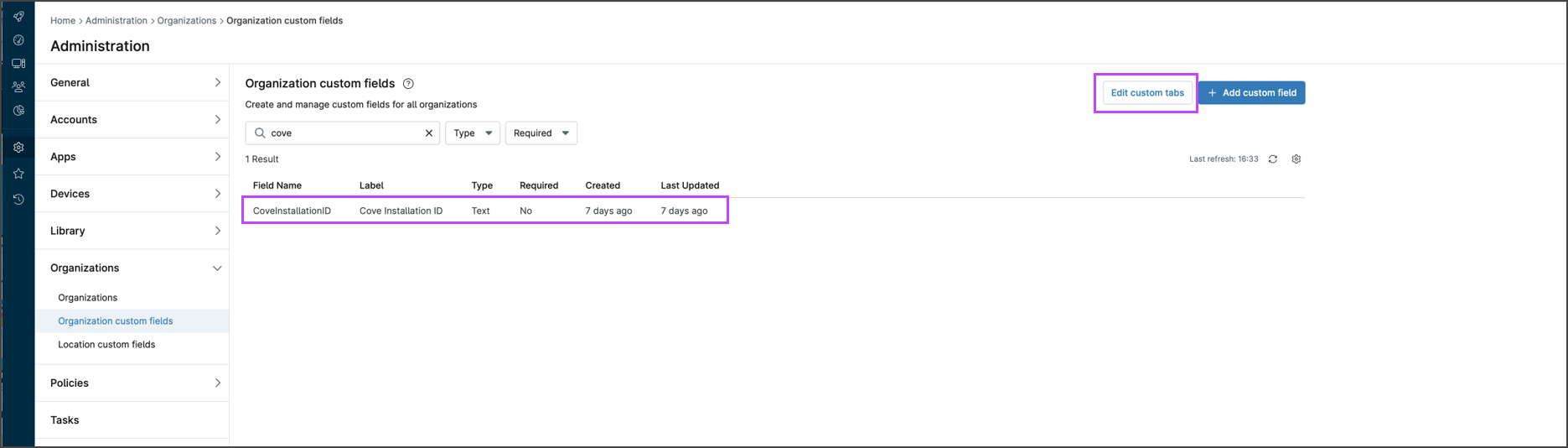
- Submit the settings. You will be taken back to the Organization Custom Fields list where the Cove Installation ID field is now visible
- Click Edit custom tabs
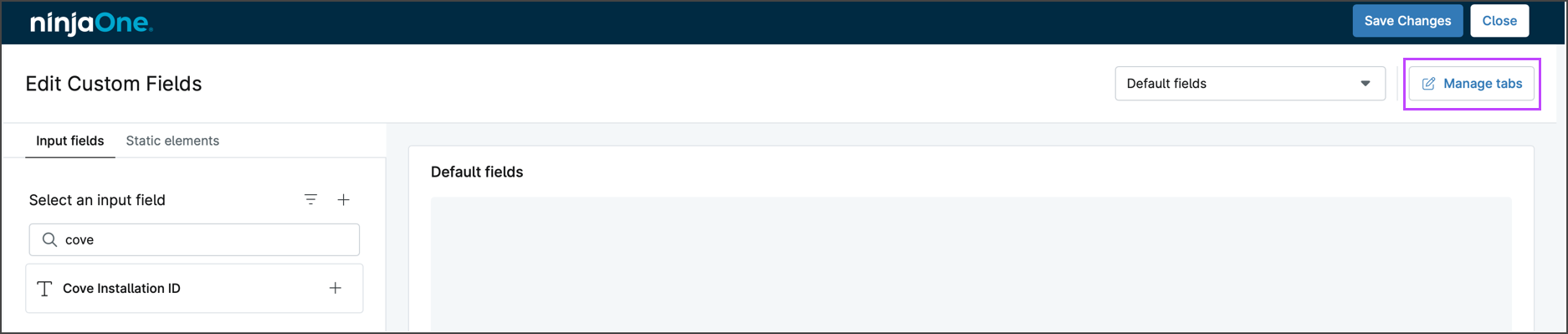
- Click Manage Tabs
- In the Manage Tabs window, click Add tab
- Provide a name for the tab, for example: Cove Data Protection deployment
- Click Create to save the new tab
- Click Update to close the Manage Tabs window
- Using the dropdown in the Edit Custom Fields page, select the tab you have just created, e.g. Cove Data Protection deployment

- In the Input fields panel, add the Cove Installation ID field created in steps 3-5 into the 'default fields' section
- Click Save changes and Close
Next, generate the Installation ID in Cove Management Console.