
Before beginning the Bare Metal Recovery (BMR), all requirements must be met including Disk size.
To perform a Bare Metal Recovery (BMR) in a Nutanix AHV, first ensure you have met the requirements, then proceed to download the Cove Rescue Media ISO image, create or prepare the target virtual machine, and begin the recovery process.
Steps to take:
Nutanix AHV Requirements
Before beginning, ensure:
- Meet the general requirements for Bare Metal Recovery for Windows
- Nutanix Prism login credentials
Obtain the rescue media
- Download the Windows Rescue Media file (Windows .iso) directly from the Management Console downloads page.
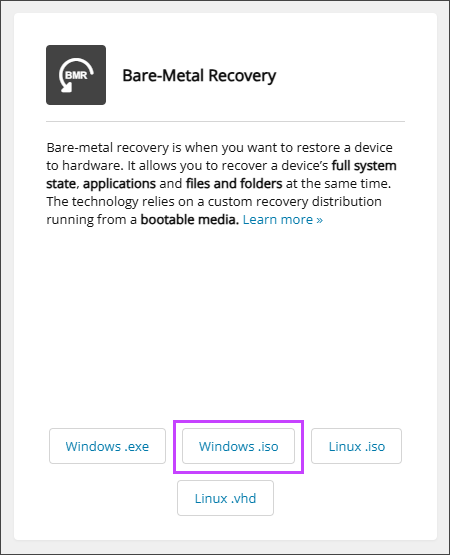
This is useful if your source device is broken or you want to get general ISO image that can be used to recover any Windows device.
Upload ISO Image to Nutanix storage
- Log in to the Nutanix Prism web interface.
- Click the Settings (gear) icon in the upper right-hand corner.
- Select Image Configuration.
- Select Upload Image.
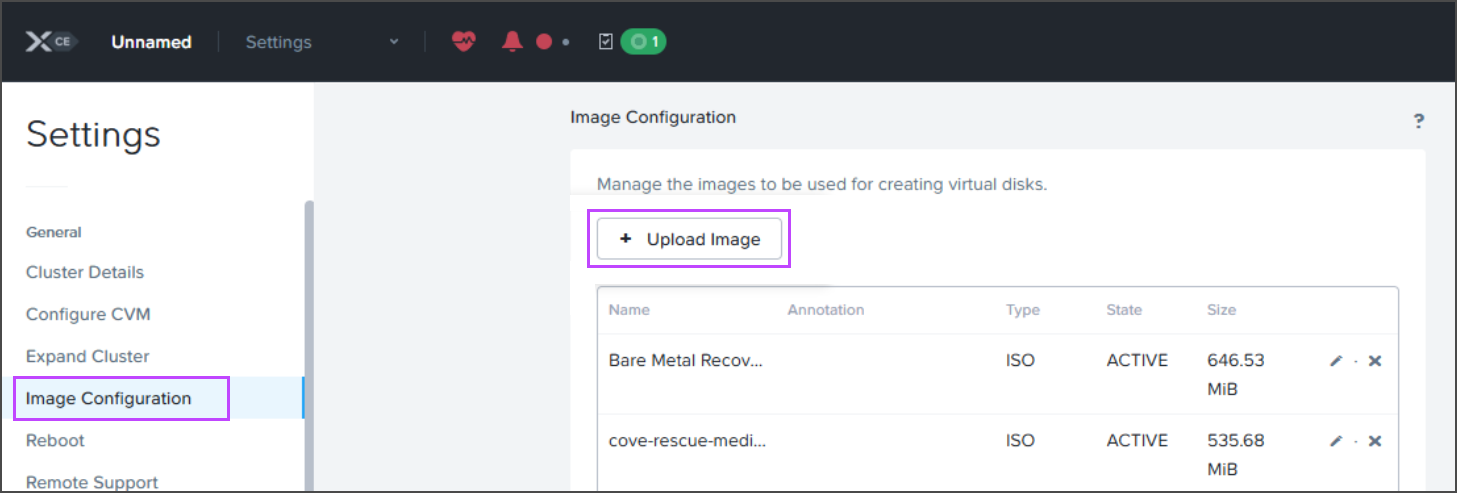
- Give the image a recognizable name, such as
Cove-rescue-media-Windows. - Set Image Type to ISO.
- In Storage Container, select the storage container for the image.
This may be filled in automatically.
- Select Upload a file and choose the downloaded ISO file from Step 1.
- Click Save.
This starts an upload task. Wait until the task is complete before moving to the next step.
Create the target VM
Skip this step only when the source machine and target machine are the same machine, meaning you are performing a recovery in place.
- Select the VM tab to open the list of virtual machines.
- Click Create VM.
- Give the VM a unique and recognizable name.
- Set the number of vCPUs and memory.
- In Boot Configuration, set the same firmware type as the source machine, either Legacy BIOS or UEFI.
Recovery will fail in the case of a firmware type mismatch. The firmware type cannot be changed after the VM is created.
- In Disks, click Edit on the CD-ROM.
- Set Operation to Clone from Image Service.
- In Image, select the Cove Rescue Media image uploaded in Step 2.
- Click Update.
- Add the same number of virtual disks as are on the source machine one at a time. For each disk:
- Click Add New Disk.
- In Storage Container, select the storage container for the disk.
This may be filled in automatically.
- In Logical Size (GiB), enter a size equal to or larger than the matching disk on the source machine. When possible, the last partition on each disk is expanded to use the remaining available space.
- Click Add.
- Navigate to Network Adapters (NIC), click Add New NIC.
The VM needs internet access for the recovery.
If you see "A network needs to be created before a NIC can be added", create a network by following the Nutanix Prism documentation.
- Click Save.
This starts the VM creation task. When the task is complete, the VM appears in the Table view.
Boot the target VM
Once the Virtual Machine has been created:
- In the VM tab, switch to the Table view.
- Right-click the target VM and select Power On.
- Right-click the target VM again and select Launch Console.
- Follow the instructions to begin recovery to complete the Bare Metal Recovery of the device.