
From the Recovery Testing Dashboard, you can search or filter the devices list.
Searching
Searching within the Recovery Testing overview can be done by using the search box over to the right hand side of the page, just above the devices list. The search can be performed by any text field.
Filtering
The Recovery Testing overview also includes functionality to filter devices using the filter menu to the left of the device list and can be displayed or hidden by clicking the double arrows.
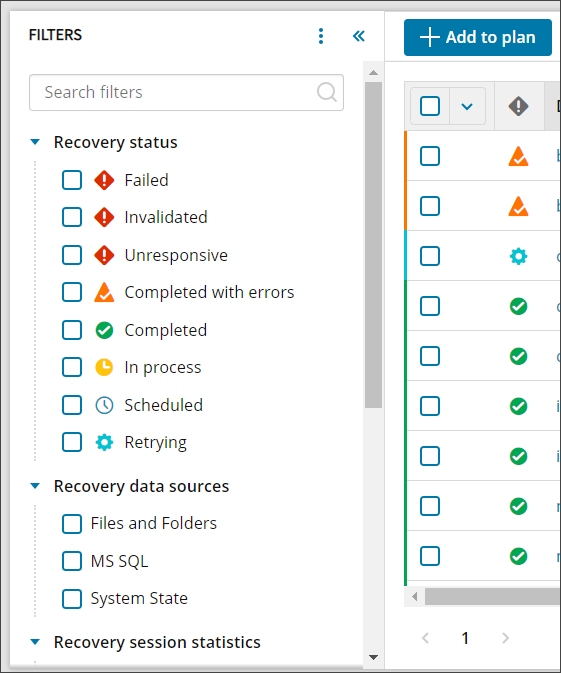
From this menu, you can filter by:
- Recovery status
- Failed - The recovery session has failed
- Invalidated - Device was moved to an inappropriate partner and so the session has failed
- Unresponsive - The recovery session was initiated but did not get updates for at least 30 minutes and so the session has failed The recovery session was initiated but did not receive updates for at least 30 minutes because the recovery location was restarted or offline
- Completed with errors - The recovery session completed, but encountered errors
- Completed - The recovery session completed with no errors
- In process - The recovery is currently in progress
- Retrying - A restore session was not finished so the system is trying the restore again
- Scheduled - Devices just added to a recovery plan and are waiting for their first recovery session or devices where restores were paused and have since been resumed will display as scheduled
- Recovery data sources
- Files and Folders
- MS SQL
- System State
- Recovery testing session statistics
- Boot Check Status
- Success
- Failed
- Off
- Unavailable for Local VHDX
- Duration of the last completed recovery session
- Sliding scale from 0 to unlimited
- Number of errors of the last completed recovery session
- Sliding scale from 0 to unlimited
- Number of restored files
- Sliding scale from 0 to unlimited
- Number of selected files
- Sliding scale from 0 to unlimited
- Restored size
- Sliding scale from 0 to unlimited
- Screenshot
- Available
- Not Available
- Selected size
- Sliding scale from 0 to unlimited
- Recovery testing status of the last completed recovery session
- Failed
- Completed with errors
- Completed
- Time stamp of the last completed recovery session
- Quick Picks of:
- Last day
- 1 - 7 days
- 7 - 14 days
- 14 - 28 days
- > 28 days
- Custom range, select a stat date and time and an end date and time
- Quick Picks of:
- Boot Check Status
 Recovery status
- Failed - The recovery session has failed
- Invalidated - Device was moved to an inappropriate partner and so the session has failed
- Unresponsive - The recovery session was initiated but did not get updates for at least 30 minutes and so the session has failed
- Completed with errors - The recovery session completed, but encountered errors
- Completed - The recovery session completed with no errors
- In process - The recovery is currently in progress
- Retrying - A restore session was not finished so the system is trying the restore again
- Scheduled - Devices just added to a recovery plan and are waiting for their first recovery session or devices where restores were paused and have since been resumed will display as scheduled
Recovery data sources
- Exchange
- Files and Folders
- MS SQL
- SharePoint
- System State
Recovery testing session statistics
- Boot Status
- Success
- Failed
- Off
- Unavailable for Local VHDX
- Duration of the last completed recovery session
- Sliding scale from 0 to unlimited
- Number of errors of the last completed recovery session
- Sliding scale from 0 to unlimited
- Number of restored files
- Sliding scale from 0 to unlimited
- Number of selected files
- Sliding scale from 0 to unlimited
- Continuous restores
- Paused
- Running
- Recovery Location name
- Select the Recovery Location name from the dropdown
- Restored size
- Sliding scale from 0 to unlimited
- Screenshot
- Available
- Not Available
- Selected size
- Sliding scale from 0 to unlimited
- Recovery testing status of the last completed recovery session
- Failed
- Completed with errors
- Completed
- Time stamp of the last completed recovery session
- Quick Picks of:
- Last day
- 1 - 7 days
- 7 - 14 days
- 14 - 28 days
- > 28 days
- Custom range, select a stat date and time and an end date and time
- Quick Picks of:
Widgets
Three widgets can be maximized at the top of the page, which allow for further filtering:

Device recovery status
This widget allows you to filter the devices by recovery status:
- Completed
- Completed with errors
- Failed
- In process
- Retrying
- Scheduled
VDR checks time frame
This widget allows you to see the percentage of devices whose recovery check completed within the following day ranges:
- < 1 day
- 1 - 7 days
- 7 - 14 days
- 14 - 28 days
- > 28 days
- No checks
Device restore time frame
From this widget, you can filter devices by the how recent restores are done by the following time frames:
- < 4 hours
- 4 - 12 hours
- 12 - 24 hours
- > 24 hours
- No restores