
Users of all roles can view devices in the Cove Data Protection (Cove) Management Console BackupDashboard with Recovery Testing enabled.
They are regular Backup Manager devices which can be found by using the filter:
- Expand the Filters pane on the left of the Toolbar
- Search for Recovery Plan in the Feature Usage section
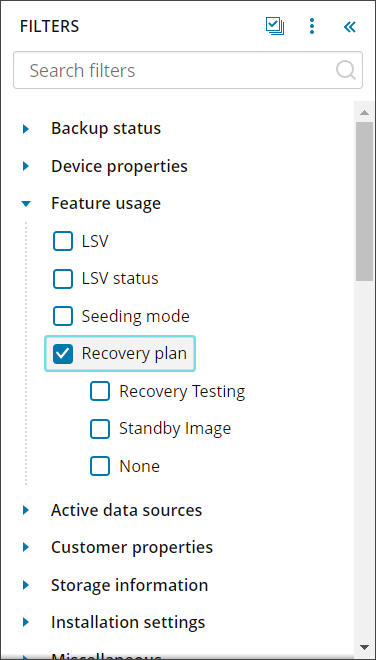
- Tick the Recovery Testing plan
Your devices list will automatically update to show only devices where the Recovery Testing plan is enabled.
Accessing device properties
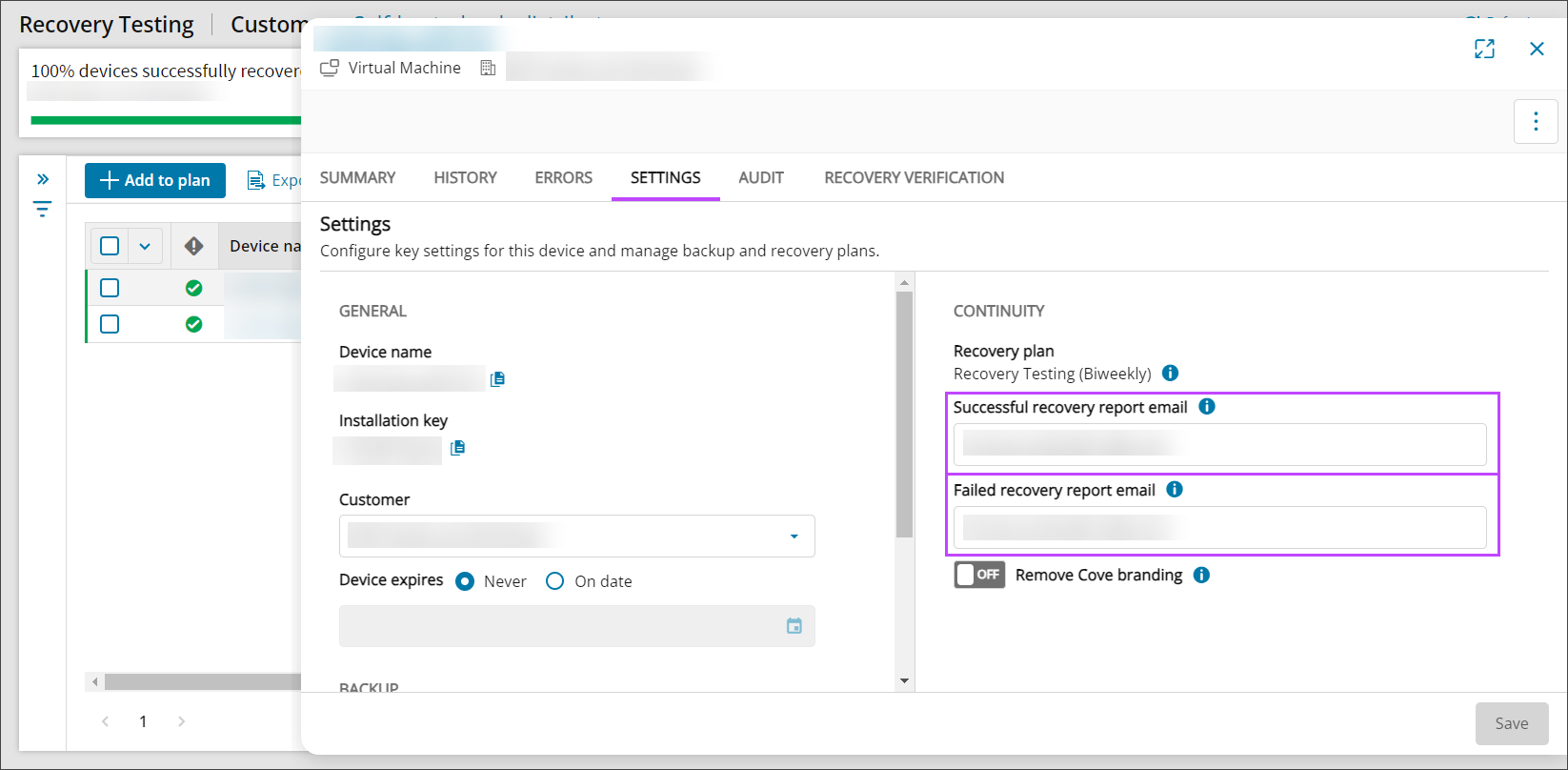
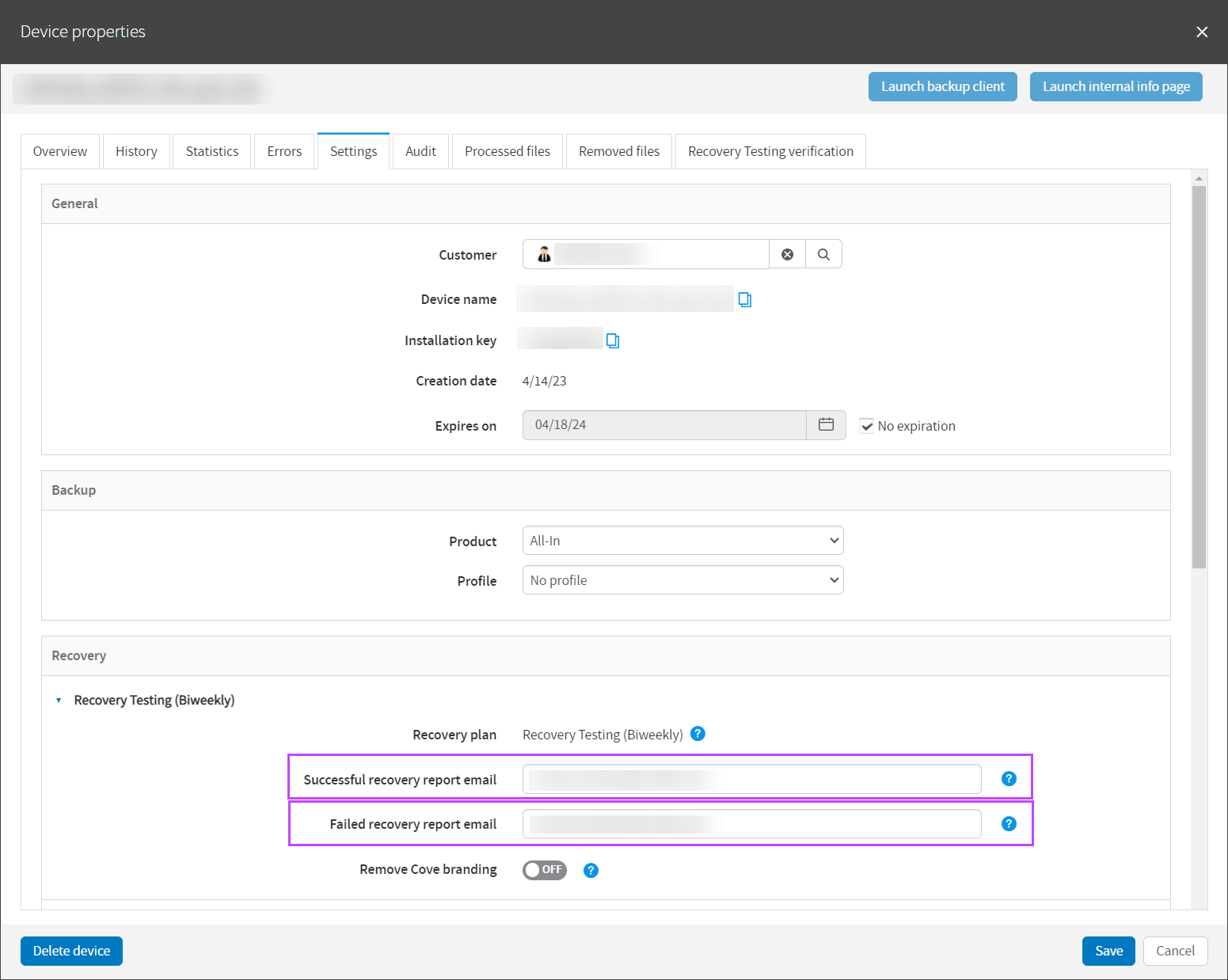
As with any normal device, when you click on the device name, you will see the Device Properties dialogue. If the device is assigned to a plan, details of this will be visible in a Recovery section.
You can also add, remove, or amend the Successful recovery report email and Failed recovery report email recipient email addresses from here as well as toggle Cove branding on the reports on or off.
Enhanced Device Properties:
Classic Device Properties:
View results and check screenshots
To view statistics of the Recovery Testing and check the screenshots to ensure this has been successful, you can view this by following one of the below methods:
From Device Properties
- Sign in to the Management Console using a SuperUser account
- Click the device name to open Device Properties
- Navigate to the Recovery Testing Verification tab
From Recovery Testing Overview
- Sign in to the Management Console using a SuperUser account
- Navigate to Continuity > Recovery Testing
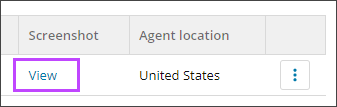
- Click View under the Screenshot column
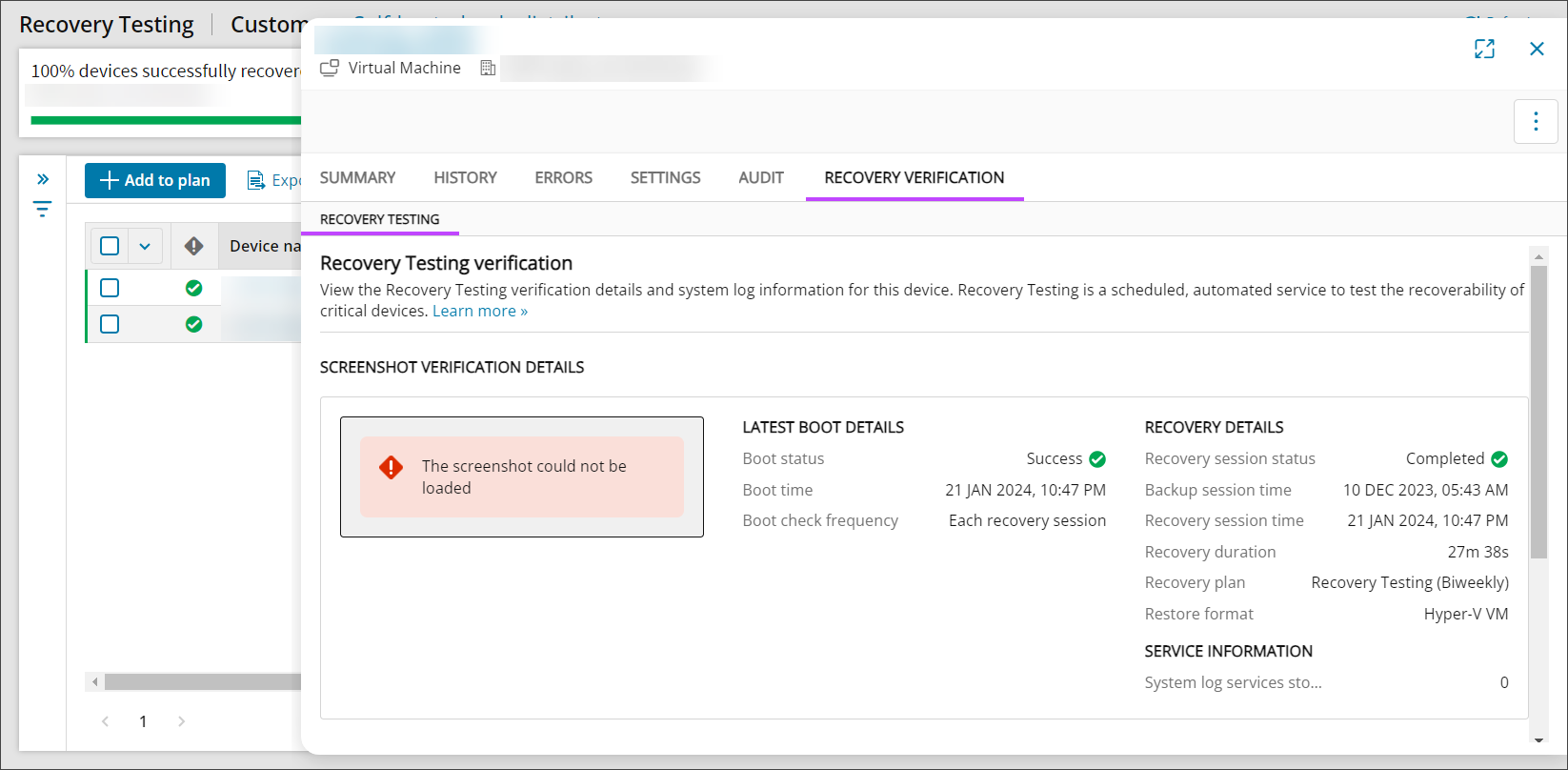
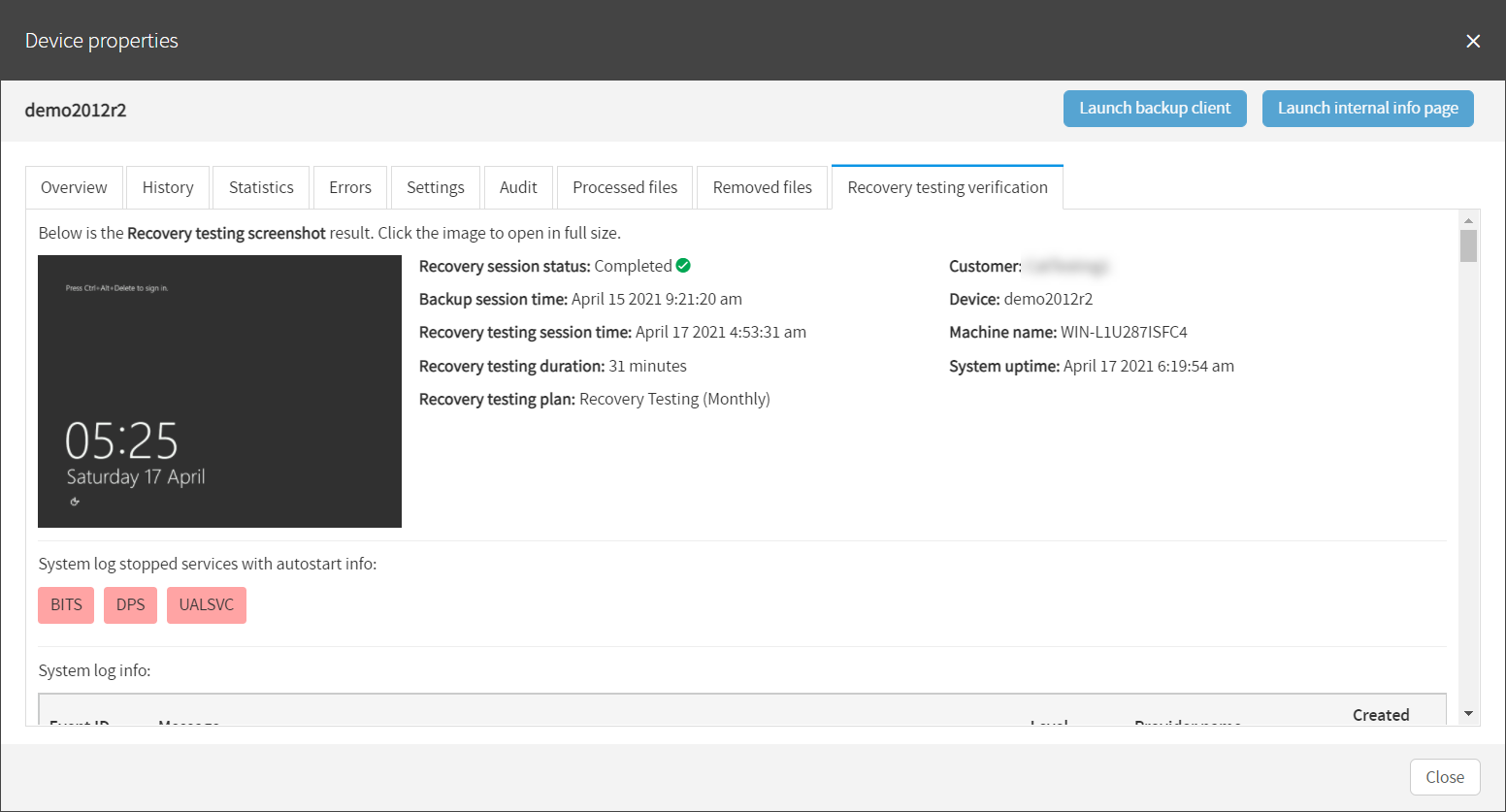
- This will take you in to the Device Properties dialogue, where you will now see the Recovery testing verification tab:
Enhanced Device Properties:
Classic Device Properties:
If an error was found during the recovery, you can view a wider look at the error details from the Recovery session errors dialog box.
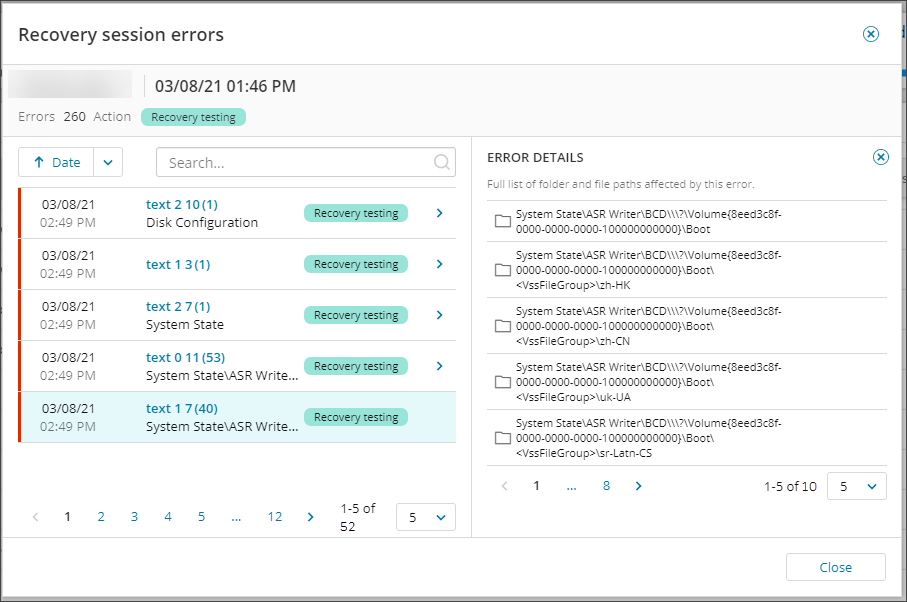
This can be accessed by hovering over the recovery session with the error and selecting to show the Recovery session errors.

Recovery Testing Verification
In the Recovery Testing Verification tab you will see the screenshot taken from the virtual machine during the boot phase of Recovery Testing.
In this tab, you will also see information on the device, such as system uptime, when the session was last recovered, services that were stopped in order to perform the recovery and system log information.
You can find full details on device statistics and what each tab is used for here.
In the case of a failed test recovery, the captured screenshot may not display the error or state that caused the failure. To understand the cause of the failed restore, we recommend using the virtual recovery option in the Backup Manager or Recovery Console to recreate and diagnose the issue.