
Accessing Cove DRaaS
- Sign in to the Management Console using a SuperUser account.
- Navigate to the DRaaS overview by selecting Continuity > DRaaS from the vertical menu on the left hand side
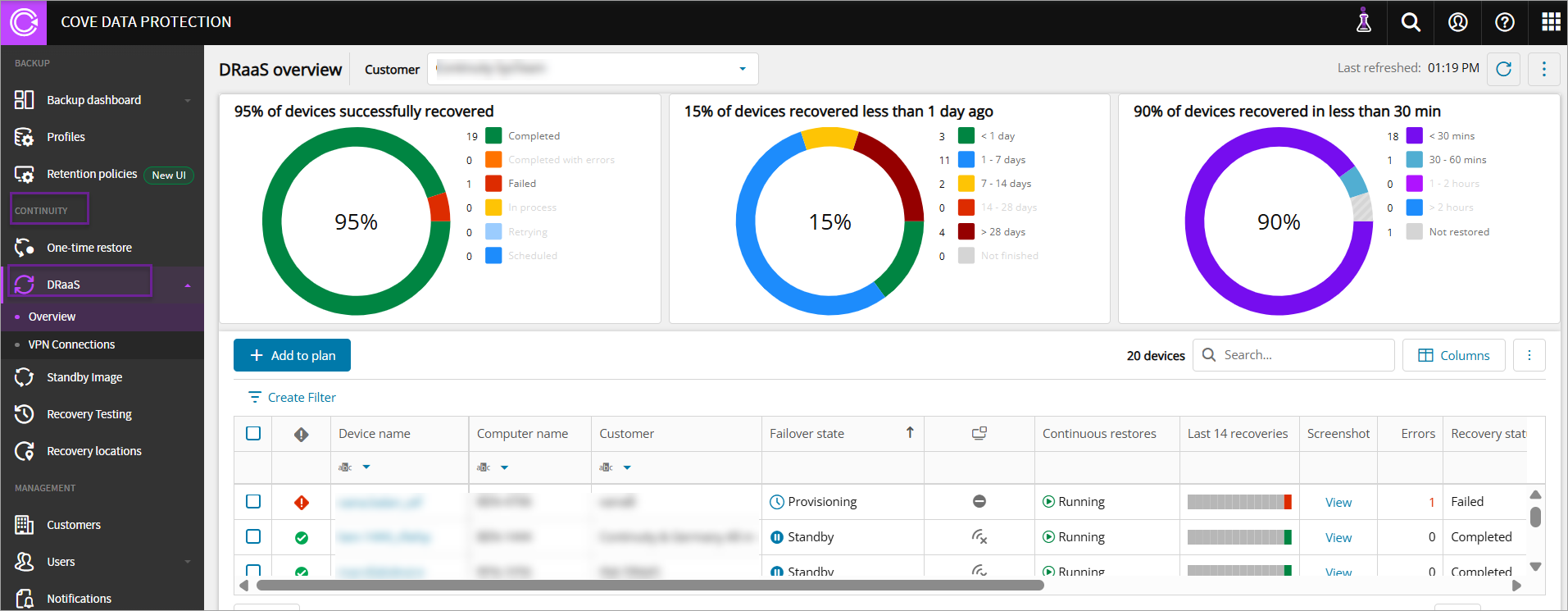
- The DRaaS dropdown displays that lists Overview and VPN Connections
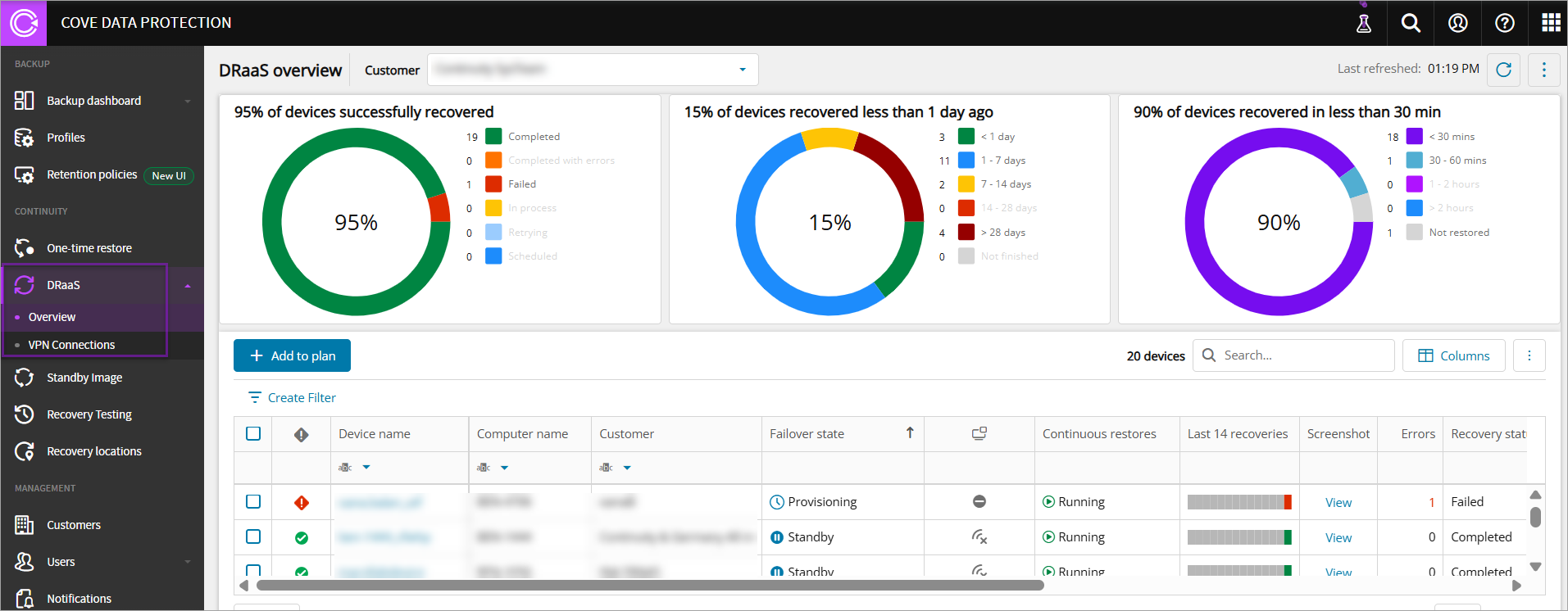
DRaaS Overview
-
Navigate to the Management Console -> Continuity and click DRaaS->Overview
The DRaaS overview dashboard displays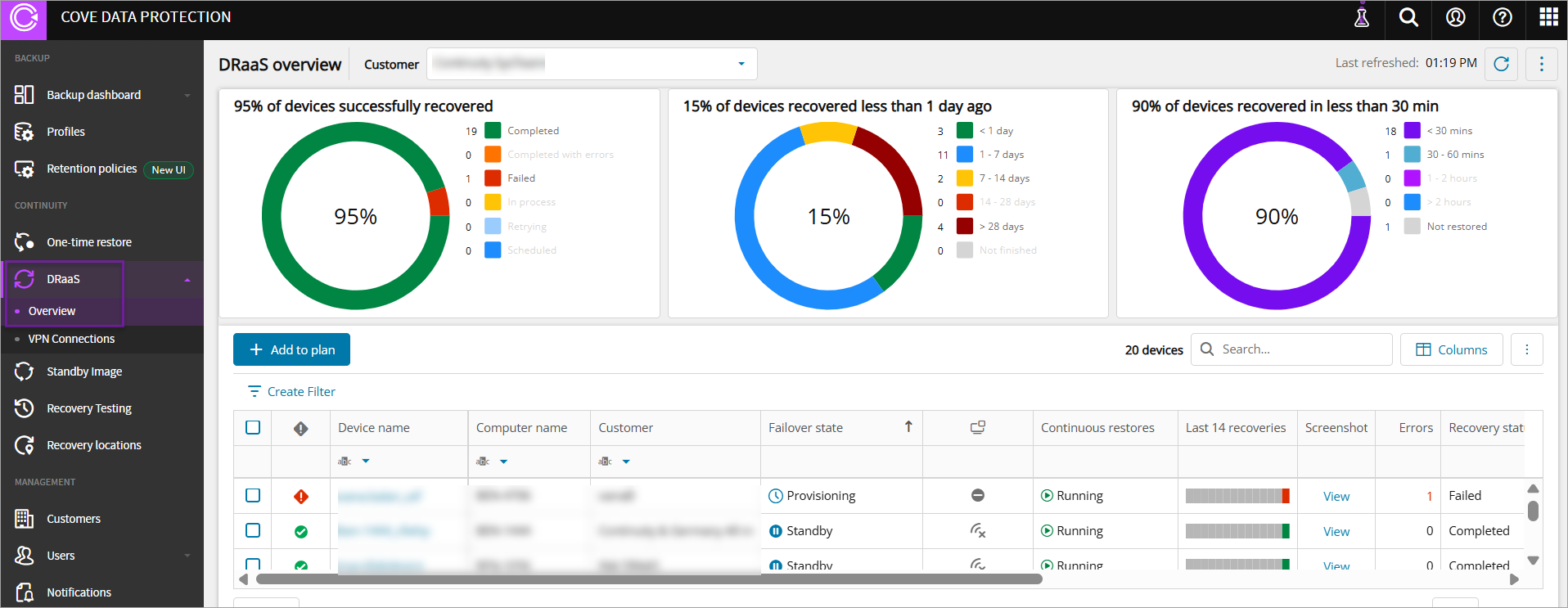
The DRaaS overview dashboard includes:
-
Device name: Refers to the name of the device
-
Computer name: Refers to the name of the computer
-
Customer: Refers to the name of the customer
-
Failover state
-
Provisioning
-
Standby
-
Test failover successful
-
Production failover successful
-
Preparing test failover
-
Preparing production failover
-
Test failover failed
-
Production failover failed
-
Stopping failover
-
-
VM State: Refers to the following Virtual Machine (VM) states that appear once any device is added to plan:
-
On
-
Off
-
Starting
-
Stopping
-
-
Continuous restores
-
Running
-
Paused
-
-
Last 14 recoveries: Refers to the restore details of last 14 recoveries
-
Screenshot: Refers to the View link that provides Recovery details
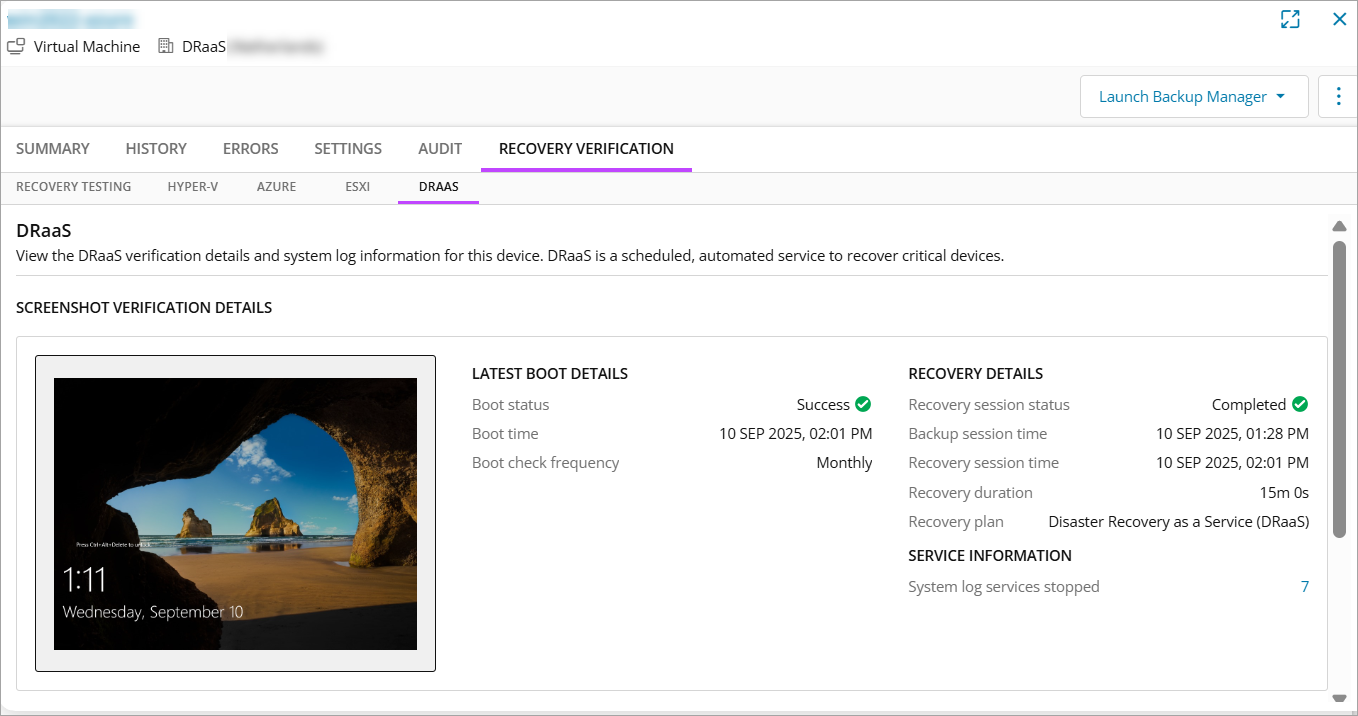
You can access screenshot from the side bar as well.
-
Errors: Refers to the number of errors of the last completed recovery session
-
Recovery Status
-
Completed
-
Completed with errors
-
Failed
-
Invalidated
-
Unresponsive
-
Scheduled
-
In process
-
Retrying
-
-
Recovery progress: Refers to the restore progress indicator, once device added to plan
-
Last completed session: Refers to the timestamp (date, month, year, and time) of the last completed session
-
Restored size: Refers to the size of restore
-
Duration: Refers to the duration of restore
-
Boot status
-
Success
-
Failed
-
-
Failover VM IP address: Refers to the IP address that is configured for the device in the Failover wizard
-
Failover remaining: Refers to the time that the device can remain in failover, with the maximum period being 30 days
-
Boot check frequency (optional): Refers to the frequency of the boot check
-
Number of selected files (optional): Refers to the number of files that have been selected to be restored
-
Number of restored files (optional): Refers to the number of files that have been restored
-
Selected size (optional): Refers to the selected size of backed up files to be restored
-
Status of the last completed session (optional): Refers to the status of the latest completed restored session
-
Data sources (optional): Refers to the sources that have been backed up to be restored
-
Recovery location (optional): Refers to the region of the Recovery Agent where the restore is situated
The DRaaS overview dashboard allows you to:
-
View the list of devices for all your customers that are added to the Cove DRaaS plan
-
Filter, Search, sort, and manage columns
VPN Connections
Virtual Private Network (VPN) connections are primarily used during partial production failover, though they can also emulate production failover during test failovers by allowing the customer to choose which restored machines are allowed to communicate with the On-Prem environment through the VPN connection. They extend your production network to include devices on the DR side.
In case of complete failovers, the VPN connection is created, but it provides no utility as the On-Prem environment is fully destroyed.
You need to add devices to Cove DRaaS plan to view records under VPN Connections.
-
Navigate to the Management Console -> Continuity and click DRaaS-> VPN Connections.
The VPN Connections page displays.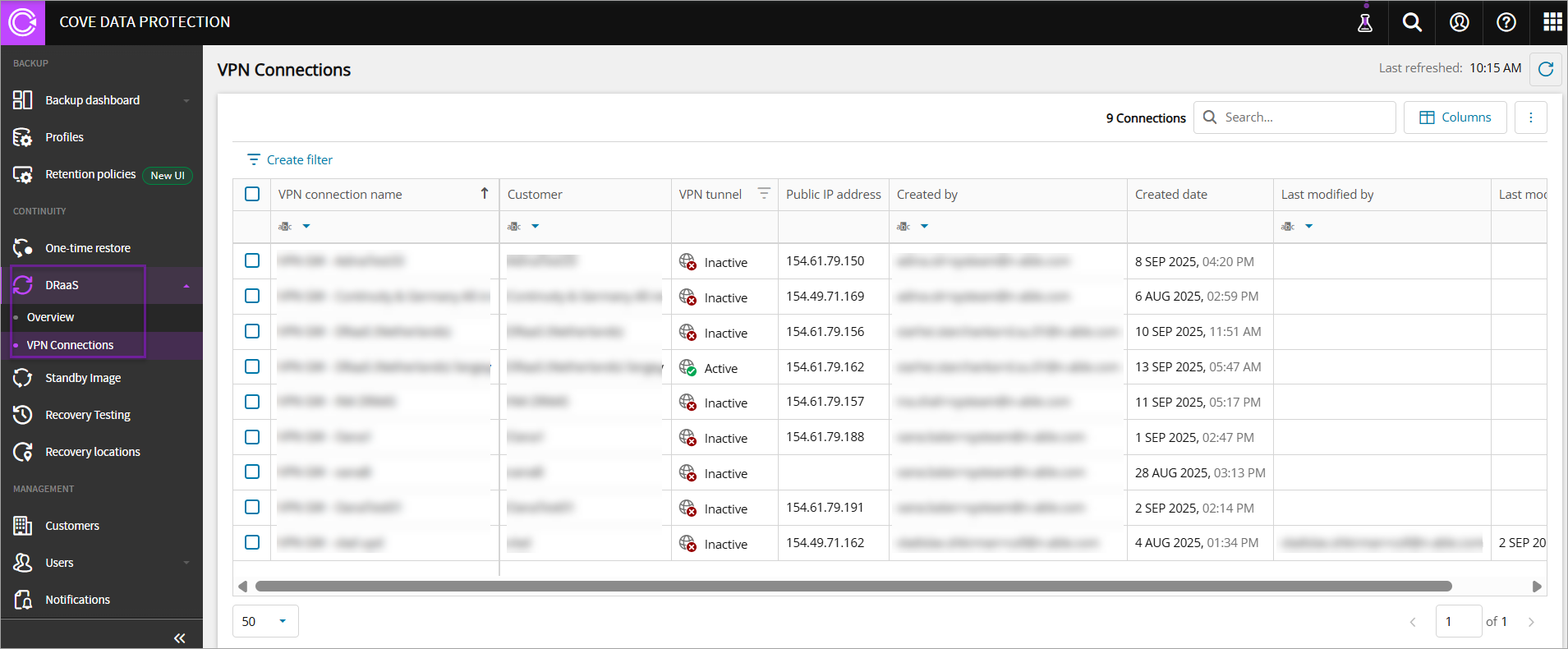
The VPN Connections dashboard includes:
-
VPN connection name: Refers to the name of the VPN connection
-
Customer: Refers to the name of the customer
-
VPN tunnel: Refers to the VPN tunnel status which becomes Active once the connection between on-prem and DraaS network has been established
-
Public IP address: Refers to the IP address of the virtual machine on the DRaaS cloud
-
Created by: Refers to the email ID of the person who has configured the VPN connection
-
Created date: Refers to the timestamp (date, month, year, and time) of VPN connection configuration
-
Last modified by: Refers to the email ID of the person who has modified the configured VPN connection
-
Last modified date: Refers to the timestamp (date, month, year, and time) of the modified VPN connection
The VPN Connections dashboard allows you to:
-
View the list of VPN Gateway connections
-
Filter, search, sort, and manage columns