Before you begin restoring Microsoft 365 OneDrive data, ensure you have met the necessary requirements:
Requirements
The following account types are required:
- A user account for the Management Console at the following user level:
- SuperUser
- Administrator
- Manager
- Operator
- The Security Officer role assigned to the above user account
- A Global administrator account for Microsoft 365
Instructions
- Sign in to the Management Console using a SuperUser or Manager account with Security Officer permissions
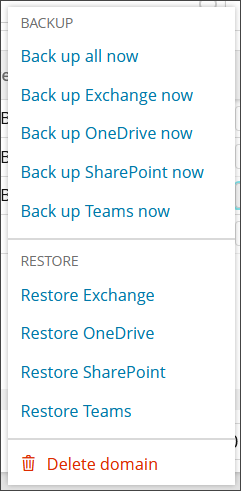
- Open the action menu for the domain and click Restore OneDrive
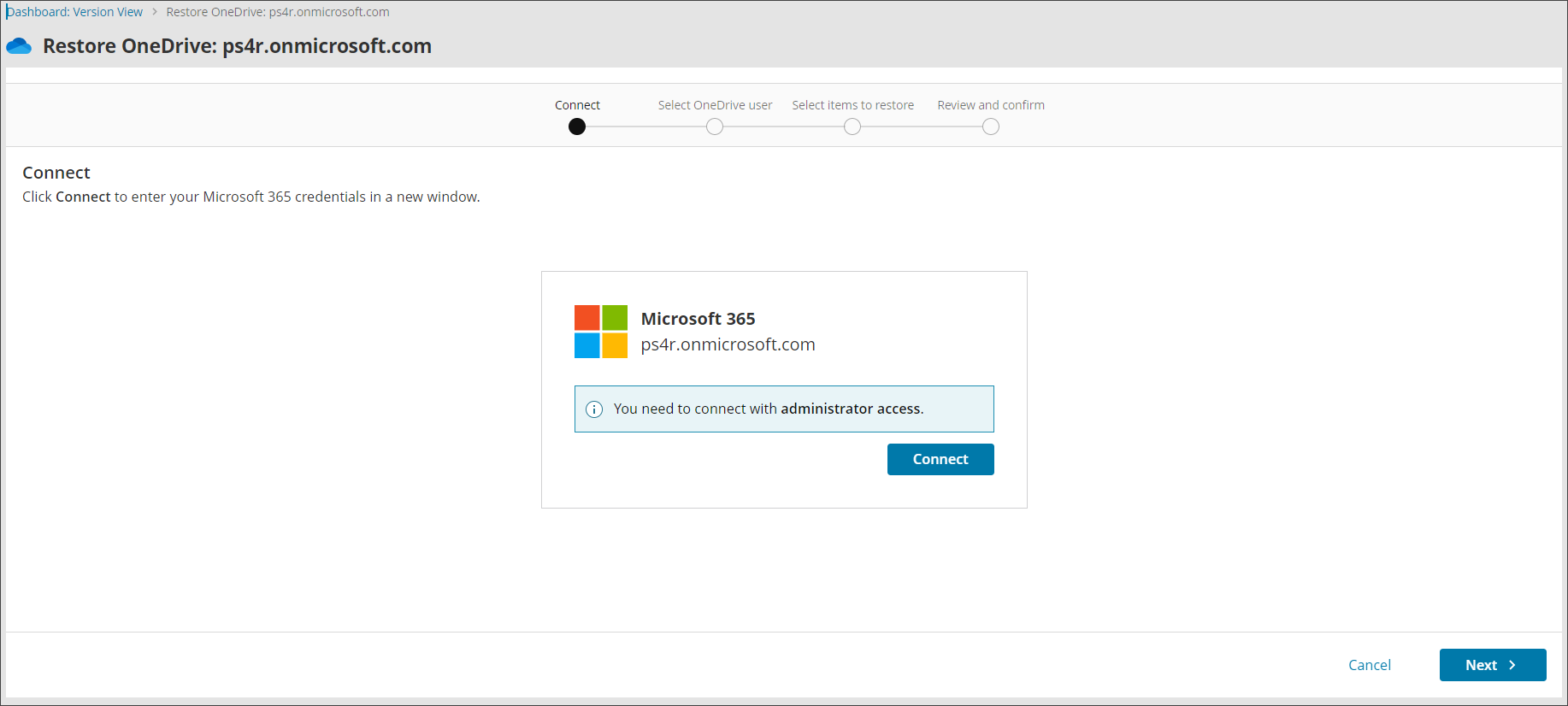
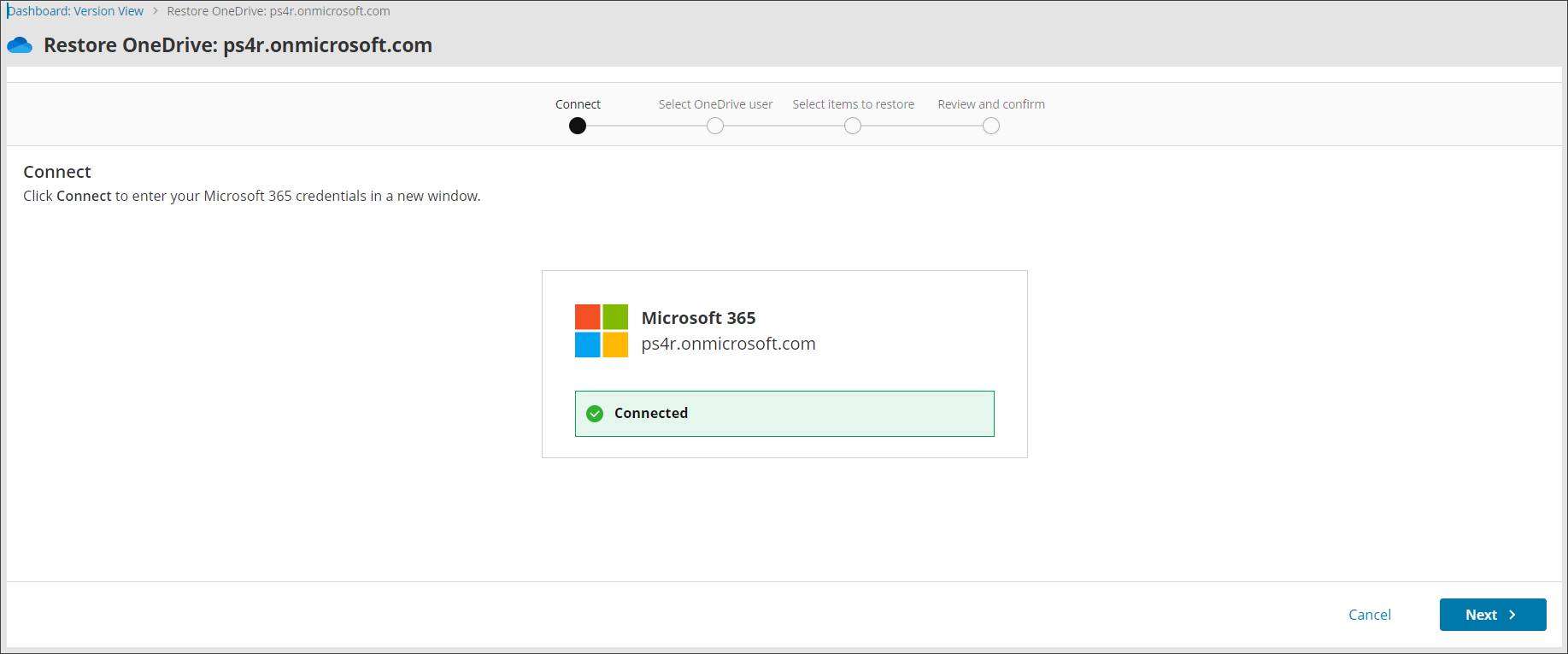
- Connect to the Microsoft 365 OneDrive account with administrative account credentials
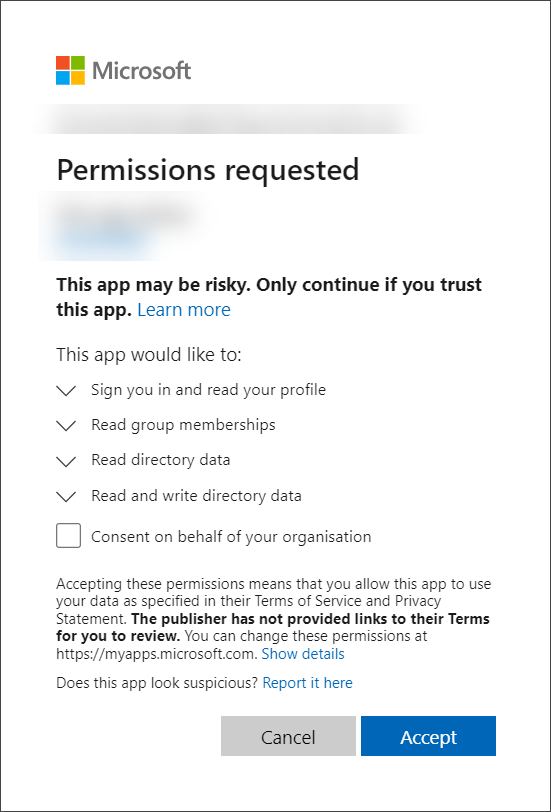
- Accept the required permissions
- You will receive a confirmation that the connection has been successful for the restore
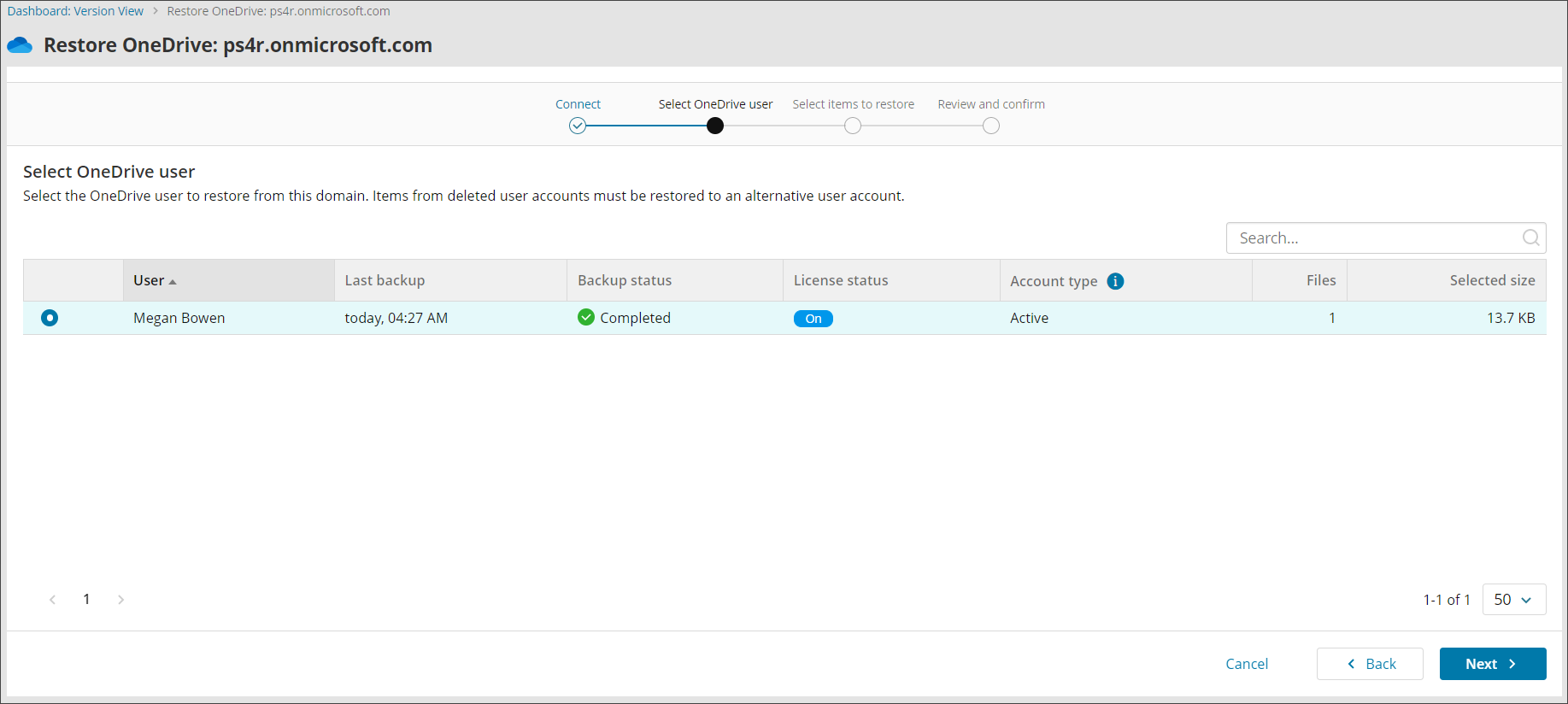
- Select the account you wish to restore items from and click Next. You will see the list of backed up accounts, backup status of the account, the account type (Active or Deleted), number of files and the size of the accounts selection.
- Select the backup date on the left and backup session from the dropdown below if more than one backup was completed on that date.
- Make your selection of the files and folders to restore from the backup tree
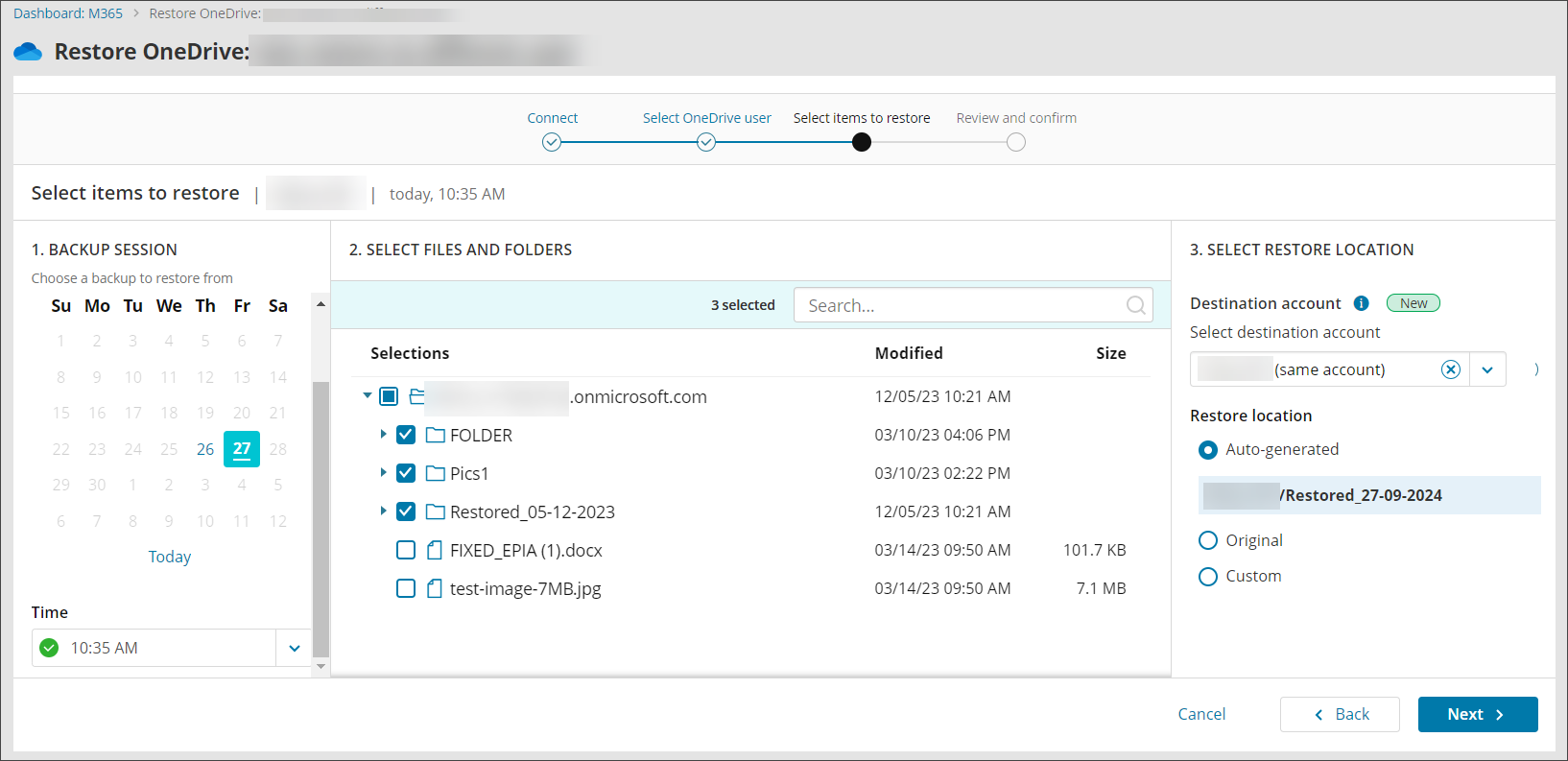
- Select the destination account for the restored data from the dropdown
You may request to disable the ability to select a restore destination at a different account by contacting N-able support
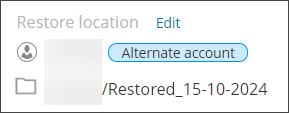
- Select the restore location for selection from:
- Auto-generated
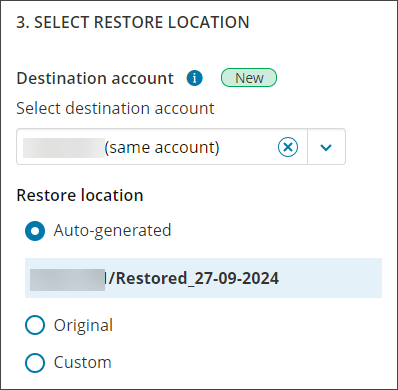
- Original
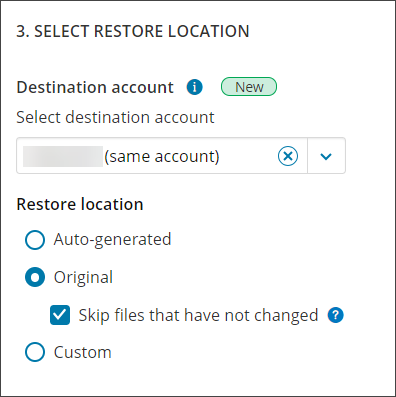
If selecting a different recovery destination account, the Original option will no longer be available
Where an account has been deleted or is unlicensed, you will only have access to restore to an Auto-Generated or a Custom location.
- Custom
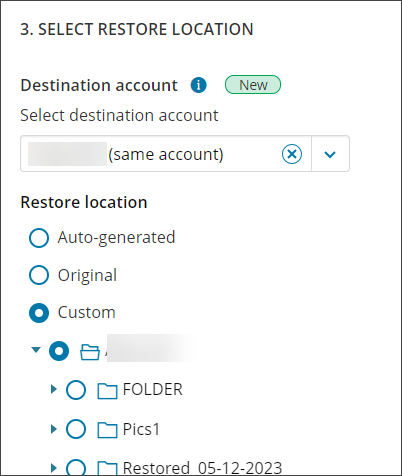
- Auto-generated
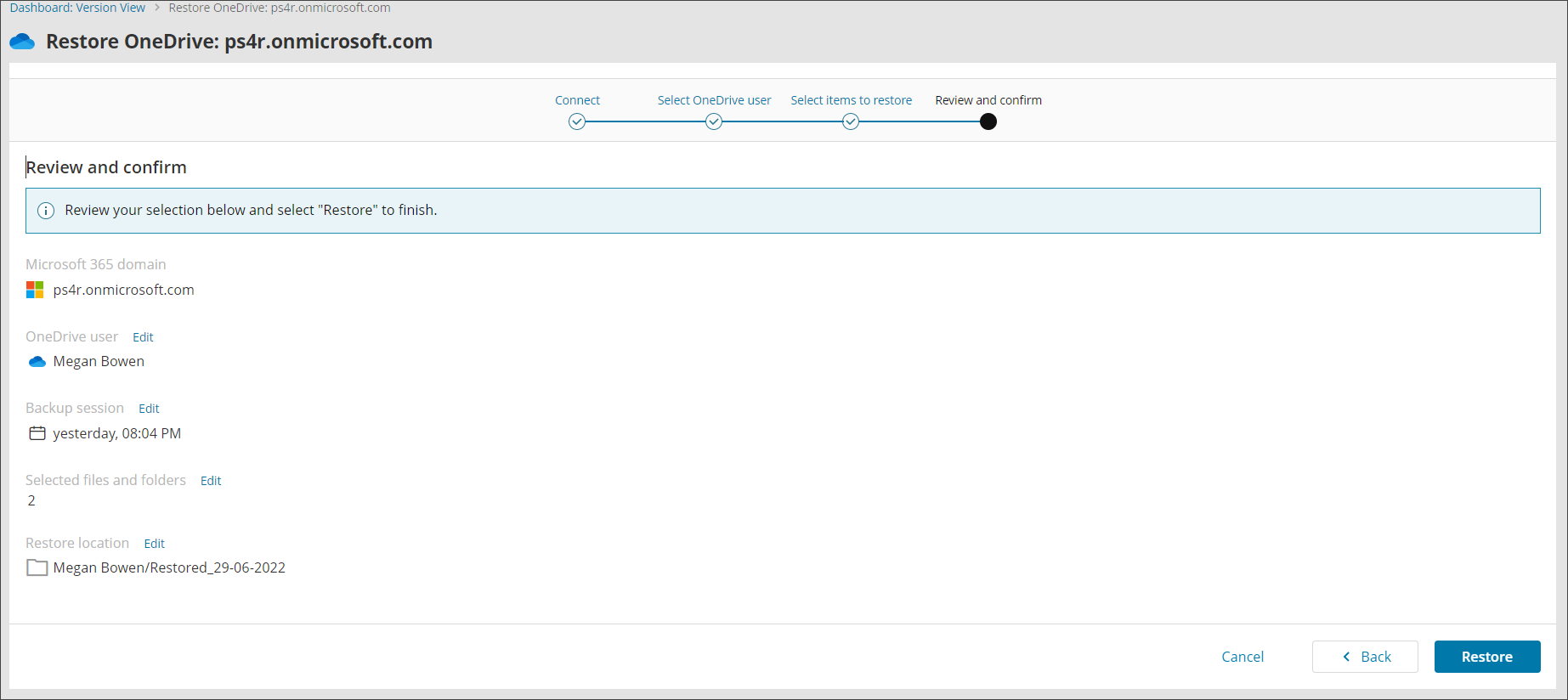
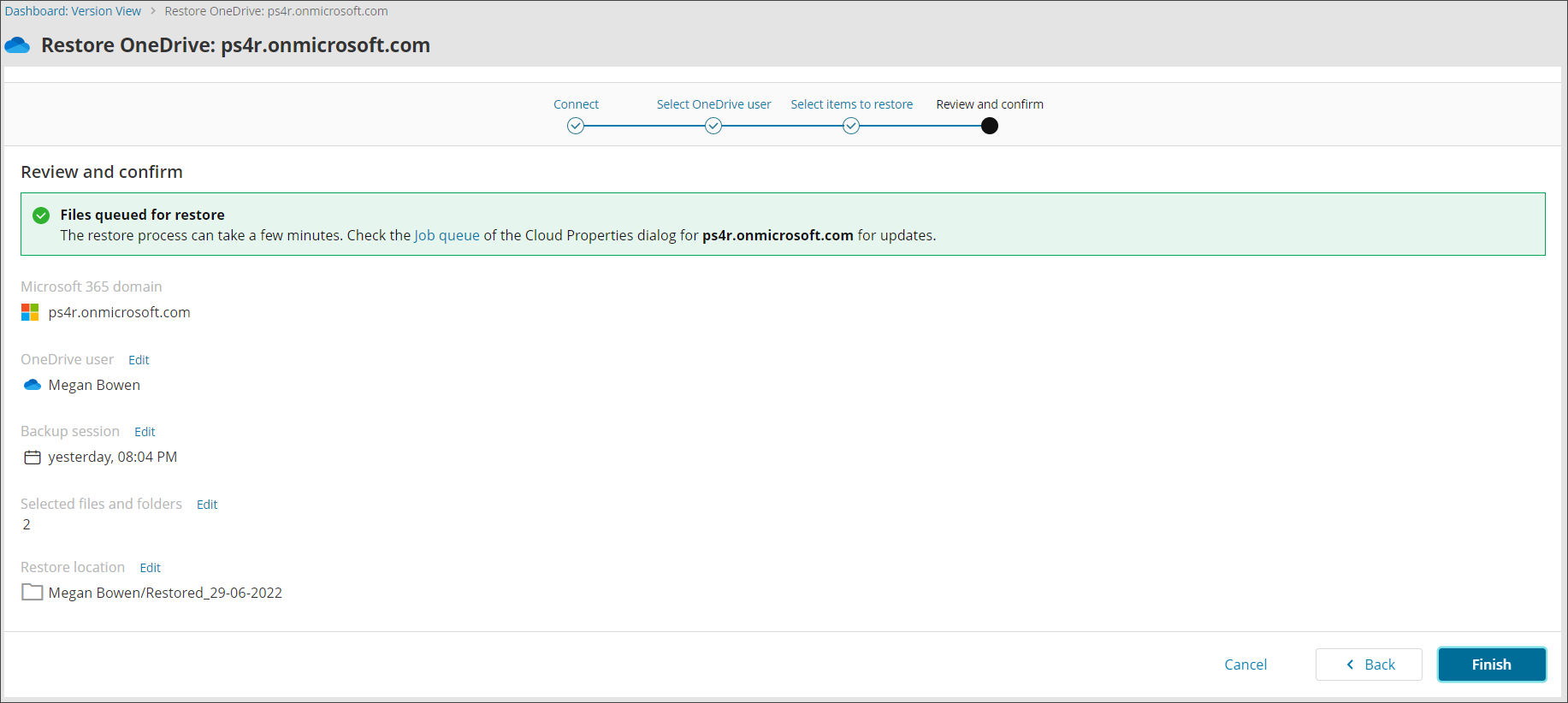
- Confirm your intention to start the recovery and close the wizard
If you do not see the authentication page, make sure your browser is not blocking pop-up windows.
Tick Consent on behalf of your organisation if you wish to allow this app access to the specified resources for all users in your organisation. No one else will be prompted to review these permissions.