Once a Microsoft 365 Exchange or SharePoint data export has been started, you can view the export progress, or cancel the export as it is running. Once complete, you may download the exported file, open it and audit export jobs.
Export Limits
Export jobs are retained for 7 days before they automatically expire and can be downloaded a maximum of 5 times before a new export must be triggered.
If the export exceeds 20GB, the system creates multiple files.
View Export Progress
- Sign in to the Management Console using a SuperUser or Manager account with Security Officer permissions.
- Open the Microsoft 365 BackupsDashboard.
- Select the Customer to view the associated Microsoft 365 tenants.
- Click the domain name to open the device properties.
- Navigate to the Active Jobs tab to view the progress of ongoing export jobs.
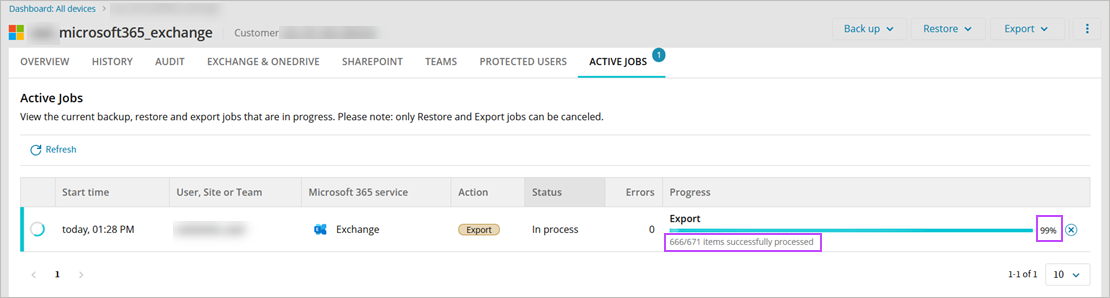
The export time depends on the size of the Microsoft 365 Exchange or SharePoint data backed up and may take several hours.
Cancel Export
- Sign in to the Management Console using a SuperUser or Manager account with Security Officer permissions.
- Open the Microsoft 365 Backups Dashboard.
- Select the Customer to view the associated Microsoft 365 tenants.
- Click the domain name to open the device properties.
- Navigate to the Active Jobs tab.
- Click the x icon next to the progress bar to cancel the export.

Download Exported .PST or .ZIP File
- Sign in to the Management Console using a SuperUser or Manager account with Security Officer permissions.
- Open the Microsoft 365 Backups Dashboard.
- Select the Customer to view the associated Microsoft 365 tenants.
- Click the domain name to open the device properties.
- Navigate to the History tab.
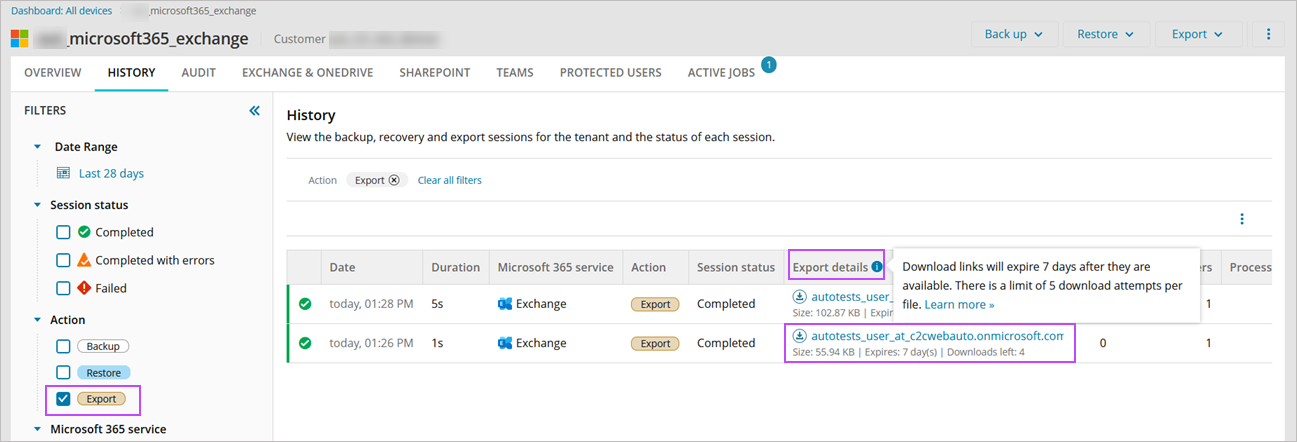
- Using the Filter panel on the left-hand side, filter by export jobs.
You can view the export file size, the expiry date, and the number of remaining download attempts.
- Select the link to download the exported data.
If the download is interrupted, you can resume it within one hour.
Open Exported .PST File or .ZIP Folder
Open Exported .PST File
Make sure you have the classic desktop version of Microsoft Outlook installed. If you're using the New Outlook, switch to Classic Outlook. Opening .pst files is fully supported in Outlook for Windows. Outlook for Mac has limited support, and Outlook on the web doesn't support .pst files.
For the most current information, see the official Microsoft documentation.
- Navigate to the file location of the downloaded file.
The file name will be formatted as
UserFirstNameSecond Initial_at_domain.onmicrosoft.com_ExchangeExport_YYYY-MM-DD_NNNNNNWhere UserFirstNameSecond Initial is the Users first name and their initial of the surname, domain is their domain name, YYYY-MM-DD is the date the export was triggered and NNNNNN is a unique number string to differentiate multiple exports from one-another
- Right click the folder and select Extract All to extract the .pst file to a location of your choice.
- Once the extraction is complete, double click the .pst file to open it in your Microsoft Outlook.
Open Exported .ZIP Folder
- Navigate to the file location of the downloaded file.
The file name will be formatted as
SiteName_SharePointExport_YYYY-MM-DD_NNNNNNWhere SiteName is the SharePoint Site name, YYYY-MM-DD is the date the export was triggered and NNNNNN is a unique number string to differentiate multiple exports from one-another
- Right click the folder and select Extract All to extract the folder content to a location of your choice.
- Once the extraction is complete, use the file explorer to navigate the files and folders exported.
All original folder hierarchy and file types are preserved on export without the need for format conversion.
Audit Export Jobs
- Sign in to the Management Console using a SuperUser or Manager account with Security Officer permissions.
- Open the Microsoft 365 Backups Dashboard.
- Select the Customer to view the associated Microsoft 365 tenants.
- Click the domain name to open the device properties.
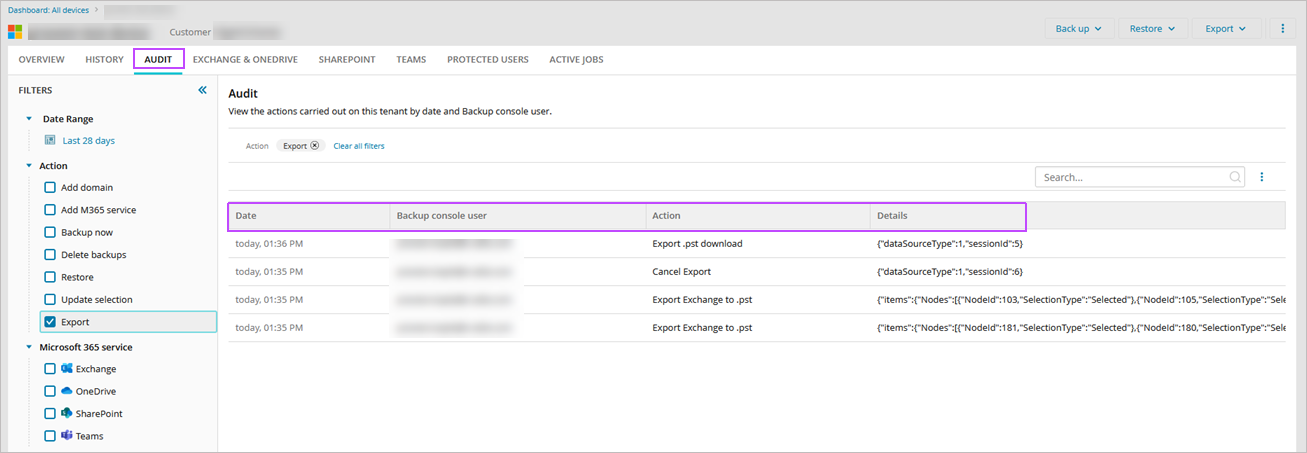
- Navigate to the Audit tab to monitor or view the export activity such as detailed logs of export requests, downloaded files, cancellation of exports, and more.