
Remote Console Access lets you open a secure, interactive session directly to a recovered Cove Data Protection (Cove) Disaster Recovery As A Service (DRaaS) server from inside the Backup Management Console — no Virtual Private Network (VPN) or public IP needed.
Remote Console Access uses integrated Take Control. The Take Control agent runs on the recovered Virtual Machine (installed automatically during failover) and allows the Admin to connect from the Take Control application on their own machine.
You can use Remote Console Access for quick hands-on access such as:
- Confirming a clean boot
- Checking service health
- Restoring files
- Working a recovery run-book, or
- Investigating the machine in a sandbox.
Prerequisites
Before attempting to use Remote Console Access, you must ensure the following prerequisites are met:
- Be using a Windows or macOS device
- Take Control must be installed on the machine from which you are connecting to the VM
- The device you are connecting to has an active Failover
- The failover VM is powered on
- The Take Control agent is initialized
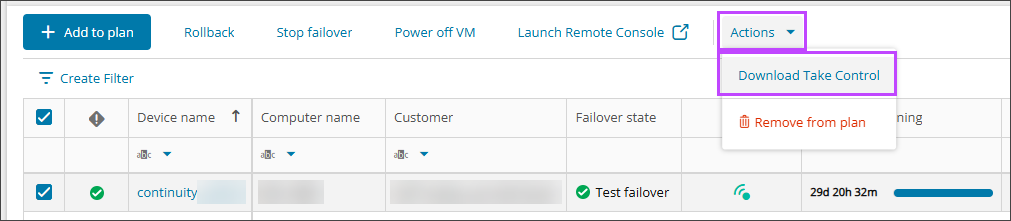
Step 1: Download Take Control
- Log in to the Management Console under a SuperUser or Manager account
- Navigate to Continuity > DRaaS > Overview
- Highlight the device to launch the remote console for by placing a tick in the checkbox to the left of the device name
- Select Actions from the top bar
- Click Download Take Control
Step 2: Launch Remote Console
- Log in to the Management Console under a SuperUser or Manager account
- Navigate to Continuity > DRaaS > Overview
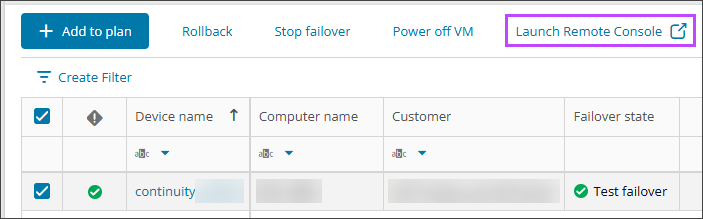
- Highlight the device to launch the remote console for by placing a tick in the checkbox to the left of the device name
- Select Launch Remote Console from the top bar.
- The device has an active failover,
- The failover VM is powered on,
- The Take Control agent is initialized (Ready).
The console will run three checks before opening the remote console:
The Take Control window will open
If any of these checks fail, a popup is shown to advise why. You must resolve the issue before you can launch the remote console:
- The device is not in failover — Remote console is only available after a successful failover. Start failover for this device and try again.
- The virtual machine is powered off — Open the device and power on the virtual machine, then try launching remote console again.
- Take Control agent is still initializing — After failover, the remote console agent needs a few minutes to come online. Wait a few minutes and try again.