
The south panel of the Cove Data Protection (Cove)Management Console is made up by the following sections:
Toolbar
The toolbar gives access to the most important functions in the Backup Dashboard. When no device or tenant is selected, the toolbar has the following options:
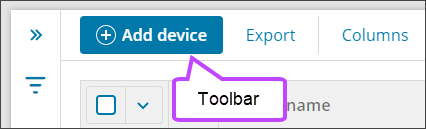
- Add new devices or tenants
- Export monthly device and tenant statistics
- Set the columns to be displayed
When any number of devices or tenants have been selected, the toolbar provides additional key features:
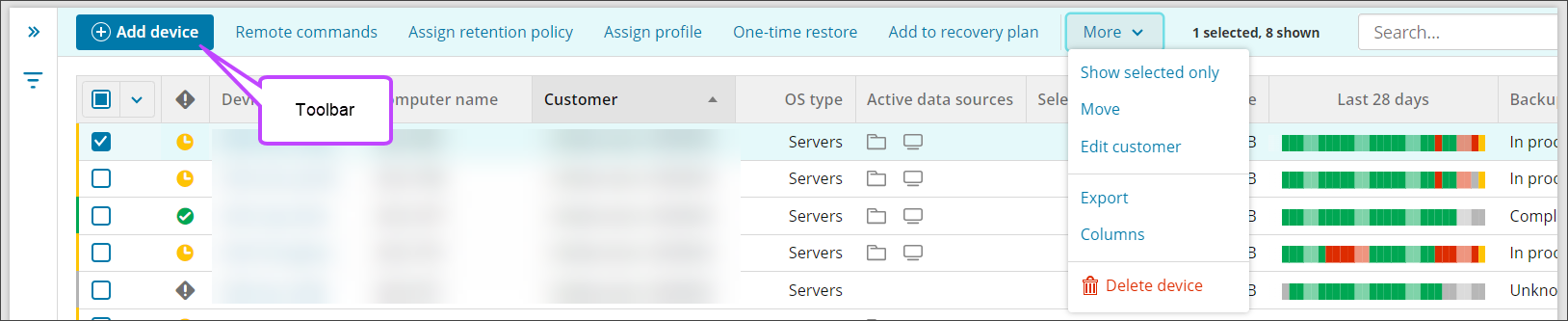
- Add new devices or tenants
- Move a device or tenant to a different customer
- Assign a product
- Assign a profile
- Assign a recovery testing plan
- More:
- Show selected device/tenant(s) only
- Send remote commands to the selected device(s)
- Export monthly device or tenant statistics
- Set the columns to be displayed
- Delete the device/tenant(s)
The toolbar will also display the number of devices/tenants selected out of the total shown.
Search
The Search box has two modes:
- Basic search - allows you to enter a text value for such columns as Name, Customer and Product
For example, type
.co.ukto find all Microsoft 365 domains using a .co.uk suffix. - Advanced search - allows the use of advanced filter expressions to search column data
For example, type
us > 10.giga()to find all devices or tenants with a Used Storage of more than 10 GB, orI78 =~ 'D01D02'to list all devices which backup the Files and Folders and System State data sources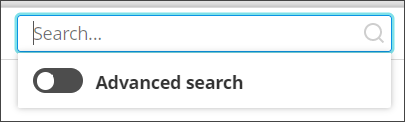
You can clear the search by clicking the X on the search bar.
See the following pages for full details:
- Searching in Management Console
- Expressions for advanced filter in Management Console
- Expressions for advanced filter in Management Console (Legacy)
Filter
Filtering devices and tenants can be done by using the predefined criteria in one of the graphic Widgets or by using the filter panel on the left of the list to narrow down the devices and tenants displayed.
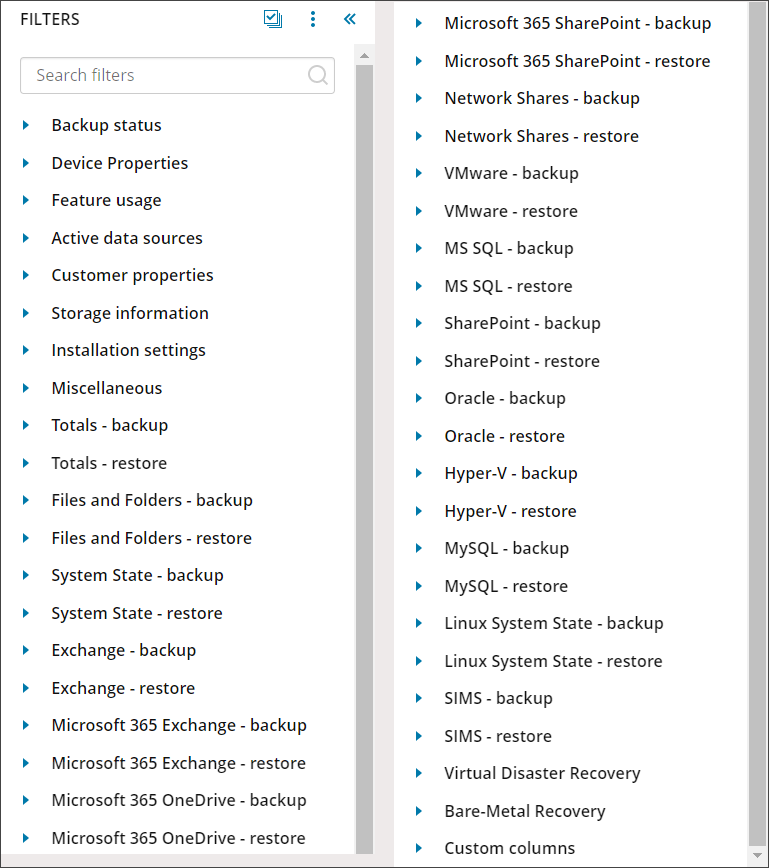
Using the Filters list, you can find devices that meet any multitude of criteria.
For example, if you would like to know which devices back up the System State data source, use a LocalSpeedVault and have a used storage of under 50GB, you can use the following filters:
- Active data sources - System State
- Feature Usage - LSV, select enabled
- Storage Information - Used storage, use the slider bar to move the top marker down to 50GB
You can clear individual filters by clicking the x beside each one from the banner above the toolbar, or clear all filters by clicking the Clear all filters button, or selecting it from the action menu by clicking the three vertical dots in the filter menu.

For full details on filtering, see Filtering Devices in Management Console.
Devices/Tenants List
The devices/tenants list will display a list of all devices and tenants meeting the currently set filter, search and customer conditions. If no filters or searches are applied, the list will display all devices and tenants for the selected customer, or if viewing from the Root customer, all devices and tenants for all customers.
Action menu
The full selection of device management options is available through an action menu. It opens when you click the three vertical dots to the far right of the device, or when right clicking the device name. The view of the Action Menu changes depending on whether you are looking at a regular device, a Microsoft 365 tenant, or a Google Workspace tenant.
For Microsoft 365 devices, only the services configured will be displayed in the Action Menu. For example, if your domain only has SharePoint configured, you will not see an option for Backup Exchange Now, Backup OneDrive Now, Restore Exchange or Restore OneDrive.