
Executive Summary Reports can be manually generated for one or more customers at a time, or set to automatically generate using a schedule.
Executive Summary Reports can be generated by:
- Administrator level users
- SuperUser level users
Manually Generate Report
Reports can be manually generated for one or more customers by:
- Log in to the Management Console under a SuperUser or Administrator account
- Navigate to Reporting > Executive reports (Preview) in the vertical menu
- Select the Customer/customers for whom you wish to generate the report
- Select the Report month from the month picker at the top of the page
- Click Generate report in the dashboard or from the action menu (single reports only)
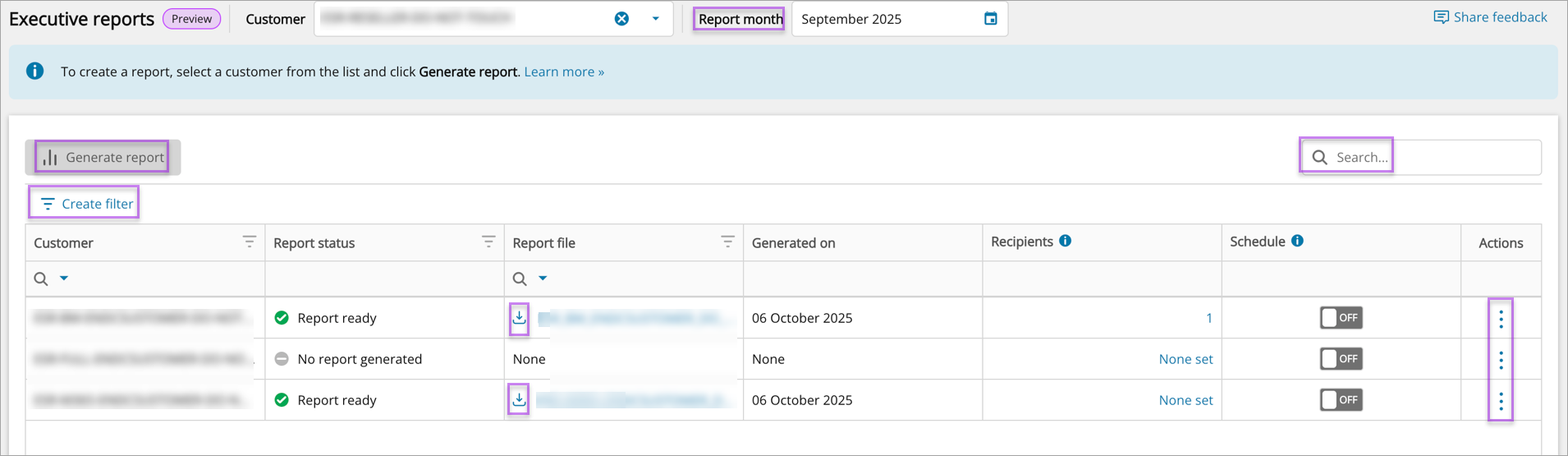
- Once the report has generated, you can click the report download link in the Report file column. The Executive summary report is generated in PDF format.
The generated report name will be in format CustomerName_CustomerId_MonthName-Year_ESR.pdf
The report can be generated for the last six months, excluding the current month.
Auto-Generate and Schedule Reports
- Log in to the Management Console under a SuperUser or Administrator account
- Navigate to Reporting > Executive reports (Preview) in the vertical menu
- Find the Customer for whom you want to set a schedule for
- In the Schedule column, enable the automatic generation of reports by moving the toggle from OFF to ON
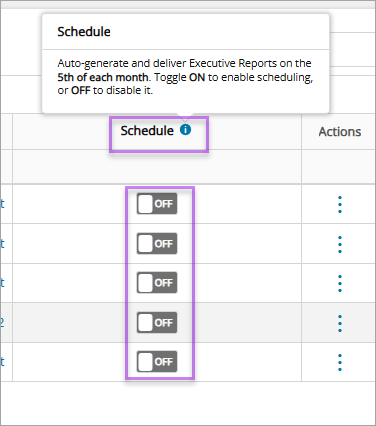
Once the Schedule has been enabled for a specific report, the report will automatically be generated and delivered to the recipient on the 5th of every month.
You can generate and share the report manually on any other day, if required.