
In Cove Data Protection (Cove), custom columns can be created and added to the Backup Dashboard view. Custom columns with their values are visible to all users.
Custom columns support text values only (no date or numeric functions are available for filtering). We strongly discourage storing sensitive information like Encryption Key/Security Code or passwords in custom columns.
Permissions required
- A SuperUser level account is required to:
- add custom column
- add data to custom columns
- rename custom columns
- remove custom columns
Only custom columns created by Users from your Customer can be renamed or removed (it is not possible to edit columns created by other Customers)
- Custom columns can only be added to your Customer views. These cannot be added to views belonging to other Customers
Key
The following icons indicate availability:
| Key | Status | Description |
|---|---|---|

|
Available | Is available for all |

|
Available if additional criteria met | Is available for all, so long as an additional criteria is met (see * for additional information) |

|
Not Available | Is not available |
For Distributor
| Action | Columns created internally | Columns created by Resellers and End Customers |
|---|---|---|
| View |
|
|
| Rename & remove |
|
|
| Add to view |
|
|
| Add data |
|
|
For Reseller
| Action | Columns created internally | Columns created by Distributor | Columns created by End Customers |
|---|---|---|---|
| View |
|
|
|
| Rename & remove |
|
|
|
| Add to view |
|
|
|
| Add data |
|
|
|
For End Customer
| Action | Columns created internally | Columns created by Distributor and Reseller |
|---|---|---|
| View |
|
|
| Rename & remove |
|
|
| Add to view |
|
|
| Add data |
|
|
Adding Custom Column
- Sign in to the Management Console
- On the Backup Dashboard, click the Columns option on the toolbar, or if a device is selected, this can be found in More > Columns

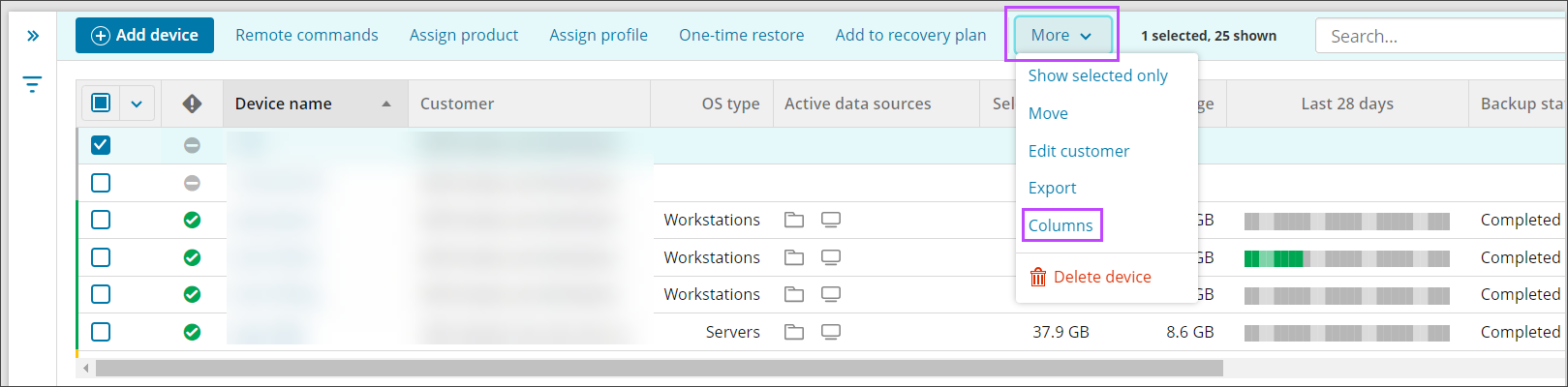
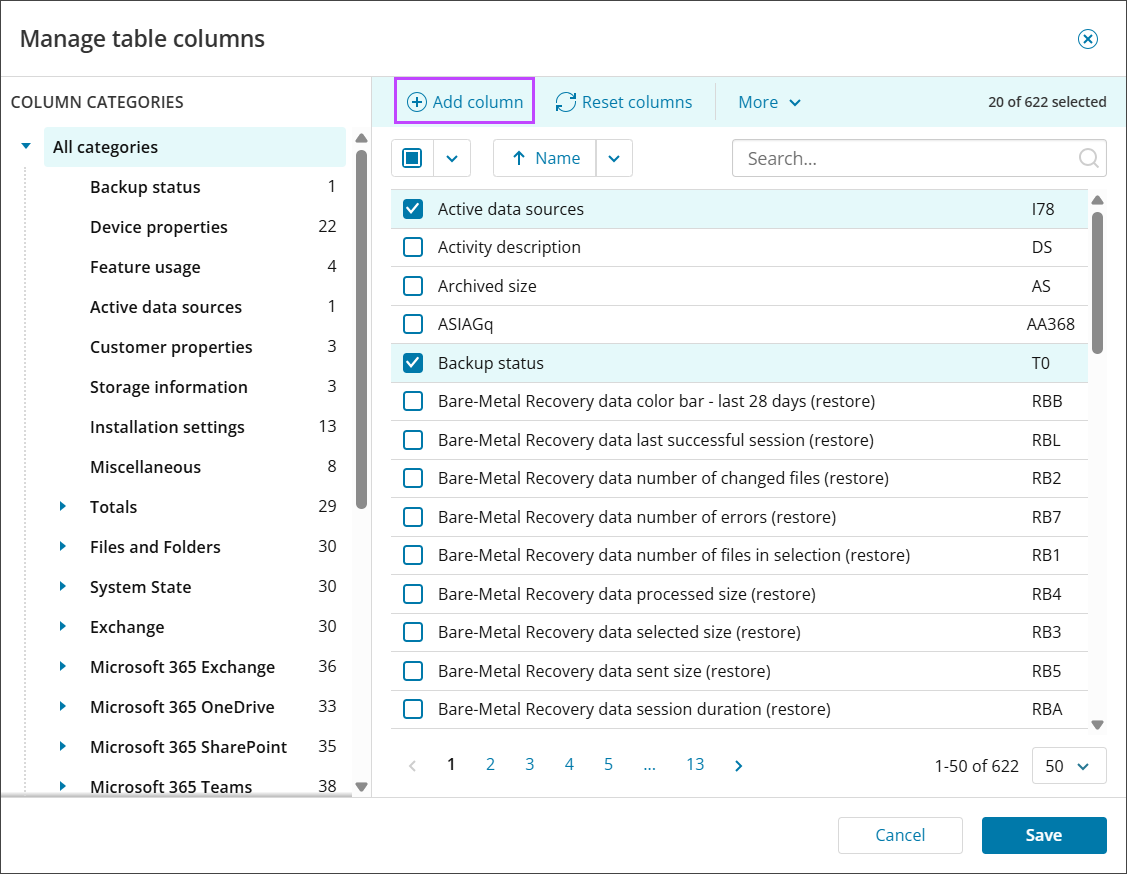
- The Manage table columns window is shown
- Click Add column
- Give the column a unique name
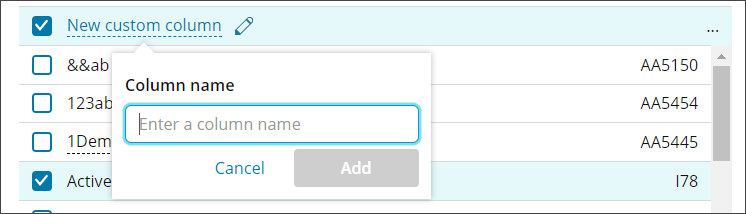
- Click Add
Each column requires a unique shortcode so it can be identified in the future. This is allocated automatically and cannot be changed
Add Data to Custom Columns
You can add data to columns created by users from your Customer and parentCustomers
- Sign in to the Management Console
- On the Backup Dashboard, add the column to your view
- Scroll until the column comes into view and point the cursor to the cell for the device to add data to
- Click Enter Value
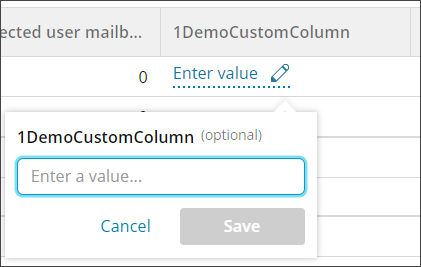
- Enter the data to store in the column
- Save the changes
Manage Custom Columns
- Sign in to the Management Console
- On the Backup Dashboard, click the Columns option on the toolbar, or if a device is selected, this can be found in More > Columns
- The Manage table columns window is shown
- Use the Column Categories panel to display only Custom columns
- Click Edit or Remove next to the column
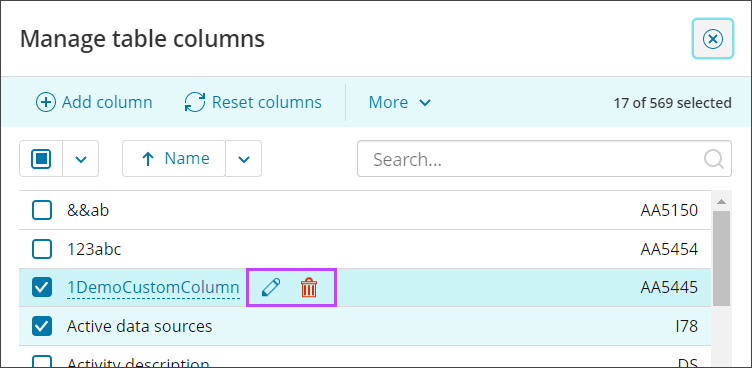
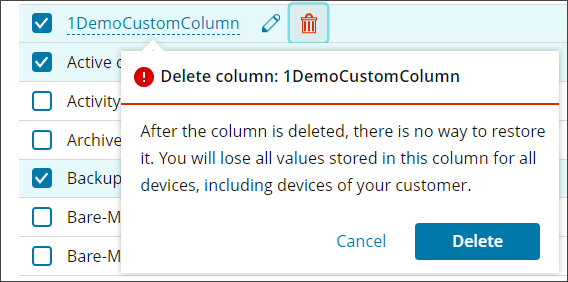
- Editing allows you to change the column name only. If deleting, you must confirm deletion:
Columns created at a parent level to where you are logged in will not be editable or deletable. The Edit and Remove icons will be replaced by a padlock.