
Before you begin restoring Microsoft 365 Teams data, ensure you have met the necessary requirements:
Requirements
The following account types are required:
- A user account for the Management Console at the following user level:
- SuperUser
- Administrator
- Manager
- Operator
- The Security Officer role assigned to the above user account.
- A Global administrator account for the Microsoft 365 tenant.
Instructions
- Sign in to the Management Console using a SuperUser or Manager account with Security Officer permissions.
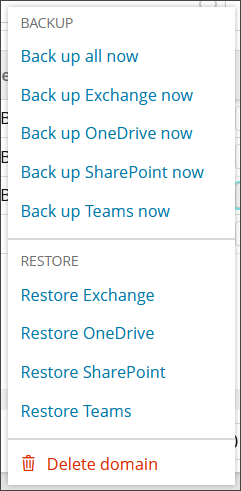
- Open the action menu for the workload and click Restore Teams.
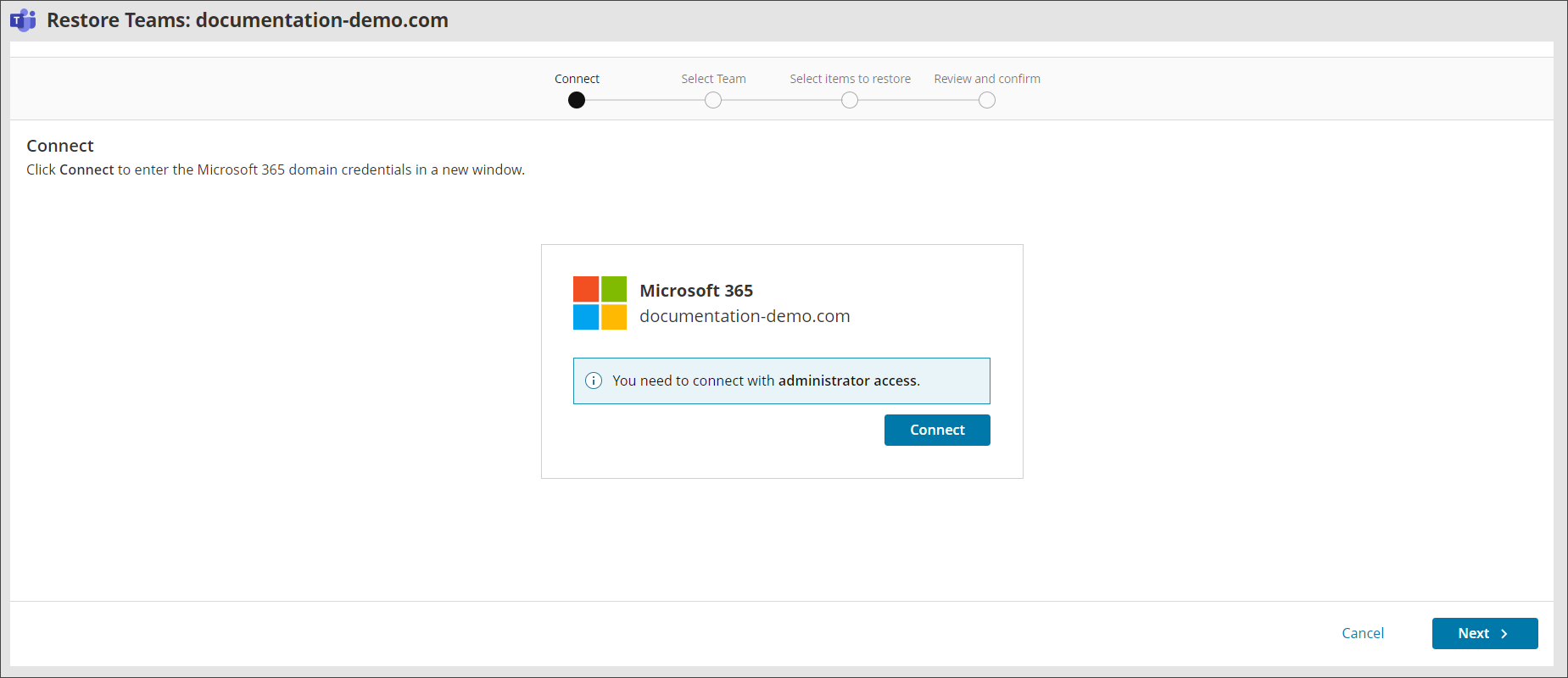
- Connect to the Microsoft 365 Teams tenant with administrative account credentials.
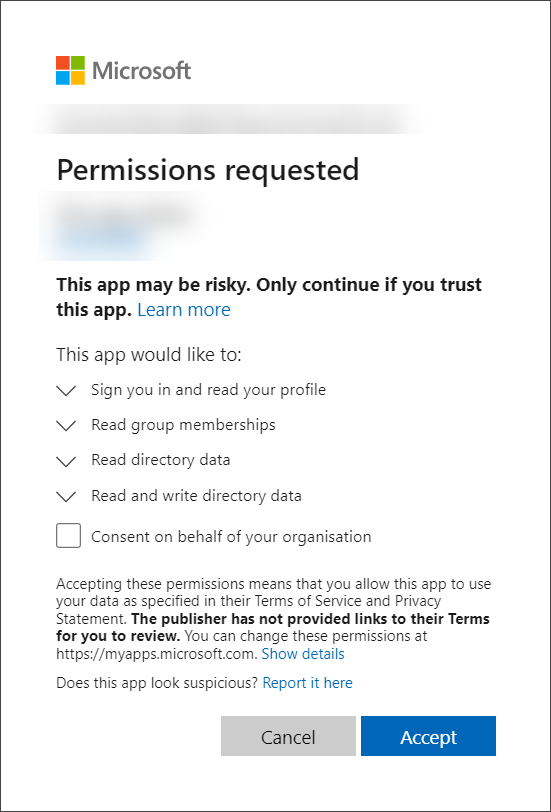
- Accept the required permissions.
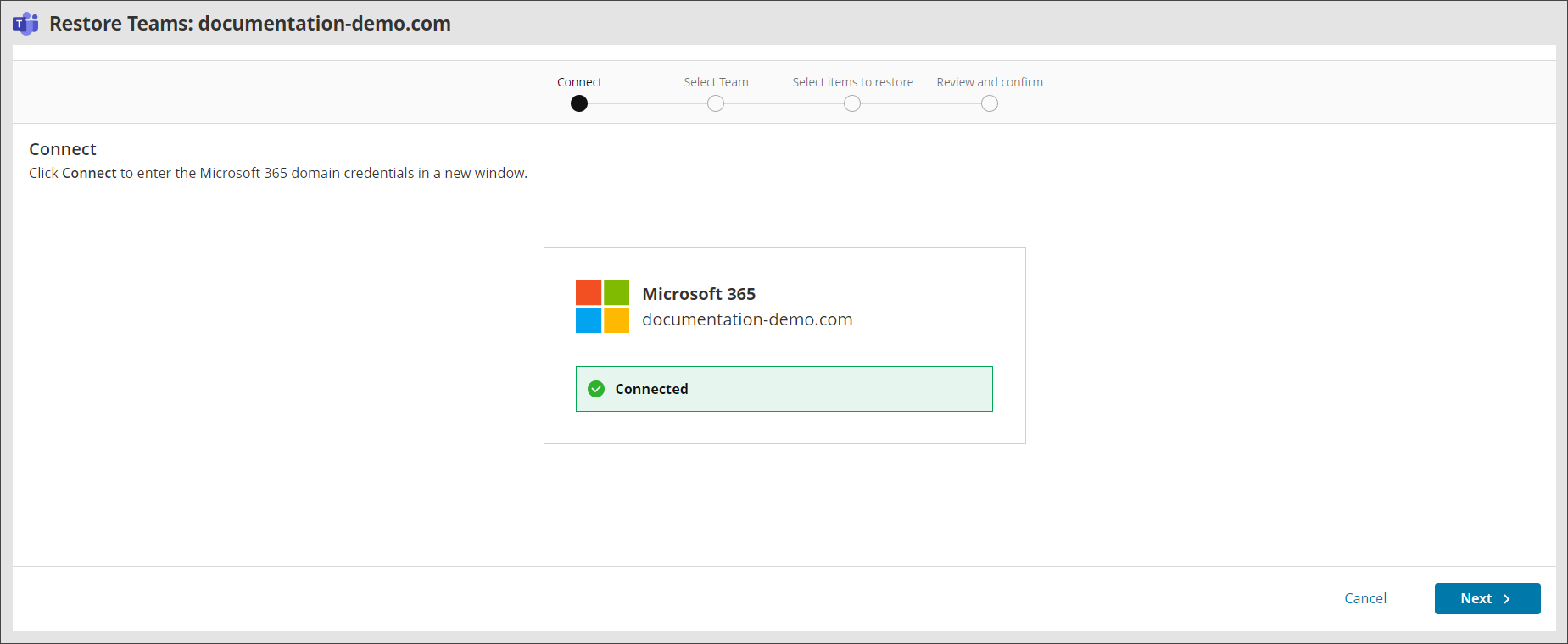
- You will receive a confirmation that the connection has been successful for the restore, click Next to proceed.
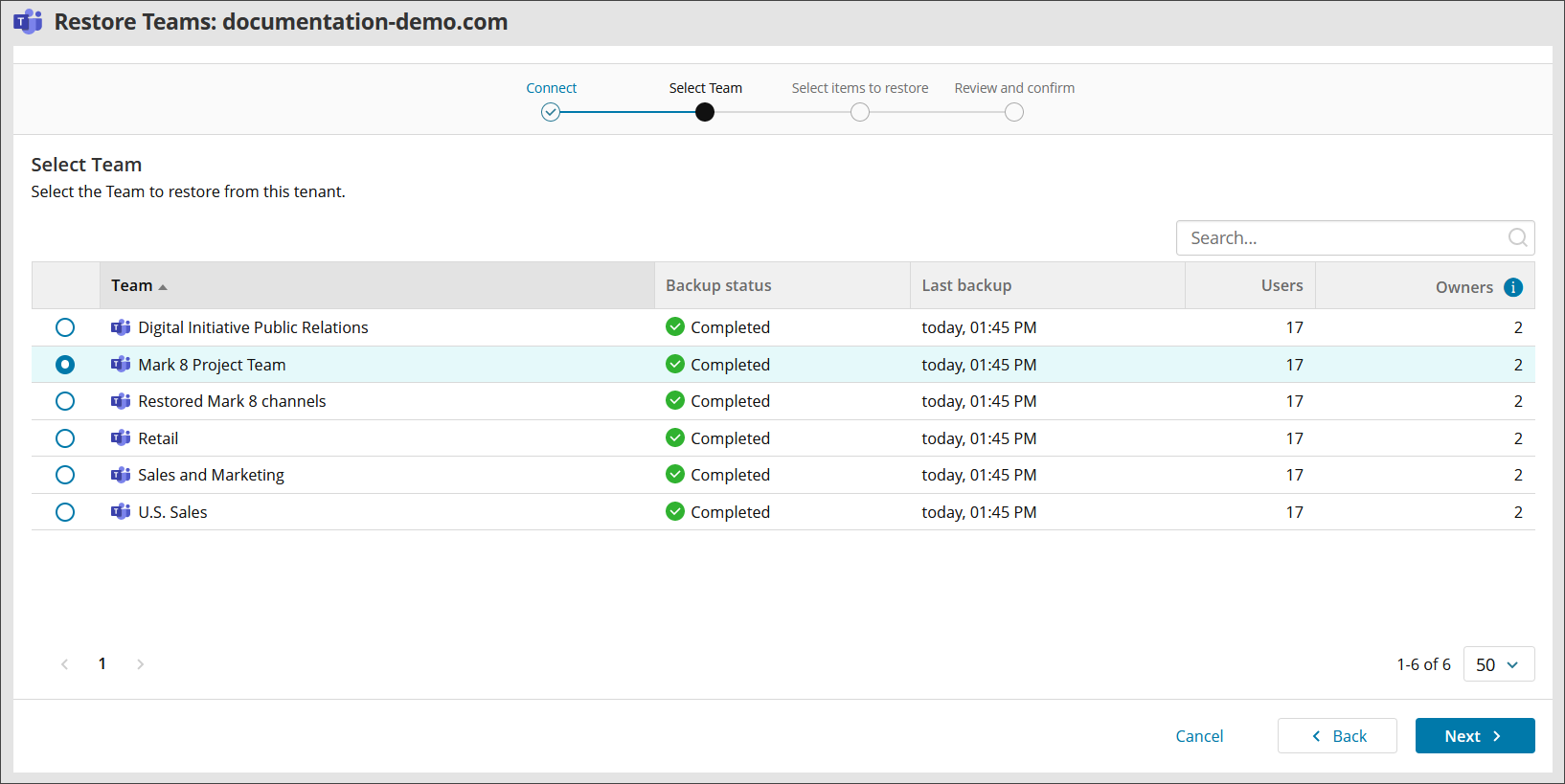
- Select the Team you wish to restore from and click Next.
You will see the list of backed up teams, the backup status of the team, the time and date of last backup, number of users and number of owners.
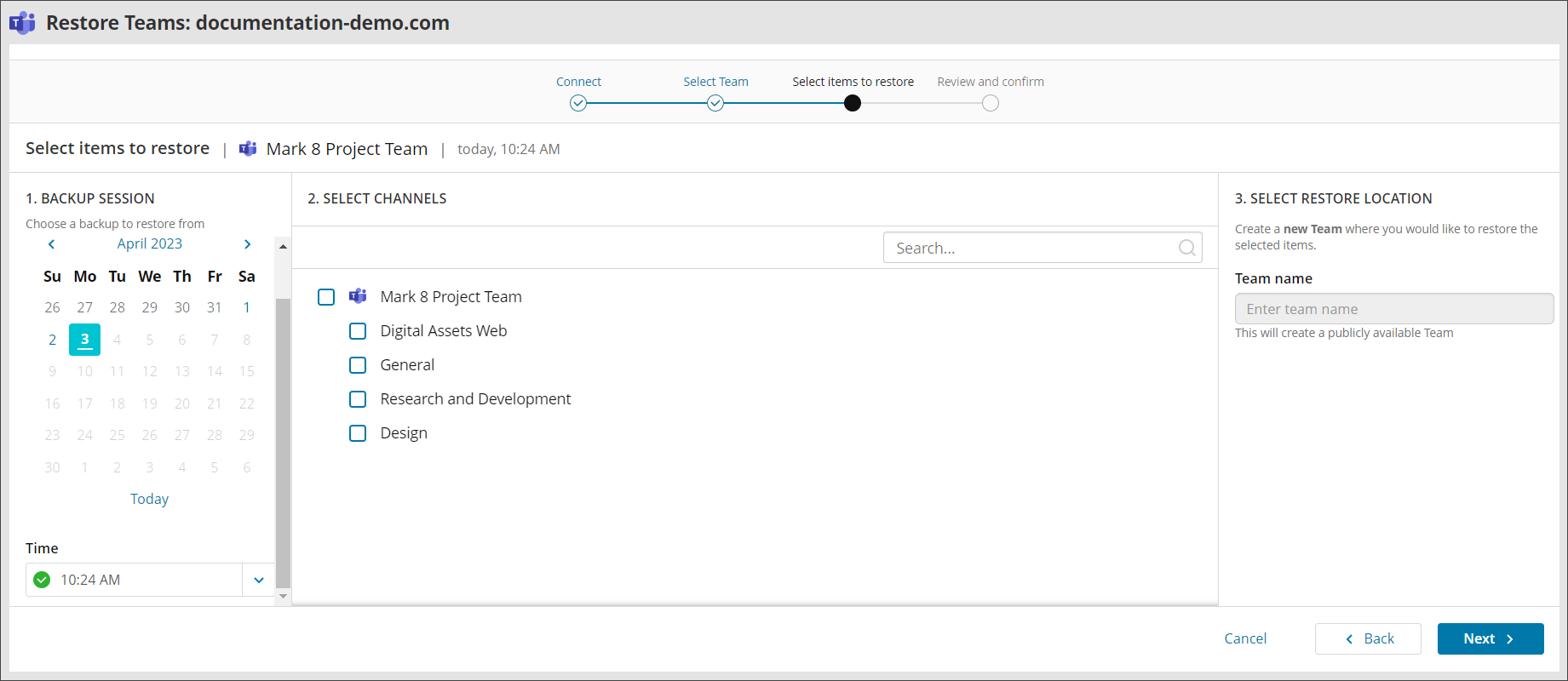
- Select the backup session using the calendar and time dropdown and then select the channels to restore from the backup tree.
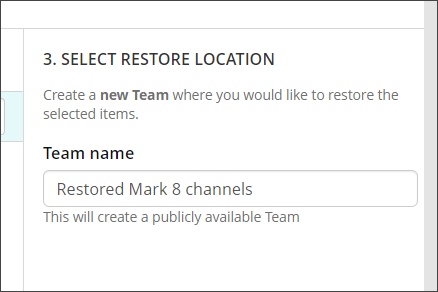
- Provide a new Team Name of the recovery location where you would like to restore the selected items.
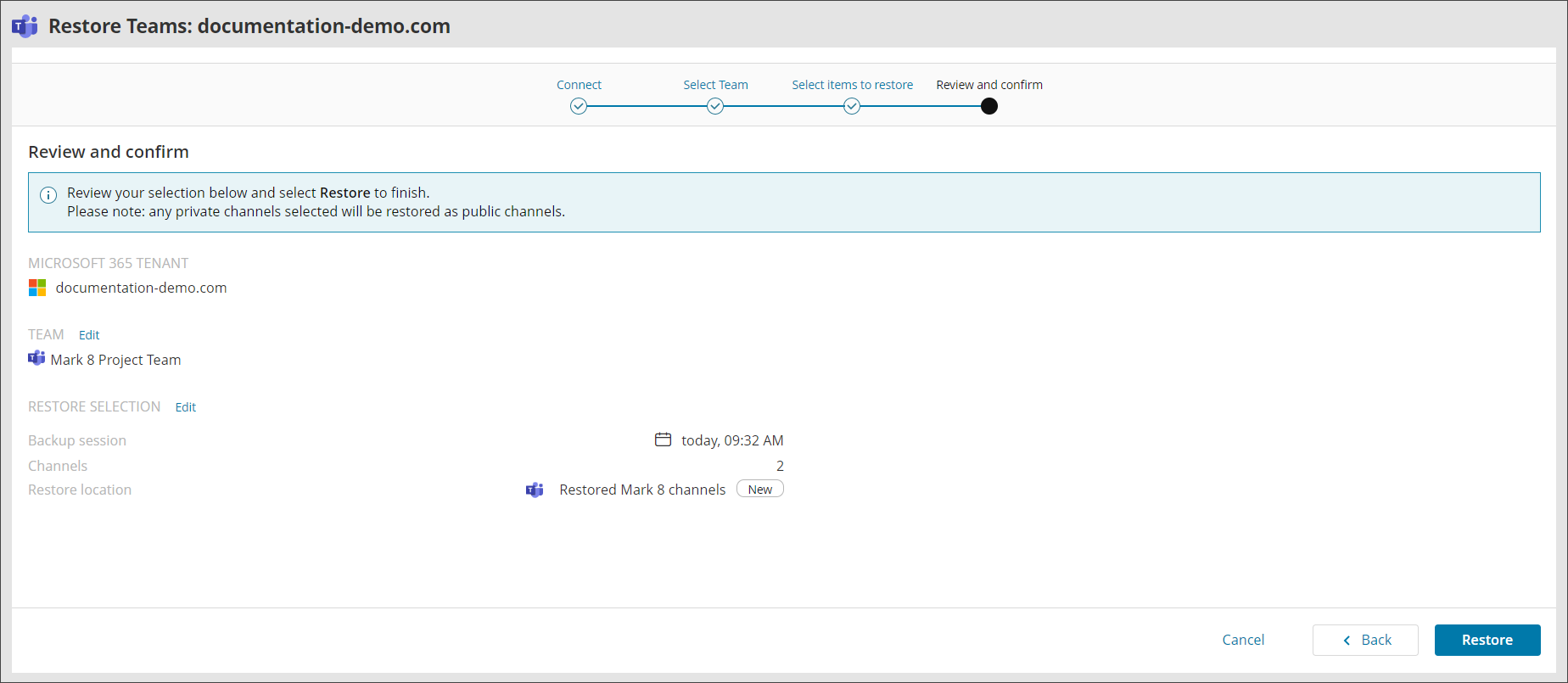
- Click Next.
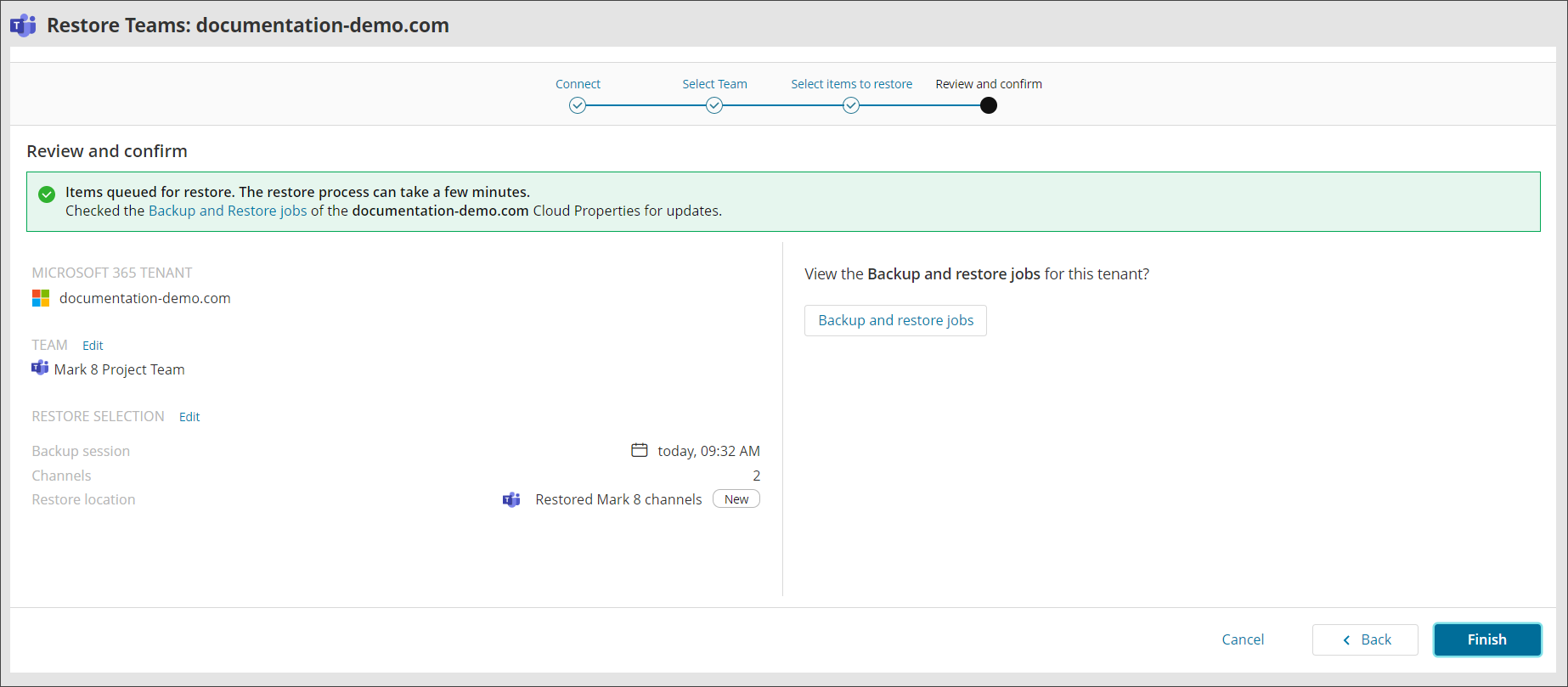
- Confirm your intention to start the recovery and close the wizard.
If you do not see the authentication page, make sure your browser is not blocking pop-up windows.